Field Explorer
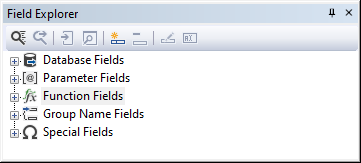
The Field Explorer is by default visible and docked at the right-hand side of the main window. If it is not present, it can be opened from the 'View' menu or the  button from the button bar. The Field Explorer is used for adding fields to a report. The tree view shows five top-level branches.
Floating Menu
A right mouse click on one of the Field Explorer's items brings up a floating menu with the most used options such as "Create new". All choices are context-sensitive. In the following screenshot, the floating menu only shows the choices "Show field types" and "Show In Use" as they are valid for any item in the tree.
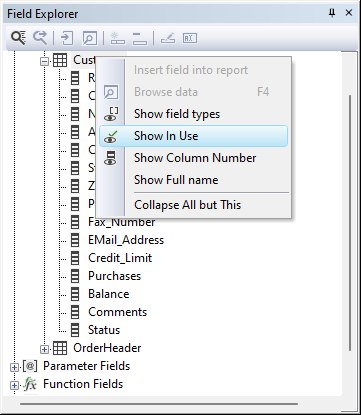
The following options are available:
Insert field into report
This choice is only available if the selected tree item is a column from a table, a parameter field, a function field, a group name field, or a special field. The selected item in the screenshot is a table, which means the option is disabled.
Browse data
This choice - also available via F4 - opens a dialog to browse through the data of a database table column. It will only be available if the current tree item points to a table column.
Show field types
This option changes the contents of applicable nodes in the Field Explorer's tree. When turned on, the type of the field (integer, numeric, string, etc.) is added to the tree item label.
Show In Use
This option, when turned on, changes the icon used for a tree item when the database column, parameter field, function field, group name field, or special field is used in the report.
Create new
This option opens a dialog to create a new parameter or function field. The option is not available for database fields, group name fields, and special fields.
Delete
This option can be used to delete a parameter field or function field. A question pops up if the field is used in the report layout, and after confirming the action, the field will be removed from the layout.
Edit
This option can be used to edit a parameter field, a function field, or a group name field.
Rename
This option can be used to rename a parameter field or a function field.
Tool-bar
The Field Explorer contains the following tool-bar. The buttons become available based on the active tree node.

The first two buttons are for searching in the Field Explorer. To start searching, click the first button, enter a search string, and if a node is found containing the search string, it will be selected. The search is case insensitive. The search can also be started via Ctrl+F. Repeat the search by clicking the second button or pressing the F3 key.
The third button can be clicked if the current tree node is an insertable field. An insertable field is a database field, a parameter field, a function field, a group name field, or a special field.
The fourth button can be clicked if the current tree node is a database field, and it pops up a dialog with sample data from the data-source.
The last four buttons are for creating, deleting, editing, and renaming a parameter field or function field.