Moving and resizing of fields and objects
A field can be selected with the mouse and dragged to the appropriate position. Resizing a field can be done by hovering the cursor over the border of the field. When the cursor shape changes, drag with the mouse to resize the field.

Fields can be selected via a lasso. Hold the Shift key down and drag with the mouse. Fields can also be moved using the cursor keys on the keyboard. Resizing can be done by keeping the Shift key pressed while clicking a cursor key. When multiple objects are selected with the lasso, the order of selection depends on the order in the Report Explorer.

The way the cursor keys react depends on the settings of the grid options. Read more about this in the section DataFlex Reports Options.
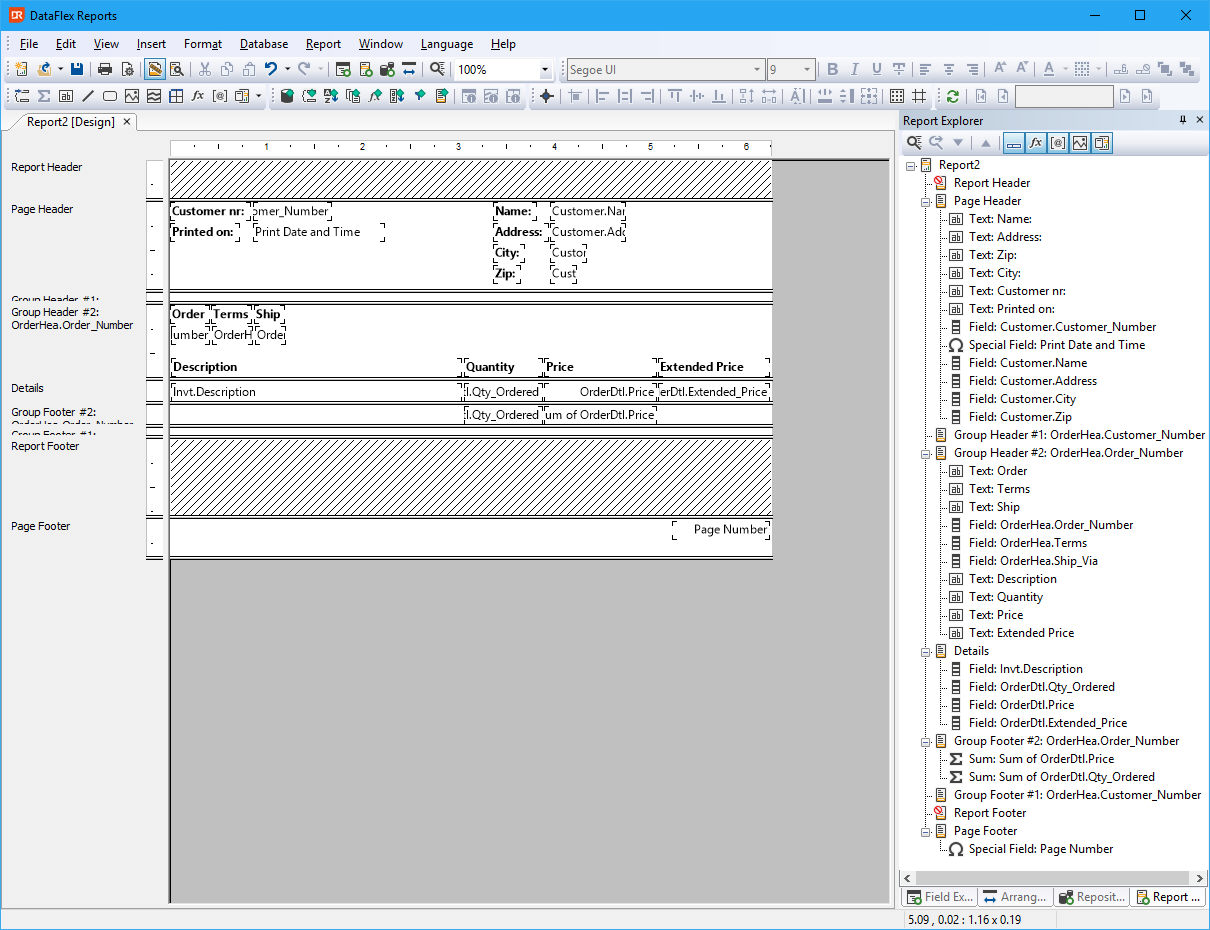
A number of fields in the 'Details' section need to be moved to one of the 'Header' sections.
Before starting to move anything, it makes sense to enlarge the 'Header' sections.
Move the cursor over the bottom separator of the section. The cursor shape changes, and the section can be enlarged by holding the left mouse button down while dragging the separator down.
Multiple fields can be moved at once: Select multiple fields with the mouse while keeping the Ctrl key pressed. Then move all selected fields to the 'Group Header #1' section by dragging the mouse while holding down the left mouse button.

Replace 'OrderHea.Order_Number', 'Orderhea.Terms', and 'Orderhea.Ship_Via' to 'Group Header #2' and 'OrderHea.Customer_Number', 'Customer.Name', 'Customer.Address', 'Customer.Zip', and 'Customer.City' to the 'Page Header'.
Next step: Changing the appearance of fields