Changing the appearance of fields
Looking at the report in the preview window, you may want to change the formatting of certain fields.
The appearance can be changed via field properties. Numeric fields, for example, will show 2 decimals by default. Start the field properties dialog from the format menu by choosing the 'Field Properties' menu item or by clicking the right mouse button on the field and then selecting the 'Field Properties' option.
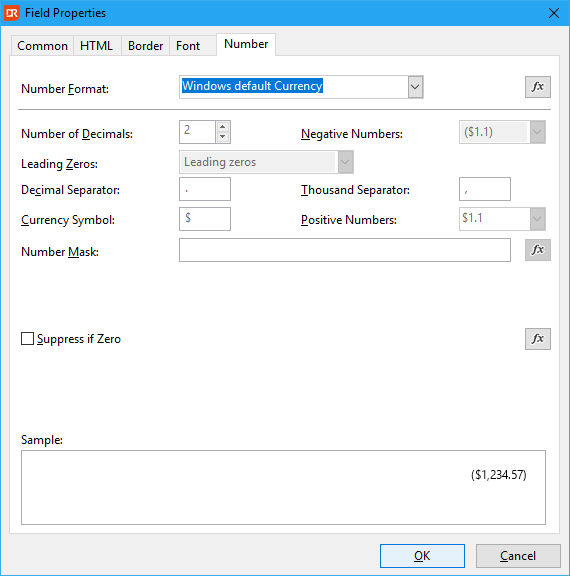
Select the object 'Sum of OrderDtl.Qty_Ordered' and open the properties dialog. On the last tab page, change the 'Number format' to 'Custom Number' to have zero decimals and remove the Thousand Separator. Click the 'OK' button to save this setting.
Next step: Add lines and text objects