Report Menu - Filter Function
This dialog makes it possible to create complex data filters. Simple data filters (like amount > 1000 and price = 1.99) can be managed via the filter expert, but it is of course allowed to enter them here as well.
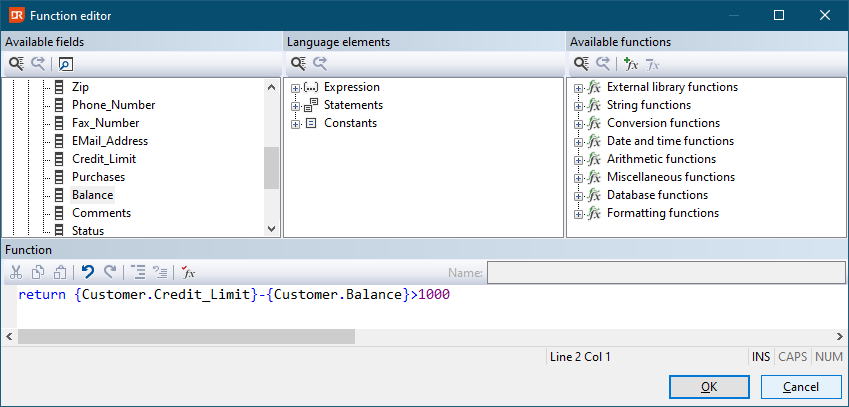
Dialog
The dialog is divided into 4 panes.
| Panel caption | Description |
|---|---|
| Available fields | Contains the report fields, summary fields, database fields, function fields, parameter fields, special fields, and global variables. |
| Language elements | Contains three categories: Expression, Statements, and Constants that can be selected and inserted into the function editor. |
| Available functions | Contains the built-in and ELF functions available to the report. |
| Function editor | Contains an editor where the body of the function needs to be entered. |
Language / Syntax
DataFlex Reports uses a VB-like scripting language for functions. This means that a function should use the RETURN statement to terminate the function and return a value.
Function examples
In the screenshot above, a filter function is defined that returns all rows where the difference between the value for the customer credit limit and balance is over 1000. Without a filter function, it would not be possible to filter these values.
As another example of a more complex filter, one could take the first character of a product code and compare this with a character (like 'T'). The code for this would be:
return left({Invt.Item_ID},1)='T'
Instead of using a constant letter, one could define a parameter and use this:
return left({Invt.Item_ID},1)={?ItemIDStartsWith}
Now it is possible to return different data based on the value of the parameter. At the report integration level, it would be easy to filter on the character by dynamically changing the parameter value.