Windows Applications
Wizard or Template
There are two ways to create a component that can be used in a Windows application:
- Via the DataFlex Reports Wizard
- Using a Template
Using the Wizard
To start the wizard, go to the File menu and choose the 'New' option, followed by the 'View / Report' option.
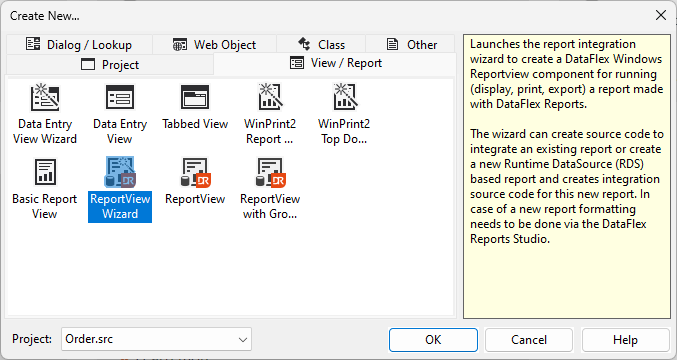
For the explanation of the wizard that follows, it is assumed that:
- The 'Order Entry' workspace is selected.
- The DataFlex Reports library is added to that workspace.
- A simple report, named "CustomerList.dr", was created with DataFlex Reports in the Reports folder showing customer data. A report with this name is present in the WebOrder example folder and can be copied to the Reports folder of the 'Order Entry' workspace to bypass the requirement of creating one.
- The Windows project (Orders.src) is selected in the workspace.
Selecting the wizard brings you to the welcome page.
Using a Template
The DataFlex Reports integration library contains two templates that can be used to create a Windows component:
- Reportview
- Reportview with group tree
These templates facilitate the creation of a DataFlex Windows ReportView component, incorporating an instance of the cDRReport class. Once the component is generated, it is imperative to specify the report filename, set the output destination, and, if applicable, determine the export type and filename.
Before employing the component, it is essential to define a report using the DataFlex Reports Studio.