Report Menu - Group Sort Expert
The Group Sort Expert can be launched from the 'Report' menu or by clicking the appropriate button in the button bar.
Group data can be sorted on one or more sum fields, using different kinds of sorting types.
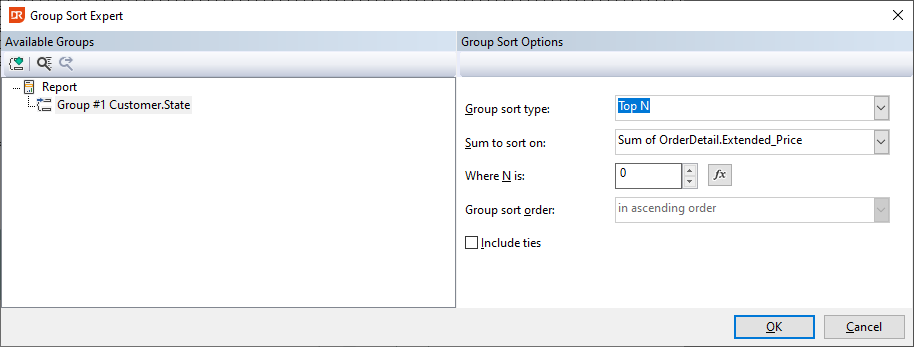
The toolbar on the left has the following options:
 When a group is selected, it can be inspected. Clicking this button opens the Group Expert.
 Search for a group in this list.
 Find the next group that matches the search.
Group Sort Options
After selecting a group, the group sort options can be set in the panel on the right-hand side. Setting the sort options is only possible if there is at least ONE sum field for the group.
The combo box ‘Group sort type’ is for setting the sorting type to: ‘None’, ‘All’, ‘Top N’, ‘Bottom N’, ‘Top N percent’, or ‘Bottom N percent’. For the last four types, the entry form ‘Where N is’ is enabled for entering the value of ‘N’. For sorting type ‘All’, the combo box ‘Group sort order’ is enabled for selecting an ascending or descending order.
The combo box ‘Sum to sort on’ is for selecting the sum field to sort on.
The button  opens the function editor (for inspecting/modifying the Sum sorting function).
Check the option ‘Include ties’ to accommodate groups whose summarized values are equal. The example below explains what the results are when the ‘Include ties’ option is checked for sort type ‘Top N’ and N = 3.
| Summary Value | Option 'Include ties' not selected | Option 'Include ties' selected |
|---|---|---|
| 1000 | ✓ | ✓ |
| 750 | ✓ | ✓ |
| 500 | ✓ | ✓ |
| 500 | - | ✓ |
| 500 | - | ✓ |
| 250 | - | - |
By checking the option 'Include ties', five groups rather than three are selected.