Attach Library
In order to use integrated reports in a DataFlex workspace, the DataFlex Reports library must be added to that workspace.
For DataFlex version 26
The report integration library is available as installable package. The most up-to-date package is always stored in the DataFlex package manager server. During installation of DataFlex Reports Developer Edition you can choose to install the library for DataFlex 26 as local package as well.
Open the package manager page in the DataFlex Studio
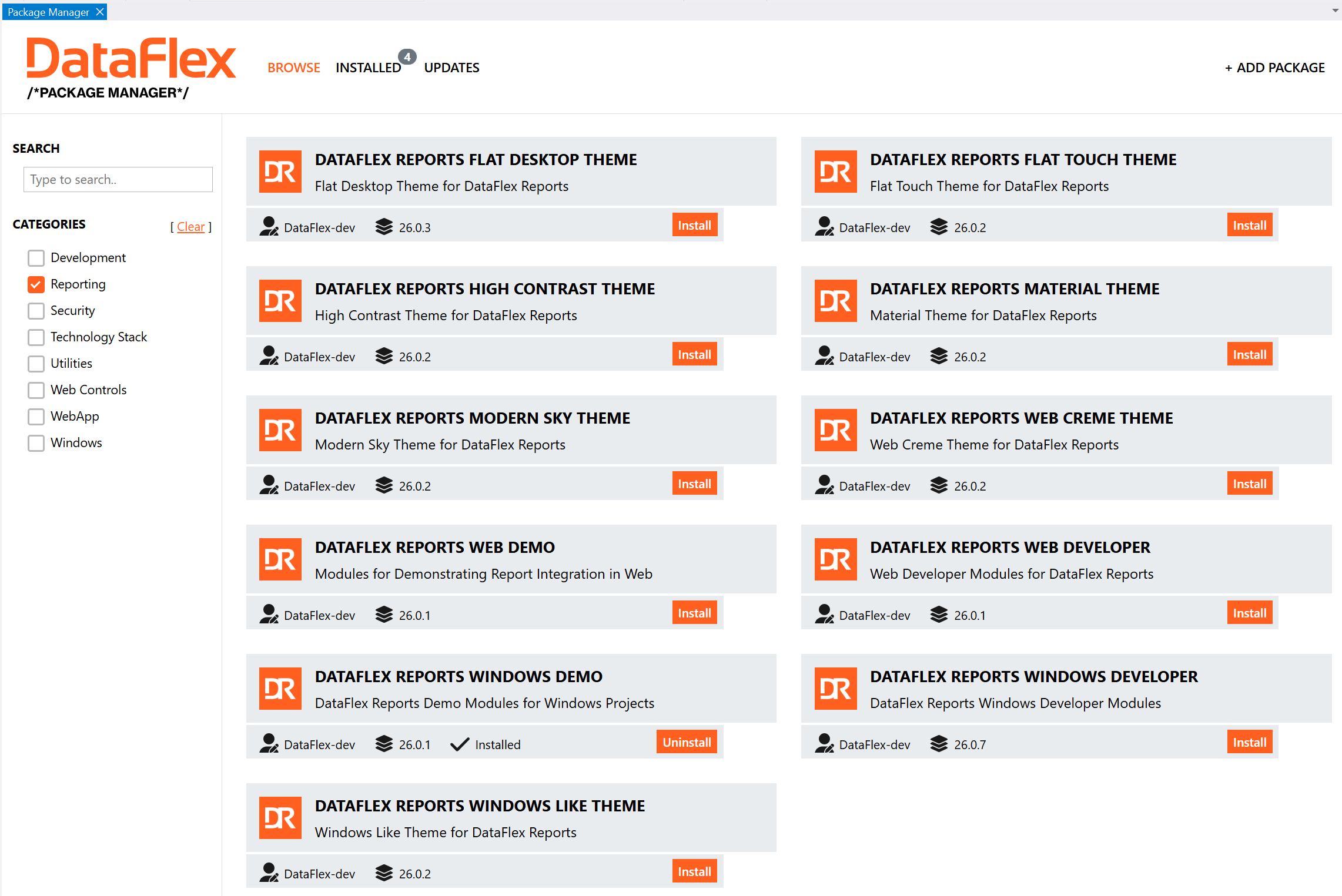
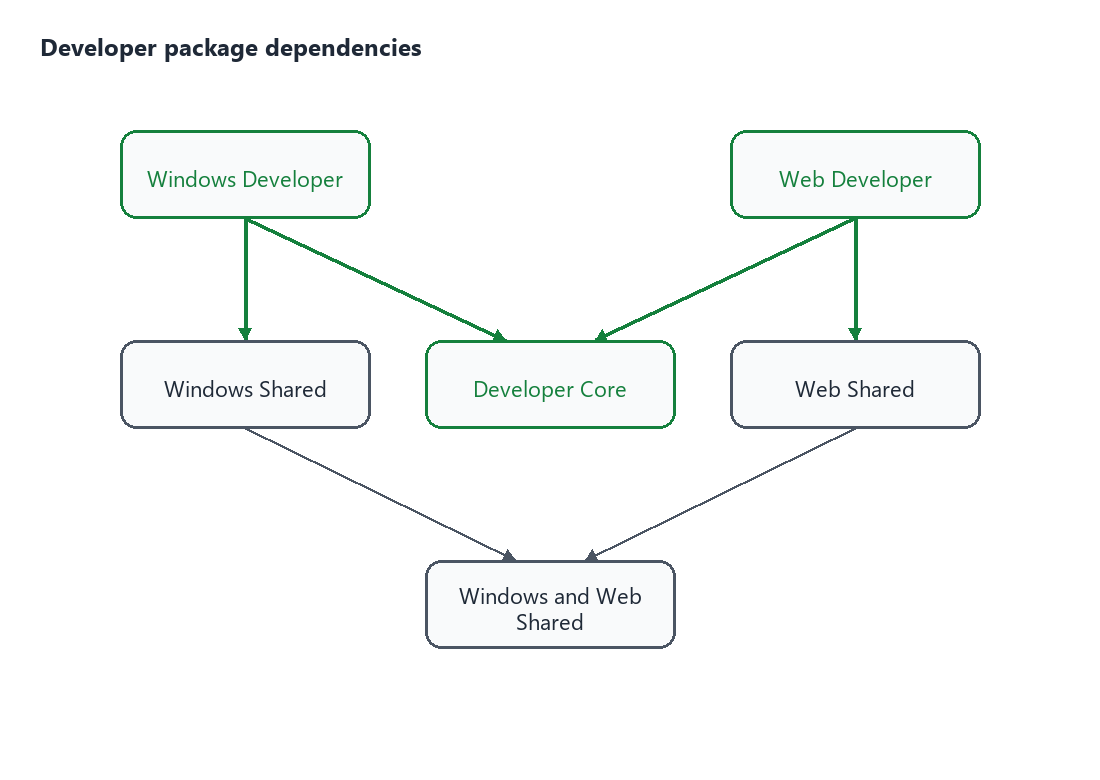
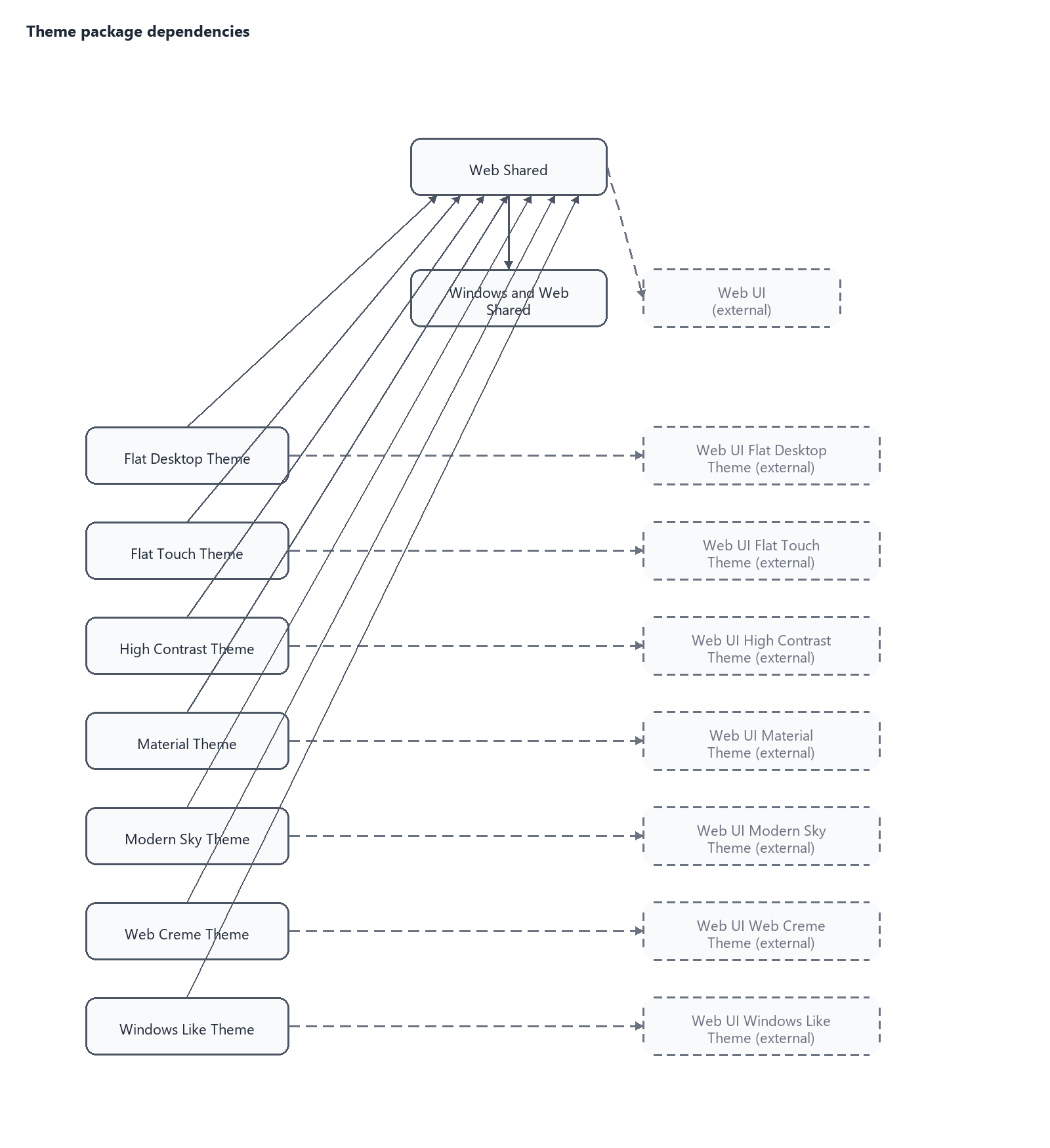
and select the DataFlex Reports Windows Developer and/or DataFlex Report Web Developer package. The package will be downloaded to your workspace. After that classes, wizards, images will be available in your workspace. Web applications typically use a theme and DataFlex Reports themes matching the standard DataFlex themes are available as package. Select the theme package that matches the theme in use with your application.
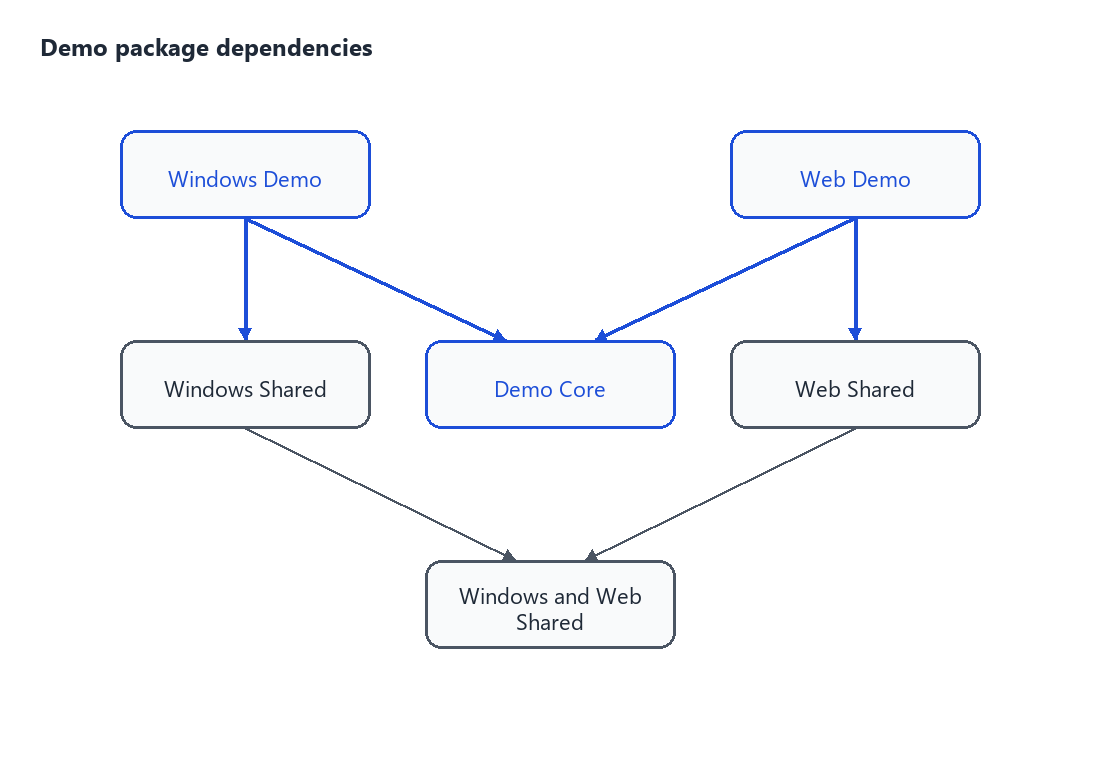
The structure of the packages is as follows:
Note: The DataFlex Package Manager server also has DataFlex Reports Windows Demo and DataFlex Reports Web Demo packages available. These are for demo/evaluation purpose.
For DataFlex version 25 and older
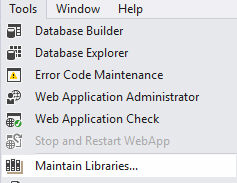
Select the Maintain Libraries option from the Tools menu to add the DataFlex Reports library to the current workspace.
Browse to the location of the DataFlex Reports library after clicking the Add Library button in the Library Maintenance dialog that opens. In the library folder, select the SWS file.
During the installation of DataFlex Reports, one or more library versions could be installed. Depending on the installed DataFlex version, a library may or may not be available. Browse to the library folder that matches the DataFlex product currently in use and select the SWS file from that folder.
Starting with DataFlex 18.2, the library maintenance dialog includes a DataFlex Reports Library button. Clicking this button instead of Add Library checks the usual locations (C:\libraries and .\libraries inside the DataFlex root folder). If you are using an older version or if the library is not installed in one of the default locations, you will need to browse to the library folder that corresponds to the DataFlex product currently in use and select the SWS file from that folder.
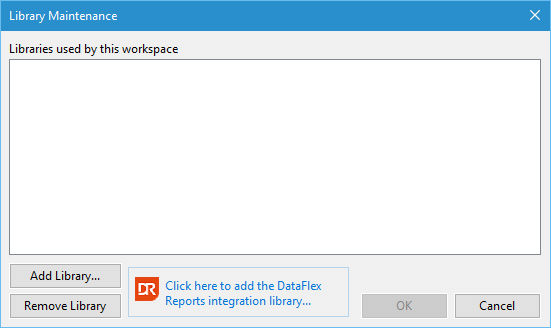
Click the OK button to connect the library to the workspace. A wizard will start to guide you through the attach library process.
When using DataFlex 18.0 or older, on the first wizard page (after the usual welcome page), you can choose to attempt to update the templates.xml file in the DataFlex Reports library. This feature is necessary if the path to the integration wizard stored in the templates.xml file is incorrect.
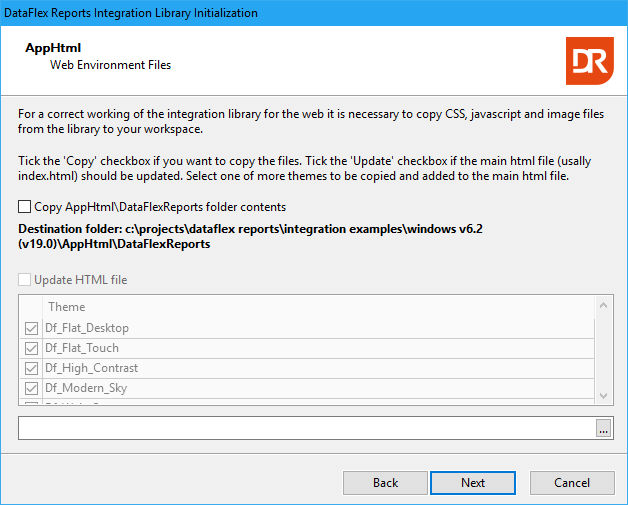
The content of the second page of the wizard depends on the current DataFlex product. If version 17.1 or later is used, the page contains options regarding web application integration. The contents of the library AppHtml\DataFlexReports folder need to be copied to the workspace if a web application is being developed and integration is desired. This action can be skipped if a Windows application is being developed in the workspace. If a web application is being developed, the contents need to be copied, and the CSS file for DataFlex Reports needs to be loaded. One way to do this is by including it in the application.css file. The wizard will disable the option of including if no application.css file can be found. If a web application is being developed, the JavaScript class for previewing DataFlex Reports documents needs to be loaded. The wizard looks for a file named index.html (the default for DataFlex web applications) and offers to update this file. The wizard shows all available CSS themes. Select the themes supported by the web application.
Starting with DataFlex 17.1, a folder named Reports as a sibling of AppSrc and AppHtml will be the suggested folder for reports in a workspace. Reports used in a web application need to store the output in a folder that is not directly accessible from the web browser. The suggested name is Cache, to be created inside the Reports folder. The wizard can create these folders.
All wizard activities can be logged in a text file. Use the contents of this log file to resolve any problems that may arise.