Report Explorer - Field Floating Menu
A right mouse click on a field shows the following floating menu:
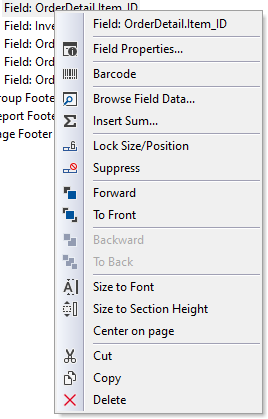
The available options of the menu are explained in the following table.
| Function | Description |
|---|---|
| Field Properties | Setting the Field Properties. |
| Barcode | Change the object into a barcode type object. |
| Browse Field Data | Opens a panel that shows the content of the database field. |
| Insert Sum | Add a sum of a field. |
| Lock Size/Position | Toggle the switch that enables or disables movement and resizing of objects. |
| Suppress | Toggle the switch to show or hide the object in a report. |
| Forward | Switch the position of the current field in the report layout with the next field. This way, the current field will be used/executed after the next field has been processed. |
| To Front | In case objects overlap, an object can be made visible by moving it to the front. For example, place text in front and a picture in the background. |
| Backward | Switch the position of the current field in the report layout with the previous field. This way, the current field will be used/executed after the previous field has been processed. |
| To Back | In case objects overlap, an object can be moved to the back. |
| Size to Font | Resizes the object to fit the size of the used font. |
| Size to Section Height | Set the vertical position to zero and increase the height to the current section height. |
| Center on page | Center the object between the left and right margins of the section, maintaining the vertical position. |
| Cut | Remove the object from the design with the intention to paste it elsewhere. |
| Copy | Copy the object to paste in another section or report. |
| Delete | Remove the object from the design. |