6. Group the data
After selecting database fields for your report, the wizard allows you to group the data. For example, in the 'Order entry' sample data, grouping by 'order-header' and 'order-detail' can be beneficial. For a detailed explanation, refer to the "Group expert" section.
Creating a Group:
- Select Field: In the left-hand treeview, choose the database field you want to group by. This field should appear in both "Report Objects" (selected fields) and the "Data Source" (all tables and fields).
- Add Group: Click the '+' symbol next to "Report Objects" and then select the desired field.
- Apply Grouping: Click the '>' button to group the data by the selected field.
Sorting Groups:
- Default Sort Order: Groups are sorted in ascending order by default.
- Change Sort Order: In the bottom of the right-hand treeview, modify the sort order for each grouped field to ascending or descending.
Removing a Group:
- Select Group: In the right-hand panel, select the group you want to remove.
- Remove Group: Click the '' button to remove the group from the report.
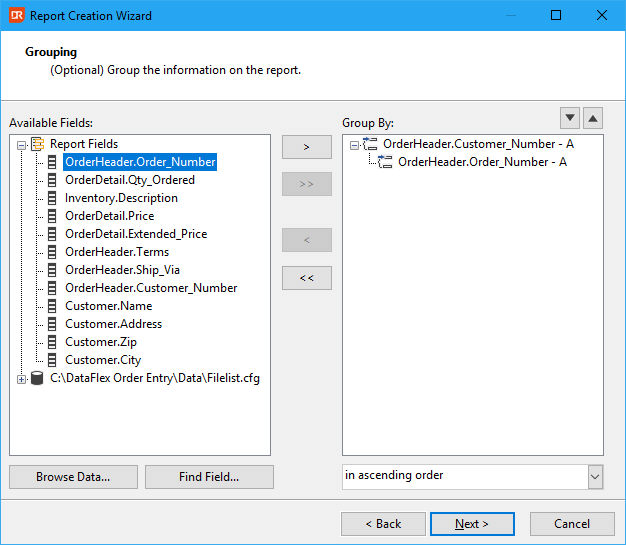
The above screenshot shows grouping by the fields 'OrderHeader.Customer_Number' and 'OrderHeader.Order_Number'.
Next step: Sum values