Enter Sample Data
The option to enter test data is available from the Database menu.
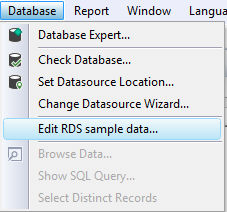
Use the Edit RDS sample data option from the Database menu to enter sample data.
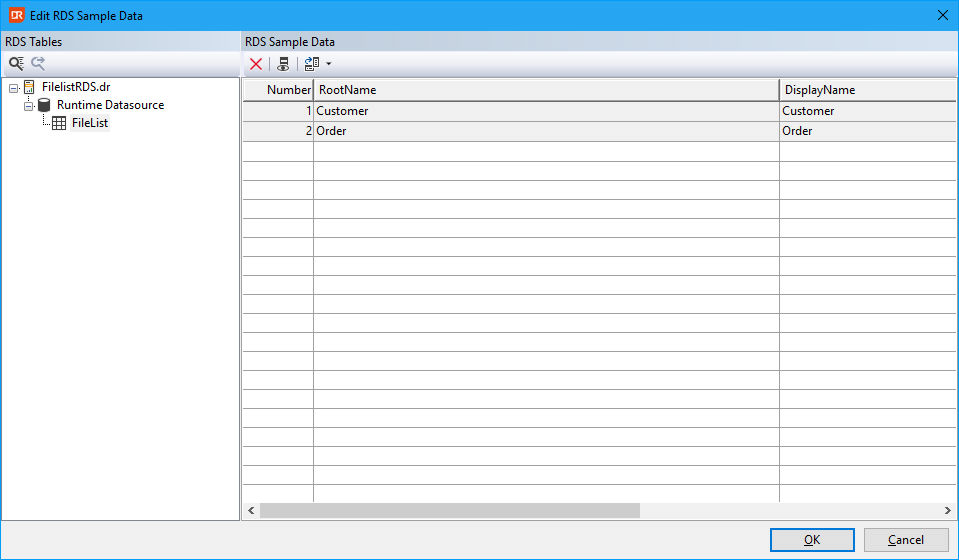
This sample data is useful when previewing an RDS-based report in the DataFlex Reports Studio. Without sample data, the preview will always display an empty report.
The toolbar above the data grid contains the following options:
- Delete a row
- Show/hide row number column
- Export/Import test data
Sample data can also be imported from a JSON file. The format of the JSON file follows the structure of a tDataSourceRow structure in the DataFlex language and looks like:
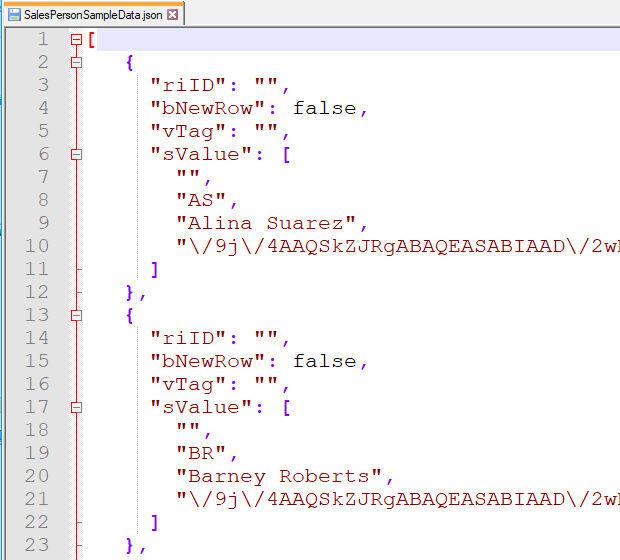
The values for one RDS row are stored in an array of strings inside sValue. The above screenshot shows there are three columns in the data definition. The first value is needed as the grid in the dialog contains a hiddenâ€â€but showableâ€â€column for the row number.
The easiest way to create the test data import file is to enter one row in the test data grid and export this to a file. Then extend and change the contents. A second good option is via the ConvertTableDataToJsonSampleData function in the cDRReport class (available from DataFlex 19.0, as the JSON handler class is not available in older DataFlex versions). For an example of how to use it, see the SalespersonOverviewReport.wo file in the weborder example that is installed with DataFlex 19.1 and higher.