DRStatusPanel.dg
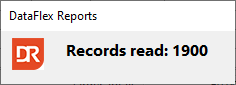
Activating the Status Panel Dialog
The status panel dialog can be activated in a ReportView object by including DRStatuspanel.dg, which is available through the DataFlex Reports library. To enable it, follow these steps:
- Set
pbShowStatusPaneltoTrue. - Assign the object ID of
oDRStatusPaneltophoStatusPanel.
Example Usage
Use DRStatuspanel.dg
Object oReport is a cDRReport
    Set pbShowStatusPanel to True
    Set phoStatusPanel to oDRStatusPanel
Once enabled, the status panel automatically displays the progress of data retrieval and report generation. Additionally, you can manually update the status text by calling SetStatusText:
Send SetStatusText of oDRStatusPanel "some text"
Status Panel Usage in Events
The status panel is used in the following events by sending the SetStatusText message. This is done by:
- OnProgressRecordsRead
- OnProgressFormatPage
- ShowReportLoadingStatusText (private method)
The status panel is shown by sending the DisplayStatusPanel message. This is by default done by:
Customizing the Status Panel
You can create a custom status panel, such as one with a progress bar. However, keep in mind:
- When the panel opens, the exact number of rows to read or pages to format is unknown.
- Modifying the default panel is not recommended, as updates to DataFlex Reports may break your application.
Recommended Approach
The easiest way to customize the panel is to:
- Copy the existing dialog file.
- Use the copied file instead of the default one.
- Rename the panel object to avoid confusion.
This ensures compatibility while allowing you to tailor the panel to your needs.