Creating New Toolbar Items
Selecting a Control Type
When you select a toolbar object or a toolbar item, the designer creates a combo button at the end of the toolbar which can be used to create a new toolbar item in that position.
Clicking the combo button pops up a combo list of available control types that can be used to create a new toolbar item. These types correspond to the peControlType property of the new toolbar item. Select one of the listed types:
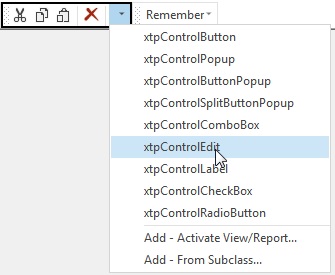
For more information, see peControlType.
Default Menu Item Class
When creating toolbar items in this way, the default menu item class [cCJMenuItem](../VdfClassRef/Windows/cCJMenuItem.md) is used to create the new object. This can be configured for the current workspace in the Configure Workspaces - Class Preferences dialog.
Adding a View/Report
A special option is available in the toolbar combo list for adding an item to activate one of the project's Views or Reports. To use this option, select "Add – Activate View/Report…" from the combo list.
This activates the Select Views or Reports dialog. Use this dialog to select one or more view or report components belonging to the current project. The Designer will build menu items at the current location for activating each of the selected views or reports.
For more information, see Component Files.
Adding an Item From Subclass
A special option is available in the toolbar combo list for creating an item from any subclass of [cCJMenuItem](../VdfClassRef/Windows/cCJMenuItem.md).
This is useful when you have a library of specialized menu items for performing certain operations. The DataFlex class library already contains a range of specialized menu item classes for operations such as:
- Cut
- Copy
- Paste
- Find record
- Save record
- Delete record
To use this option, select "Add – From Subclass…" from the combo list.
This activates the "Select Command bar Item Classes" dialog. Use this dialog to select one or more subclasses. The Designer will build menu items at the current location using these classes.
For more information, see Add – From Subclass… dialog.