Creating New Menu Items
Typing the Menu Caption
When you select a menu item, the designer creates a "Type Here" edit box in each position of the menubar, relative to the selected item, where it is possible to add a new item.

You can create a new item in the desired position by clicking inside the "Type Here" box and entering a caption.
- Press Enter to finish typing and create a new menu item with a psCaption property equal to the entered value.
- Press Esc to finish typing and cancel the operation.
The caption of an existing menu item can be edited at any time by first selecting the menu item, then clicking on the caption with the mouse. Once more, you can press Enter to complete the change or Esc to cancel.
Default Menu Item Class
When creating menu items in this way, the default menu item class cCJMenuItem is used to create the new object. This can be configured for the current workspace in the Configure Workspaces - Class Preferences dialog.
Creating Sub-Menus
You can create a sub-menu by simply editing the "Type Here" box to the right of the menu item that will be the parent item of the sub-menu.
Adding a View/Report
A special option is available in the "Type Here" edit box for adding a menu item to activate one of the project's Views or Reports.
To use this option:
- Click the combo button to the right of the "Type Here" box.
- Select Add – Activate View/Report… from the combo list.
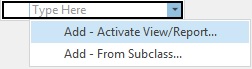
This activates the Select Views or Reports dialog. Use this dialog to select one or more view or report components belonging to the current project. The Designer will build menu items at the current location for activating each of the selected views or reports.
For more information, see Component Files.
Adding a Menu Item Subclass
A special option is available in the "Type Here" edit box for creating a menu item object from any subclass of cCJMenuItem.
This is useful when you have a library of specialized menu items for performing certain operations. The DataFlex class library already contains a range of specialized menu item classes for such operations as Cut, Copy, Paste, Find record, Save record, Delete record, etc.
To use this option:
- Click the combo button to the right of the "Type Here" box.
- Select Add – From Subclass… from the combo list.
This activates the Select Commandbar Item Classes dialog. Use this dialog to select one or more subclasses. The Designer will build menu items at the current location using the selected classes.