Splitters and Scrolling Containers
Splitters and Scrolling Containers are specialized objects that support split-panels and containers with vertical and horizontal scrolling. In each case, the functionality is provided by a composition of nested objects.
Splitters
The following example shows the object structure for a split-panel:
Object oSplitterContainer1 is a cSplitterContainer
    Object oSplitterContainerChild1 is a cSplitterContainerChild
    End_Object
    Object oSplitterContainerChild2 is a cSplitterContainerChild
    End_Object
End_Object
This is the code that is generated when you drag and drop a cSplitterContainer control from the Class Palette.
The cSplitterContainer class is designed to occupy the entire client area of its parent object. When you create a cSplitterContainer, the Visual Designer will set the size and position to fill the parent object's client area.
To prevent overlapping, the Designer does not allow you to drop a new cSplitterContainer onto a container that is already occupied by some other child object. For example, if a dbView already contains a Button object, then you will not be able to drop a cSplitterContainer onto the dbView.
To build a view with a split-panel positioned alongside other objects (such as Buttons), you should first create a container object that occupies the position of the split-panel. Set the container's size, location, and peAnchors accordingly, and then drop your cSplitterContainer onto this container. The following example demonstrates a dbView containing a button object side by side with a split-panel.
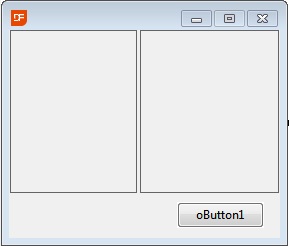
Object ButtonTest is a dbView
    Set Size to 111 155
    Set Border_Style to Border_Thick
    Set Location to 0 0
    Set peAnchors to anAll

    Object oContainer3d1 is a Container3d
        Set Size to 87 154
        Set Location to 0 1
        Set peAnchors to anAll
        Set Border_Style to Border_None

        Object oSplitterContainer1 is a cSplitterContainer
            Set piSplitterLocation to 73

            Object oSplitterContainerChild1 is a cSplitterContainerChild
            End_Object

            Object oSplitterContainerChild2 is a cSplitterContainerChild
            End_Object
        End_Object
    End_Object

    Object oButton1 is a Button
        Set Location to 92 96
        Set Label to 'oButton1'
        Set peAnchors to anBottomRight
    End_Object
End_Object
Scrolling Containers
The following example shows the object structure for a Scrolling Container:
Object oScrollingContainer1 is a cScrollingContainer
    Object oScrollingClientArea1 is a cScrollingClientArea
    End_Object
End_Object
This is the code that is generated when you drag and drop a cScrollingContainer control from the Class Palette. The cScrollingContainer object performs horizontal and vertical scrolling services, and the cScrollingClientArea object represents the client area that is 'scrolled'.
As with splitters, the cScrollingContainer is designed to occupy the entire client area of its parent object. Once again, the Designer does not allow you to drop a new cScrollingContainer onto a container that is already occupied by some other child object. See Splitters (above) for details.
Combined Splitters and Scrolling Containers
Splitters and scrolling containers can be combined in various ways. For example, you can have a splitter where the right panel is a scrolling container. This can be achieved by dragging and dropping a cScrollingContainer from the Class Palette onto the splitter's right panel in the Visual Designer.
Splitters can also be combined in various ways. For example, you could have a vertically split panel where the right and left panels each contain a horizontally split panel, producing a total of four resizable panels.
Banded Object vs. Selected Object
Splitter and scrolling container objects are never 'banded' in the Visual Designer. Even when these objects are 'selected', the Visual Designer does not show the banded 'grab handles' that are usually associated with the currently selected object. Instead, the Visual Designer bands the first parent object of the selected splitter (or scrolling container) that supports being visually banded.
For example, if you select the cScrollingClientArea object in the previous example code by clicking it with the mouse in the Visual Designer, then the cScrollingClientArea object is selected, but it will be the parent dbView object that is 'banded'.
Throughout the Studio, it is the selected object that is highlighted in the Code Explorer and represented in the Properties Panel. In the Visual Designer, however, it is the banded object that is acted upon by keyboard actions. For example, if you press the delete key, it is the banded object, and all of its children, that is deleted.