Creating the Order Entry System Table
You will now create the Order Entry System Table for the Order Entry sample application.
System Table
A system table is a table that contains only one record and also has its DF_File_Max_Records attribute set to 1. DataFlex will automatically find and load this single record upon opening a system table.
The first table, the Order Entry System table (OrdSys), stores the most-current order number, customer number and vendor number for the purpose of auto incrementing the unique identifier columns in those tables.
The Table Explorer is the main access point in the Studio for database tables and Data Dictionaries.
Table Explorer
The Table Explorer is a docking window that lists the current project and components included in the current project by type. Please read more about this in the Table Explorer topic in the Studio book. By default, this panel is located on the left side of the Studio, as a tab in the same window group as Code Explorer.
You can familiarize yourself with Table Explorer in more detail in the Creating Tables page of the Creating Database Application Components tutorial book and you can also learn more about Table Explorer in the Table Explorer topic in the Studio book.
-
Take a look at the Table Explorer window. If Table Explorer is not open, click on the Table Explorer button on the Studio's toolbar.
-
Click the Create New Table button on the Table Explorer toolbar.
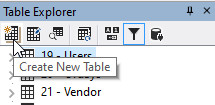
In the Create New Table dialog, type OrdSys as the Table Name and click Ok.
-
The new table will open in the Table Editor:
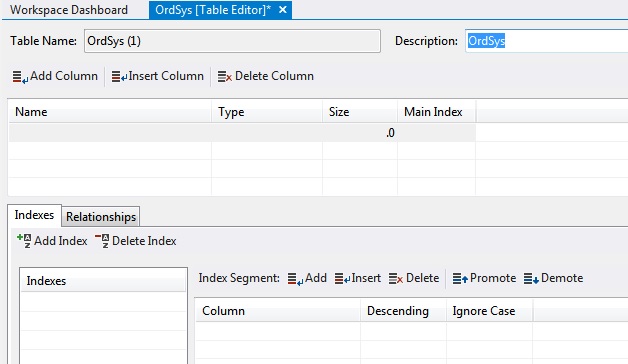
Table Editor
The Table Editor is a window that allows editing of database table schemas. Please read more about the Table Editor in the Table Editor topic in the Studio book.
-
Click on the Add Column toolbar button in Table Editor to add a new column.

-
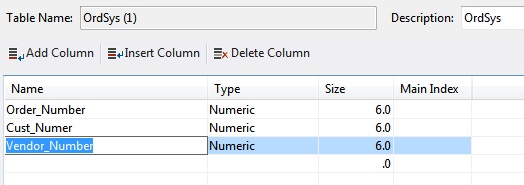
Type Order_Number as the Name of the first column to add and press the Tab key to move to the Type column. Choose Numeric as the column type from the combo box (you can just type N to do so) and press Tab; make the length 6.0 and press Tab twice to move to the next row. This completes the definition of the Order_Number column.
-
Type Cust_Number as the Name of the second column; choose Numeric as the column type and make the length 6.0.
-
Type Vendor_Number as the Name of the third column; choose Numeric as the column type and make the length 6.0.
When you are done, your column definitions look like those in the image below.
-
Change the table Description (at the top of the Table Editor) to something more descriptive, such as Order Entry System Table.
-
You need to ensure that this table is properly defined as a system table, meaning that it can only have 1 record.
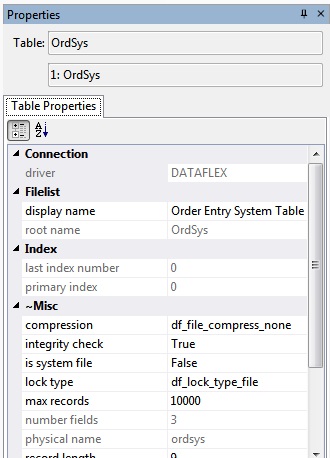
Click on the Properties toolbar button to open the Properties window.

If you still have the Table Editor for the OrdSys table as the selected tab in the main Studio window, the Properties window will show the properties for this table.
-
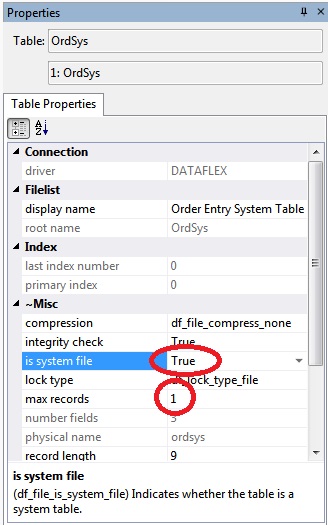
Select the DF_FILE_IS_SYSTEM_FILE property and set it to True.
Notice that after this change, the DF_FILE_MAX_RECORDS property has changed to 1.
-
Click the Save File toolbar button (or press Ctrl + S) to save the table schema.
The Output window will display the results of the save operation.
Note that a Data Dictionary is not automatically created when you create a new system table. For non-system tables, a Data Dictionary is automatically created when you create a new table (when you save the table the first time).