Creating a Workspace
Let's create a new workspace for this part of the tutorial.
Workspace
A DataFlex Workspace is a physical and logical container for your projects, with a well-defined structure. A Workspace can contain multiple projects, typically related in some logical manner, such as a Windows application and a Web application that access the same database for a particular business need. A workspace (sometimes together with additional libraries) contains everything necessary to build and run a DataFlex project.
Project
A DataFlex Studio Project is a collection of components and other items of interest to the Studio that compiles into a program.
Typical Workspace Structure
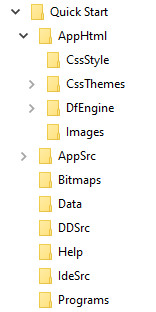
Each of a Workspace’s sub-folders contains files indicated by the folder name (e.g., bitmap files used in the application are in ..\Contact\Bitmaps, data is in ..\Contact\Data, application source is in ..\Contact\AppSrc, etc.).
For this tutorial, we will limit the scope of a workspace to a single set of folders and subfolders that contain the various files that make up a project. In practice, the workspace structure can refer to a local set as in this example, or it can refer to a set of folders that are located across a network and that are not necessarily physically co-located as they are in this example.
- Open the DataFlex Studio.
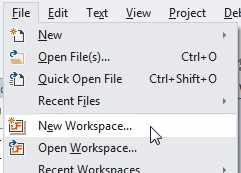
- Select New Workspace... from the Studio’s File menu.
Tip
If you have the Studio's Start Center open, you can simply click on the New Workspace... hyperlink in the Start Center.
- Click Next on the wizard's Welcome page. Enter
OrderTutorialas the name andOrder Tutorialas the description. The default location should be the drive letter to which DataFlex was installed, followed by\DataFlex Projects\OrderTutorial. If you have previously created a workspace in another location, the "Workspace Root Directory" will default to that location. Click Next. - If you want to see what the specifics of the workspace structure are, check the 'Edit Workspace Paths' checkbox before you click Next. This will bring up 2 additional wizard pages that allow you to view and customize the details. Doing so is an advanced skill that we would not recommend doing during the tutorial, although it can be useful to view these pages to see what the Studio does under the hood.
Standard Workspace Structure
A workspace with a standard workspace structure has a main folder with sub-folders that contain files indicated by the folder name. The standard workspace structure includes sub-folders:
- AppHtml for web pages
- AppSrc for application source code
- Bitmaps for image files
- Data for database files
- DDSrc for Data Dictionary files
- Help for application-related help files
-
Programs for compiled programs
-
On the Database Connection wizard page, you can configure Managed Connections for databases to be used in this workspace. For this tutorial, skip doing so, which will default the workspace to using the embedded database.

Database Type
DataFlex workspaces can support multiple databases. For example, you can use Microsoft SQL, Pervasive.SQL, and embedded database tables in the same workspace, even sharing the same views and reports. To configure these for a workspace at any time, select SQL Connection Manager from the Database menu.
- On the last wizard page, click Finish.
You have now created a DataFlex workspace. You should now be back in the Studio, and the Studio has the new workspace loaded. You can verify this by looking for (OrderTutorial) on the Studio's caption bar.