Creating a Web Application
Let's create your first, very simple Web application with DataFlex.
Web Application
A Web Application is a DataFlex program that hosts Web Views, Web Modal Dialogs, or WSOs (Web Service Objects) that serve data to client HTML pages or Web Service clients.
Important!
For QuickStart, we have already provided you with a workspace. This section assumes that you have been going through the Quick Start tutorial step by step, in which case, you will have already opened the required workspace.
If this is not the case, switch to the Opening a Workspace step now and return here when you have completed it.
This application will at first be very simple.
Creating a Web Application
- Click on the Workspace Dashboard tab. If the Workspace Dashboard tab is not open, click on the Workspace Dashboard toolbar button.
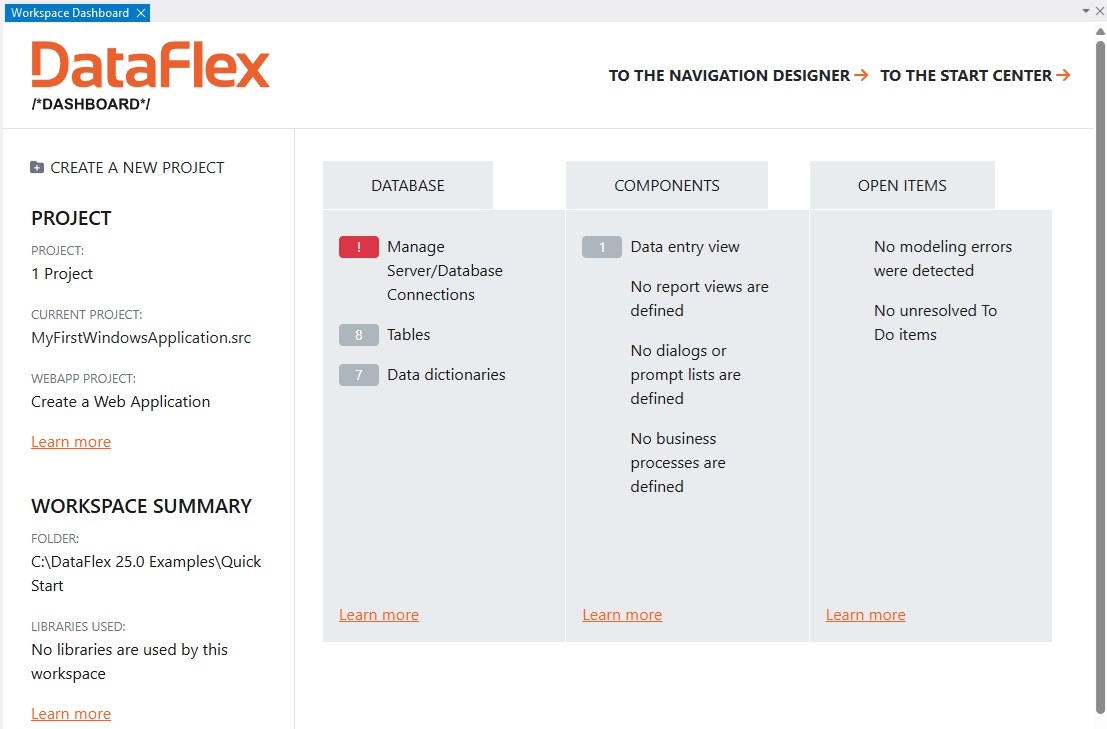
- Click on the New link in the Workspace Dashboard in the Projects section.
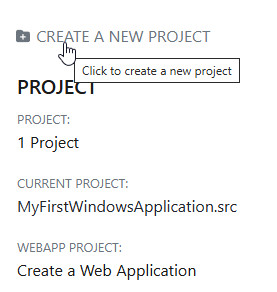
-
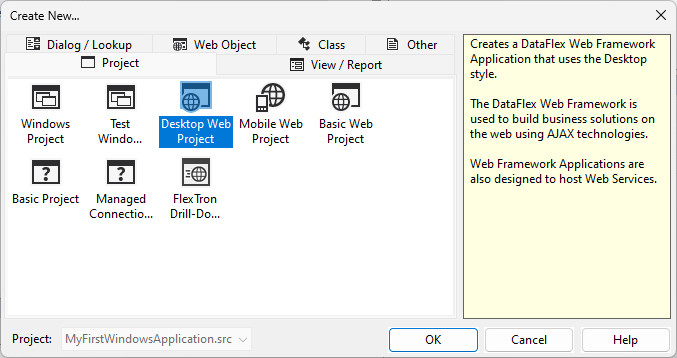
Click on the Project tab of the Create New... dialog.
-
Double click the Desktop Web Project icon.
- Click Yes to continue on the user account control (UAC) message:

- The "Assign Web Application Information" dialog will open. Accept the defaults for Web Application Name (Quick Start) and Virtual Directory Name (QuickStart) and click the OK button.
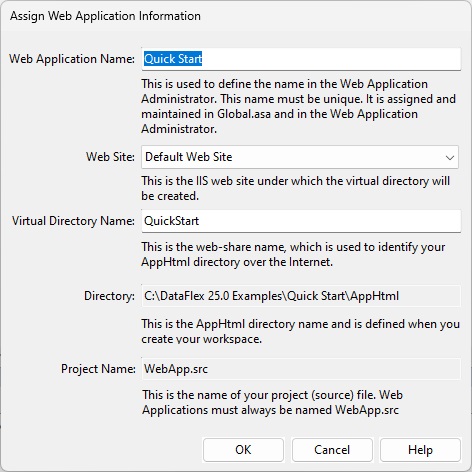
Virtual Directory
The Virtual Directory maps the AppHtml folder (which contains the web application's HTML files, the client (JavaScript) library, and the theme (CSS) files) of your workspace with a Uniform Resource Locator (URL) to allow users to access these files over the Web. Keep in mind that you are setting the name of the virtual directory, not the name of your Web application.
-
It may take a minute or two for the Web App to be created. You will see a dialog showing you what is happening, with messages like "Copying client engine". This is being done for any web application, in case you want to use it to host a browser-based web application.
-
You will now see the source code of a new Web application in the Studio.
You have now created your first Web application. Of course, at this point, the application is only an empty container. Soon, you will learn how to add web views and other components to it.