Opening a Workspace
DataFlex applications are created and maintained in workspaces.
Workspace
A DataFlex Workspace is a physical and logical container for your projects, with a well-defined structure. A Workspace can contain multiple projects, typically related in some logical manner, such as a Windows application and a Web application that access the same database. A workspace contains everything necessary to build and run a DataFlex project.
Project
A DataFlex Studio Project is a collection of components and other items of interest to the Studio that compiles into a target program.
For Quick Start, we have already provided you with a workspace. To save a lot of time and typing, the provided Quick Start workspace already has a set of tables and associated Data Dictionaries in it. To learn how to create a new workspace, see Creating a Workspace.
DataFlex {Revision}
In the text below, {Revision} refers to the revision of DataFlex you are using, for example, 20.0.
- Open the DataFlex Studio. To do so, select Programs, then DataFlex {Revision}, then DataFlex Studio from your Windows Start menu.
- Select Open Workspace... from the Studio’s File menu.
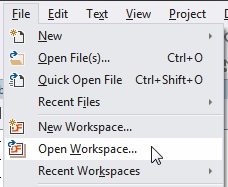
- Browse to
C:\DataFlex {Revision} Examples\Quick Startin the Open Workspace dialog and select the fileQuick Start.sws.
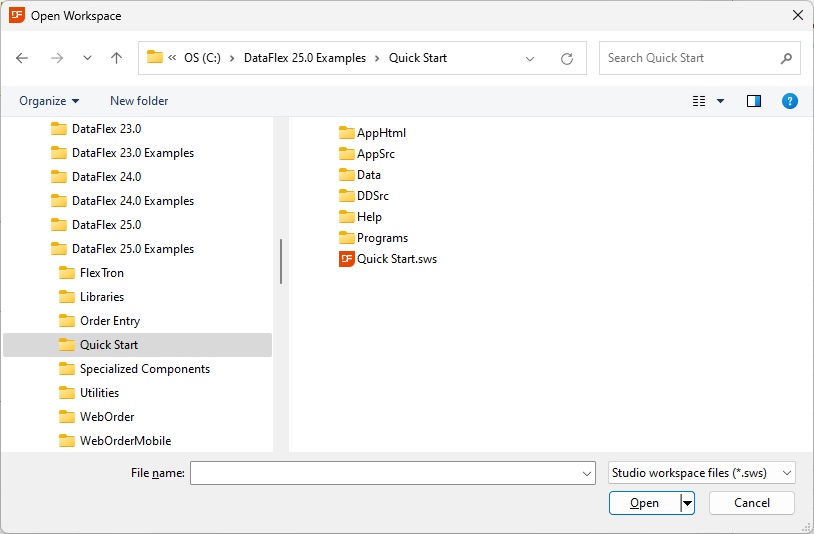
- Click the Open button or press the Enter key to open the workspace in the Studio.
- Click on the Workspace Dashboard tab. If the Workspace Dashboard tab is not open, click on the Workspace Dashboard toolbar button.

Workspace Dashboard
The Workspace Dashboard is designed to point new developers in the right direction when learning to use the Studio and to provide experienced developers with a quick way to gain insight into a workspace and its projects. For example, in the screenshot above, you can see that the Dashboard shows that this workspace contains no projects and allows you to click it to create one.
As you carry out work in a workspace and on individual projects, the Dashboard will track your progress, filling in section details like adding pieces to a puzzle. At any point along the way, you can use the Dashboard to guide you. For example, as you add tables, Data Dictionaries, views, and other project components, the Dashboard will automatically track these for you. In addition to this automated tracking, you can take the initiative via To Do items to have the Dashboard guide you towards more personalized goals.
Read more about the Workspace Dashboard here.
Tips
- If you have the Studio's Start Center open, you can simply click on the Open Workspace... hyperlink in the Start Center.
- Also from the Start Center, you can access the most recently accessed workspaces with a single click on the workspace name.
- You can also open a workspace in the DataFlex Studio by finding the
.swsfile for the workspace in Windows Explorer and double-clicking on it, or dragging and dropping it onto the Studio. - To reopen a workspace you have previously opened in the Studio, select File, then Recent Workspaces from the Studio's menu.