Handling Compiler Errors in Windows Applications
The next thing you will need to know is what to do when something doesn't go as smoothly as anticipated. You will learn how to deal with compiler errors. These are the most common type of error that programmers encounter and are normally easy to fix.
Compiler Error
Compiler errors are mistakes in an application's source code, typically syntactical in nature, such as a mistyped object, function, or variable name.
You are going to make a couple of simple changes in the code of your "Hello World" view to cause compiler errors. Then, you will learn how to resolve these compiler errors in the Studio.
-
Double-click on the button control in the visual editor or Code Explorer to display the code for the button object.
-
Change the line
Get Value of oNameForm to
s
Name
to
Get Value of oNameForm to Name
(remove the s from the beginning of sName)
- Change the line
Set Value of
o
ResultForm to sResult
to
Set Value of ResultForm to sResult
(remove the o from the beginning of oResultForm)
- Click on the Compile Project button on the Studio's toolbar.
The program will start to compile. As the compiler runs, it will display its progress in the Output window. When the compiler stops, the Studio will display all compiler errors in the Output window, as shown below:
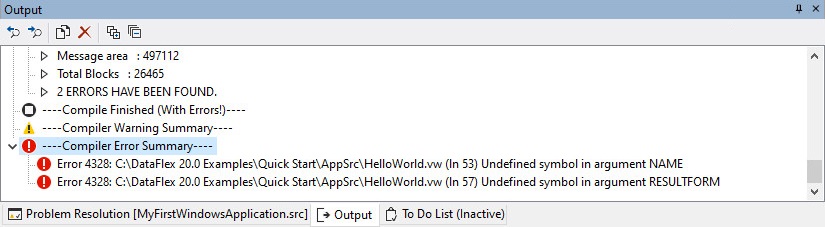
Notice the error icon (red circle with a white exclamation mark in it) next to each compiler error. If you scroll up, you will see each error flagged with this symbol during the compilation process, but each error found during the compilation process is listed again in the Compiler Error Summary section at the bottom of the listing.
Tip
If the complete error cannot be read because it is wider than the Output window, you can place your cursor over the error line and a tooltip will display the full error text. You could also widen the window, scroll to the right as needed, or rearrange the docking windows in the Studio to suit your best working environment. See Docking Windows for more information about this.
- The full text of the first error is:
C:\DataFlex {Revision} Examples\Quick Start\AppSrc\HelloWorld.vw (ln 55) Undefined symbol in argument NAME
In this case, this is because there is no variable called Name declared. The variable that is declared is called sName, and the error was caused by a simple typing error.
-
To fix the error, double-click on the error line (demarcated by the error icon) in the Output window. This will place the cursor at the beginning of the line of code that triggered the error. Correct the typo, changing
Nameback tosName. -
Now double-click on the second error listed in the Output window. This will place the cursor at the beginning of the line of code that triggered the second error.
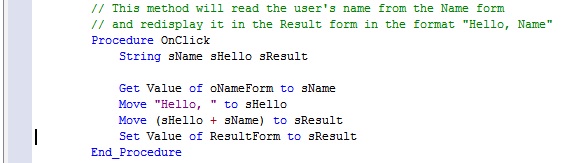
The full error text is:
C:\DataFlex {Revision} Examples\Quick Start\AppSrc\HelloWorld.vw (ln 59) Undefined symbol in argument RESULTFORM
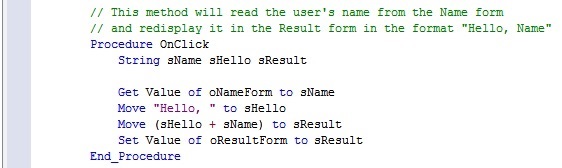
In this case, this is because no object called ResultForm exists. The object that does exist is called oResultForm, and the error was caused by a typo.
- Correct the typo, as seen here:
- Now that both errors are fixed, click on the Compile Project button on the Studio's toolbar.
The changes you have made in the source code to fix the compiler errors are automatically saved by the Studio, and the program should compile without errors.