Import Studio Preferences
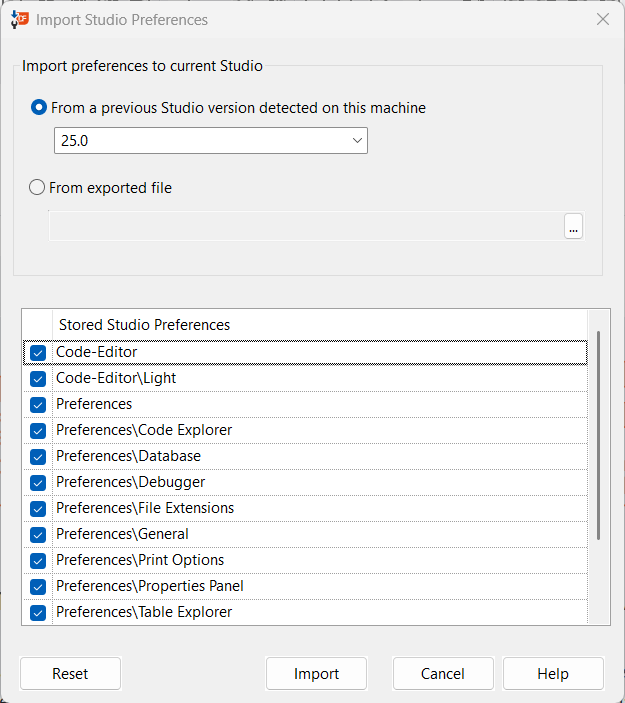
This dialog allows you to import certain customizations to the current Studio and DataFlex environment. The customizations include Code Editor settings (for both light and dark modes), utilities and Studio preferences, as well as extra tools previously added to the Tools menu.
This process can be done as many times as needed.
Import preferences to current Studio
Select where the preferences should be imported from. The two options are: from a previous version installed on the machine or from an exported JSON file.
From a previous Studio version detected on this machine
The combo form will include a list of previous DataFlex versions installed on this machine. Note that only versions 19.1 and higher will be included on this list.
Use this form to select the version that settings should be imported from. As you select a version, the settings available to be imported from that version will be listed on the grid.
From exported file
If this radio button is selected, a form will be enabled where you can select the JSON file containing the settings you would like to import. Use the Export Studio Preferences option on the Tools menu to generate the appropriate file.
Once selected, the settings stored in the file will be displayed on the grid.
Stored Studio Preferences
Here you will find the settings detected either on your machine or read from the file that may be imported. You may review and unselect the settings you would not want to import at this time.
Reset
If you would like to remove the current settings and customizations to return to the plain, installed configuration of the Studio and utilities, click on Reset. A confirmation will be displayed and your customizations will be removed.
Note that you may need to restart the Studio for all the settings to take effect.
Import
Once you have made your selections, click on Import and your settings will be imported to the current Studio and respective utilities.
Cancel
To close this dialog without making any changes to your settings, click on Cancel.
Help
Clicking on the Help button will display this page.