Message_Box
See Also: Dialog and Message Box Functions, Info_Box, Stop_Box, YesNo_Box, YesNoCancel_Box
Purpose
Displays a generic message dialog box.
Return Type
Syntax
Use Windows.pkg
(Message_Box( {sMessage}, {sCaption}, {Buttons}, {Options} ))
Where:
-
{sMessage} is a string containing the information message to be shown. A carriage-return/linefeed can be placed in the message string by the inclusion of
\nin the text. -
{sCaption} specifies the content of the caption bar.
-
{Buttons} specifies the list of buttons to be shown on the message box. The table below lists the types of buttons that can be selected.
| Button Constant | Description |
|---|---|
| MB_ABORTRETRYIGNORE | Abort, Retry and Ignore buttons |
| MB_HELP | Help button |
| MB_OK | OK button |
| MB_OKCANCEL | OK and Cancel buttons |
| MB_RETRYCANCEL | Retry and Cancel buttons |
| MB_YESNOCANCEL | Yes, No and Cancel buttons |
| MB_YESNO | Yes and No buttons |
- {Options} specifies additional options for configuring the message box. These options are grouped by type.
Icon Constants
| Icon Constant | Description |
|---|---|
| MB_ICONHAND | A stop-sign icon appears in the message box. |
| MB_ICONQUESTION | A question-mark icon appears in the message box. |
| MB_ICONEXCLAMATION | An exclamation-point icon appears in the message box. |
| MB_ICONASTERISK | An icon consisting of a lowercase letter i in a circle appears in the message box. |
| MB_ICONWARNING | An exclamation-point icon appears in the message box. |
| MB_ICONERROR | A stop-sign icon appears in the message box. |
| MB_ICONINFORMATION | An icon consisting of a lowercase letter i in a circle appears in the message box. |
| MB_ICONSTOP | A stop-sign icon appears in the message box. |
Default Button Constants
| Default Button Constant | Description |
|---|---|
| MB_DEFBUTTON1 | The first button is the default button. This is the default. |
| MB_DEFBUTTON2 | The second button is the default button. |
| MB_DEFBUTTON3 | The third button is the default button. |
| MB_DEFBUTTON4 | The fourth button is the default button. |
Modal Type Constants
| Modal Type Constant | Description |
|---|---|
| MB_APPLMODAL | The user must respond to the message box before continuing. MB_APPLMODAL is the default. |
| MB_SYSTEMMODAL | Same as MB_APPLMODAL except that the message box is the topmost window. |
Other Constants
| Other Constant | Description |
|---|---|
| MB_RIGHT | The message text is right-justified. |
| MB_SETFOREGROUND | The message box becomes the foreground window. |
| MB_TOPMOST | The message box is created with the Topmost window style. |
You can combine one option from each type by using an expression where the options are Ior'ed. See the examples section below for more information.
What It Does
Message_Box is used to pop a message box and obtain the user's response. The message box contains a message and title, plus any combination of predefined icons and push buttons.
The message box function returns one of the following integer constants.
Return Type Constants
| Return Type Constant | Description |
|---|---|
| MBR_OK | The OK button was clicked. |
| MBR_CANCEL | The Cancel button was clicked. |
| MBR_ABORT | The Abort button was clicked. |
| MBR_RETRY | The Retry button was clicked. |
| MBR_IGNORE | The Ignore button was clicked. |
| MBR_YES | The Yes button was clicked. |
| MBR_NO | The No button was clicked. |
Examples
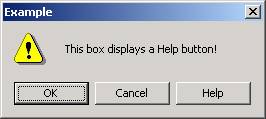
Move (
    Message_Box(
        "This box displays a Help button!", "Example", ;
        MB_OKCANCEL IOR MB_HELP, ;
        MB_ICONWARNING
    )
) to eResponse
The above example would display the following message box…
Use Windows.pkg
Procedure Example
    Integer eResponse
Move (
    Message_Box(
        "Delete this file?", "Example", MB_YESNO, ;
        MB_ICONQUESTION IOR MB_DEFBUTTON2
    )
) to eResponse

If (eResponse = MBR_YES) Begin
    Send DeleteFile
End
End_Procedure
The above example displays the following message box…
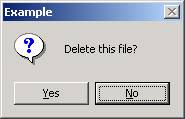
In this example, the default button is the "No" button (the second button). After the message box is closed, the returned value is tested to see which button was pressed.
Notes
-
If the user types Ctrl+C in the message box, the text of the message is copied to the clipboard.
-
To add a help button to other buttons in a message dialog, use an expression in the {Buttons} parameter which Ior's the help button with the other selected buttons. For example:
(MB_OKCANCEL IOR MB_HELP). -
When the user clicks the Help button or presses F1 from a message box, Windows sends a WM_HELP message to the application.