Image Support
Bitmaps can now be displayed transparently, and both bitmaps and icons can be physically embedded in your programs.
Embedded Images
When images are embedded, they don’t need to be physically deployed.
You do not need to make any changes to your programs to use bitmap resources. The Bitmap, Form_Bitmap, and Icon properties have been modified to automatically look in the embedded resources. If the resource is not found there, it will look on disk as it did before. Similarly, the AddTransparentImage and AddImage functions of the cImageList class have been modified in the same way.
Transparency
In the past, when you made bitmaps for your application, you had to know the color of the background so that your image would blend properly into it. However, this was almost impossible, as end-users often changed the background colors of their Windows machines. Usually, if end-users had "standard" colors, the images looked fine, but if they used "non-standard" colors, the images looked unprofessional.
Look at this image as used in the Studio:
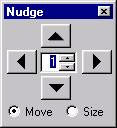
The images of arrows were created with a gray background (Color = clLtGray). When displayed against a gray background, the image looks fine.
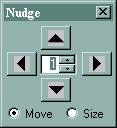
However, if end-users changed the color of 3D objects on their machines, this is what the image would look like. The gray background of the images looks strange now that the buttons are green.
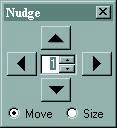
This is how the image would look with transparency. The background color of the image has been converted automatically to the color of the button, producing a much more desirable effect.
Miscellaneous
- If you do not specify an icon in your program's panel, it will use the one you selected in the Program Properties dialog in the Studio.
- If you do not specify an icon in your views, the panel's icon will be used.
- An icon file (often called an Icon Library) can contain both 16x16 and 32x32 pixel icons. Your programs will automatically show the appropriate one. If you do not provide both a 16- and 32-pixel icon, the one you do provide will be either stretched or shrunk if it needs to be displayed in a different size.
- Because DataFlex searches for the images in the resources first, you can use an alias technique. This involves providing a different physical name from the logical one. For example, you might add
World.bmpas a bitmap resource, but later decide it would be smarter to convert this to an RLE compressed bitmap. If you did this, it would only be a matter of changing the physical name (World.bmptoWorld.rle) in your resource (in the IDE’s Program Properties dialog), and everywhere your program usedWorld.bmp, theWorld.rlebitmap would be used instead, without any changes to your code.
Advanced Notes
The bitmap resources are true, native resources that Windows understands. Consequently, you are able to use Windows API functions to load these resources. To see an example of this, look at cImageList's AddTransparentImage function.
Related Topics
- Programming for Transparency explains the changes you can make to your code to support transparent images.
- Embedded Resources explains what resources are and their advantages.
- The Project Properties dialog in the Studio is used to maintain the list of resources that should be linked into your programs.