Common Error Codes and Troubleshooting
Debugging HTTP Status and Error Codes
Before you are able to successfully debug HTTP status/error codes, you need to disable Friendly URL Errors in Internet Explorer and set Send Errors To Browser to True. This can be found under Default Web Site > ASP > Debugging Properties in the Internet Information Services (IIS) Manager.
Disable Friendly HTTP Error Messages
Internet Explorer displays friendly error messages when it encounters a problem during communication with an HTTP server. While friendly error messages are appropriate for end users, they can prevent administrators from seeing the literal HTTP error codes and explanations, making troubleshooting difficult. During the discovery phase of troubleshooting, you can gather and record the HTTP errors that have occurred if you have disabled friendly messages.
To disable friendly HTTP error messages in Internet Explorer:
- On the Tools menu in Internet Explorer, click Internet Options.
- Click the Advanced tab.
- In the list of options under Browsing, clear the Show friendly HTTP error messages check box.
- Click Apply, and then click OK.
Send Errors To Browser
In earlier versions of IIS, error messages from classic ASP scripts were sent to a web browser by default. Because these error messages might reveal sensitive information to malicious users, IIS 7 and above disables this feature by default. When your classic ASP scripts encounter an error in IIS, you receive the following error message by default:
An error occurred on the server when processing the URL. Please contact the system administrator.

If you are the system administrator please click here to find out more about this error.
You can customize the ASP script error message and determine whether to return the script errors to a web browser by opening the Internet Information Services (IIS) Manager and performing the following steps:
- Click Default Web Site and then double-click ASP.
- Find and open Debugging Properties, then click Send Errors To Browser and set it to True.
- Click Apply.
Note: As a best practice for security, you should only enable sending ASP script error messages to a web browser on a development or test computer; returning script error messages to a web browser can unintentionally expose more information than you intended to show.
Common Errors
After you set your system to properly handle error messages, you might encounter the following errors:
The Application Pool is Running in 64-Bit Mode
The Active Server Pages error '00000000' is generated if an Application Pool has not been set to 32-bit. Please read Enable 32-Bit Applications on how to resolve this issue.
Or
You receive a Status Code 500 and the accompanying Error Code 0x800700c1. Please read Enable 32-Bit Applications on how to resolve this issue.
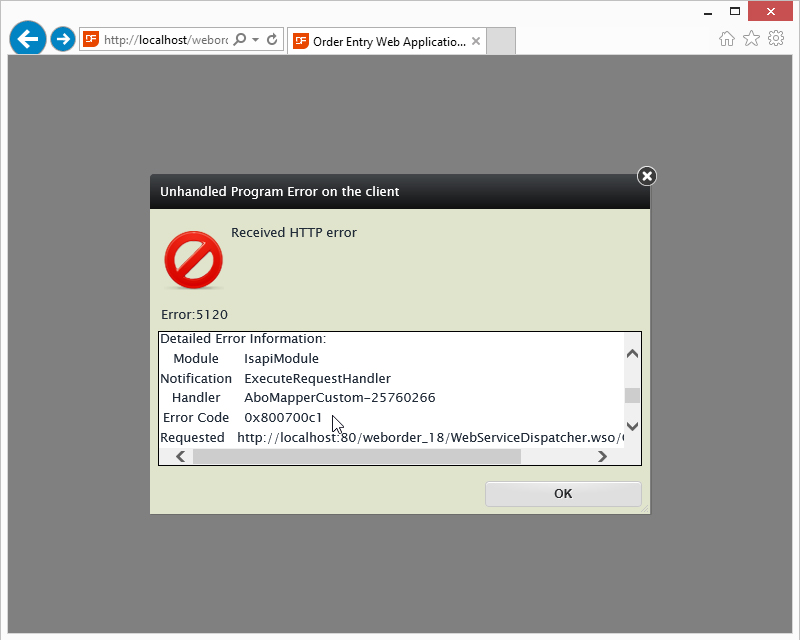
Missing Handler Mapping
A Status Code 404 accompanied by the Error Code 0x80070002 might indicate a missing .wso script handler mapping. Please read .wso Handler Mapping on how to resolve this issue.
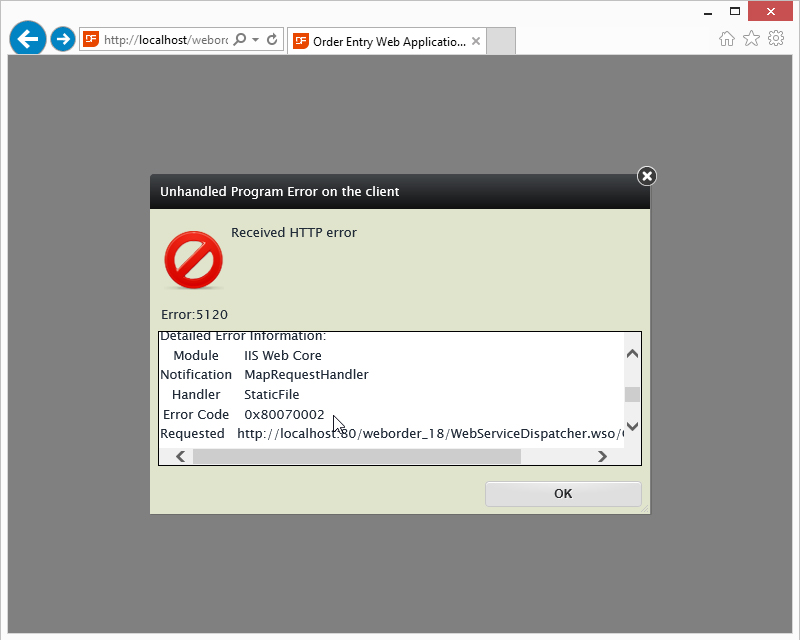
The DataFlex 18.x Web Application Server is Not Running
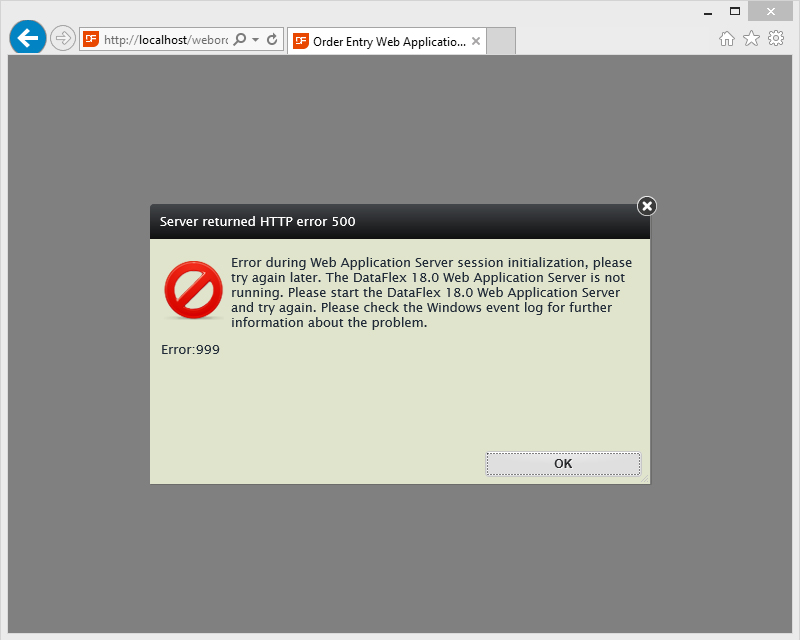
You might get the following error page; note the following in the error message:
The DataFlex 18.0 Web Application Server is not running.....
The DataFlex 18.x Web Application Server has failed to start. Read more about this issue here.
A DataFlex Web Application is Not Started
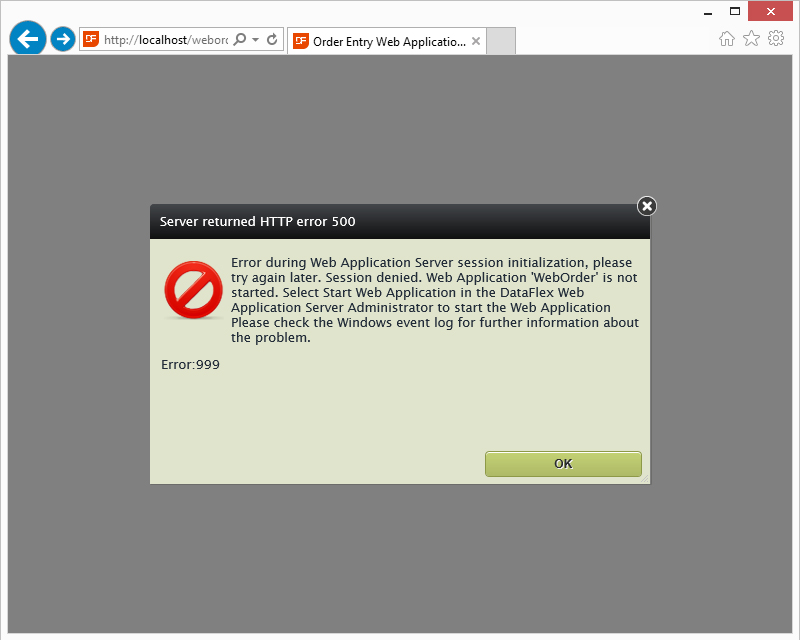
You might get the following error page; note the following in the error message:
Web Application 'Order Entry' is not started.
The following may be true for the Web Application:
- The Application has been set to disabled.
- The Application has been stopped.
Open the DataFlex Web Application Server Administrator to start and enable your web application.
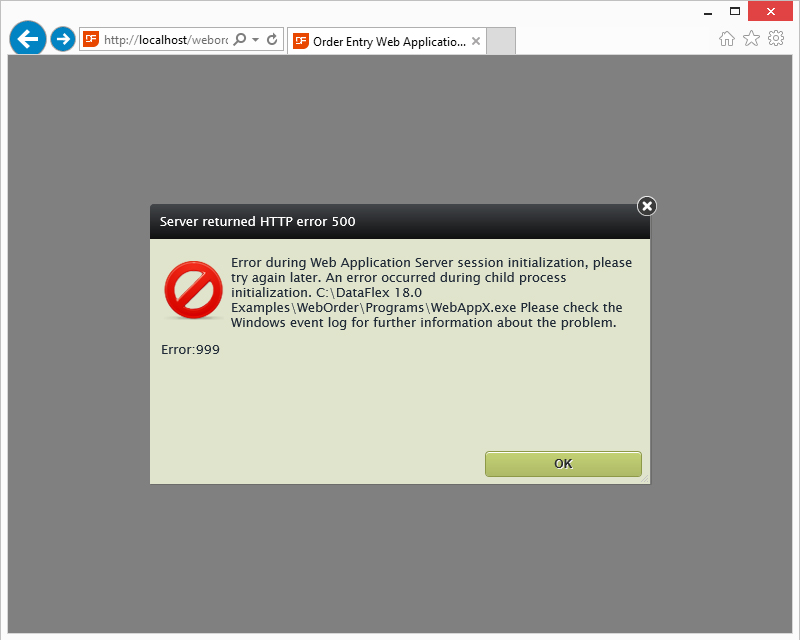
The Web Application Program .exe is Missing or Spelled Incorrectly
You might get the following error page; note the following in the error message:
An error occurred during child process initialization. C:\DataFlex 18.0 Examples\WebOrder\Programs\WebAppX.exe
As you can see, the name of the WebApp.exe is spelled incorrectly. Please rename the file to resolve this issue or select the correct program file in the Web Application Administrator.
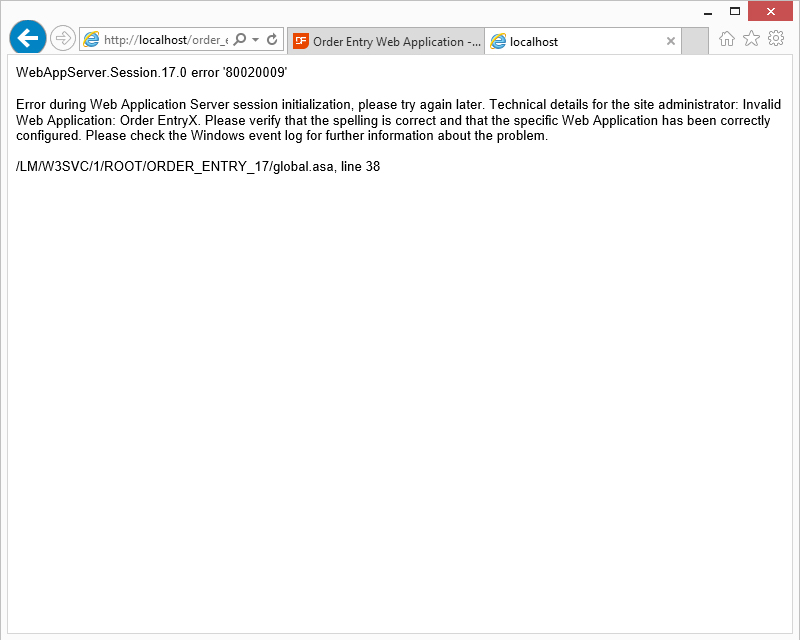
The Web Application Name Specified in the global.asa is Incorrect
You might get the following error page; note the following in the error message:
Invalid Web Application: Order Entry. Please verify that the spelling is correct and that the specific Web Application has been correctly configured.
As you can see, the name of the web application as specified in the global.asa does not match the name in the Web Application Administrator.
You can open the global.asa file found in \AppHTML and edit it with your favorite text editor to correct the spelling of the application.
Copyright © 2017 by Data Access Europe. All Rights Reserved.