DataFlex Webserver
The DataFlex webserver is stopped.
There are a couple of reasons why the DataFlex Web Application Server might be missing or stopped:
- You installed DataFlex before installing the Internet Information Services.
- The DataFlex Web Application Server has been disabled.
- The trial license might be expired.
- The license information is invalid or missing.
- The DataFlex Web Application Server has insufficient rights to access the license information.
- The installation might be damaged or incomplete.
Reinstalling DataFlex
The DataFlex WebApp Check will detect if the DataFlex Web Application Server service is missing. You will have to reinstall DataFlex by performing the following steps:
- Uninstall DataFlex:
- Open the Control Panel and select Programs.
- Find Programs and Features and click Uninstall a program.
- Scroll down to find DataFlex Studio and click Uninstall/Change to Uninstall DataFlex.
-
(Note: version or name of the installed DataFlex products may vary.)
-
Reboot your computer:
-
It is recommended to reboot your computer after uninstalling DataFlex.
-
Install DataFlex:
- Run the setup and follow the instructions on screen to install DataFlex.
The DataFlex Web Application Server has been disabled
To find out why the DataFlex Web Application Server is stopped, open the DataFlex Web Application Server Administrator.
To start DataFlex Web Application Server Administrator:
- Click the Start/Windows button.
- Type "Web Application Administrator," and then left-click Web Application Administrator.
- If the User Account Control dialog box appears, confirm that the action it displays is what you want, and then click Yes to continue.
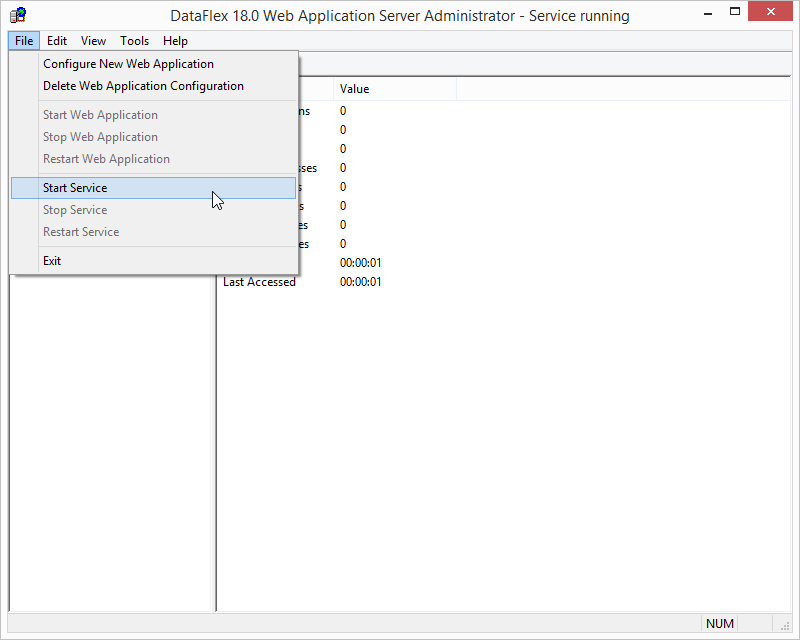
After starting the Web Application Administrator, click File and then click Start Service.
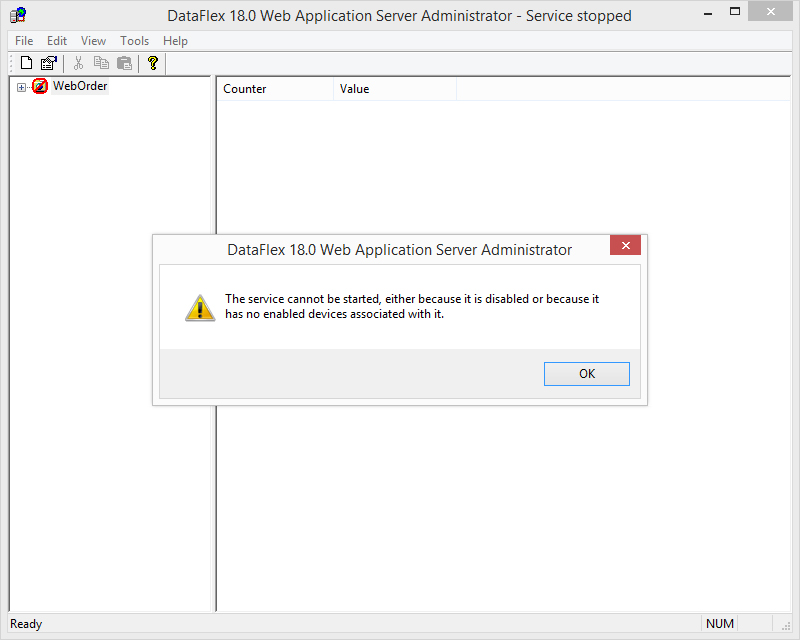
If you see a "The service cannot be started, .." error message, verify that the DataFlex 18.0 Web Application Server is set to Enabled in the Services Management Console.
To start the Services Management Console:
- Click the Start/Windows button.
- Type "local services," and then press left-click View local services.
- If the User Account Control dialog box appears, confirm that the action it displays is what you want, and then click Yes to continue.
After starting the Services Management Console, scroll down in the services list to find DataFlex 18.0 Web Application Server. If the Startup Type has been set to Disabled, enable the service.
To enable the DataFlex Web Application Server, right-click on the service and select Properties.
After opening the DataFlex Web Application Server Properties window, find Startup type and set it to Automatic, then click OK.
After setting the DataFlex Web Application Server Startup type to Automatic, click Start to start the service, or use the Web Application Administrator to start the DataFlex 17.1 Web Application Server.
The trial license might be expired
To find out why the DataFlex Web Application Server is stopped, open the DataFlex Web Application Server Administrator.
To start DataFlex Web Application Server Administrator:
- Click the Start/Windows button.
- Type "Web Application Administrator," and then left-click Web Application Administrator.
- If the User Account Control dialog box appears, confirm that the action it displays is what you want, and then click Yes to continue.
After starting the Web Application Administrator, click File and then click Start Service.
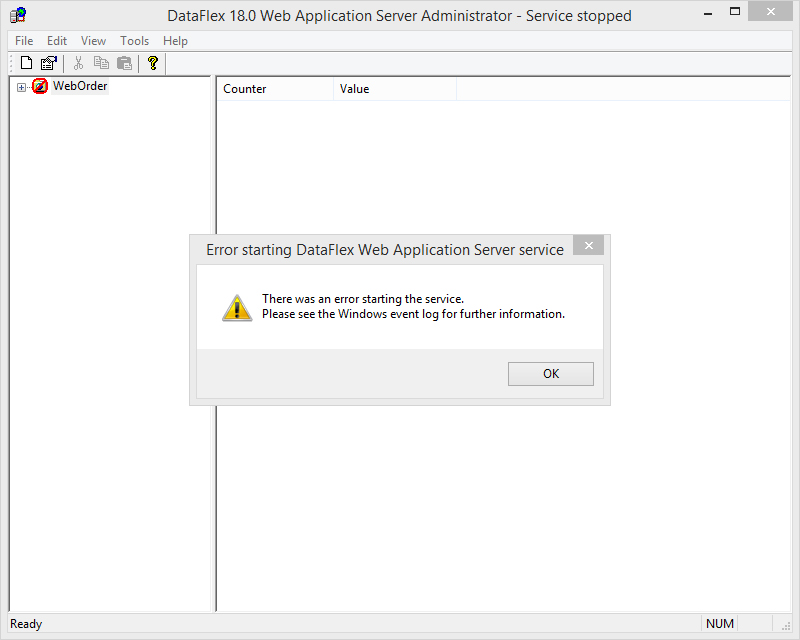
If you see a "There was an error starting the service." error message, start the Windows Event Viewer to see if there is more information available.
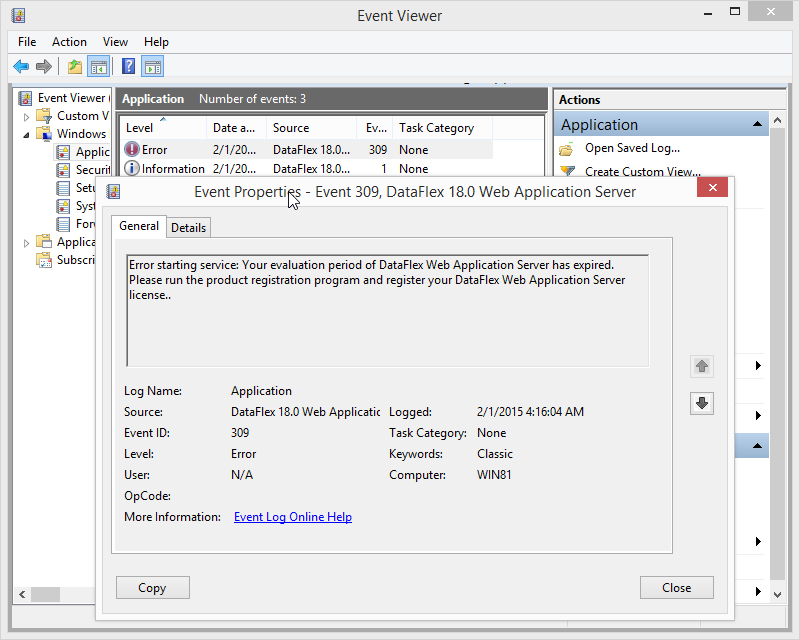
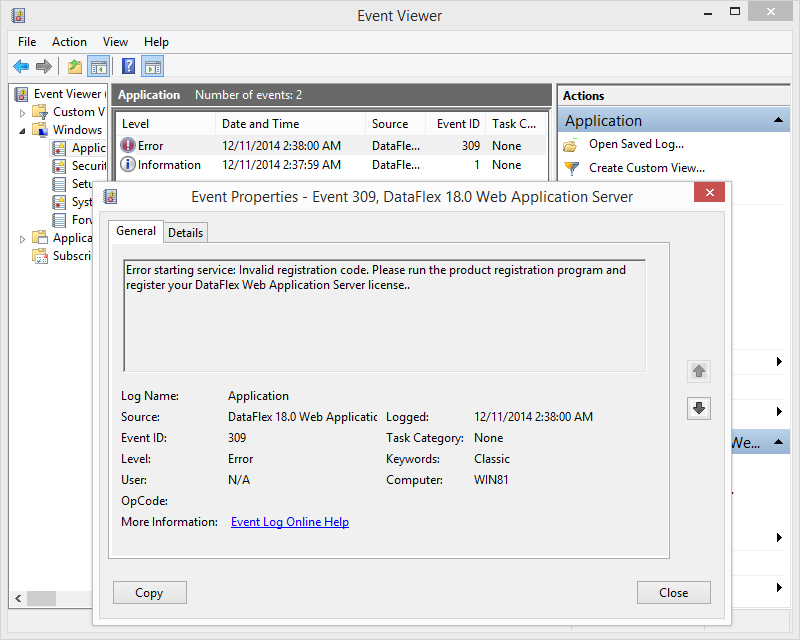
After opening the Windows Event Viewer, search for errors with Event ID 309. After clicking the error, you can find more information about the error.
The license information is invalid or missing
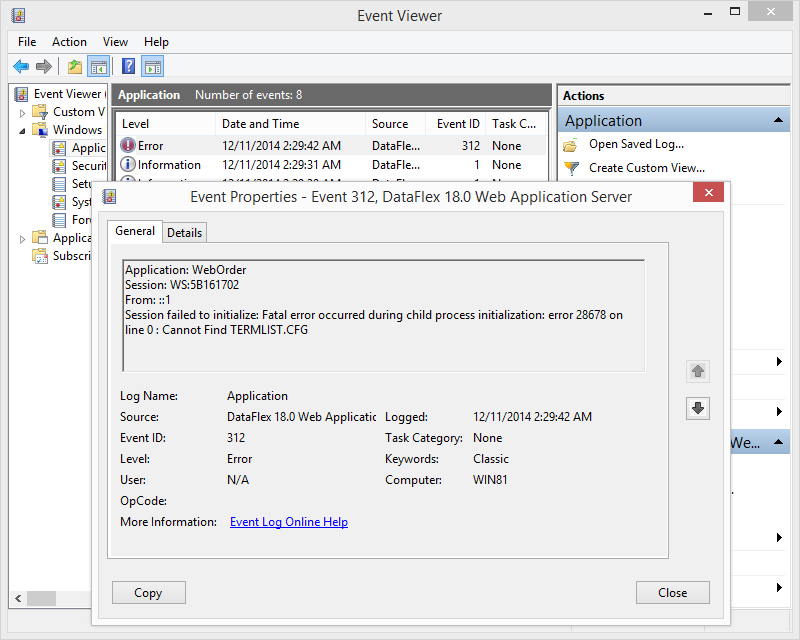
After opening the Windows Event Viewer, search for errors with Event ID 309 or Event ID 312. After clicking the error, you can find more information about the error.
In the case of Event ID 312, verify if the TERMLIST.CFG file exists in the following folder:
C:\ProgramData\Data Access Worldwide\DataFlex\XX.X\License Files\
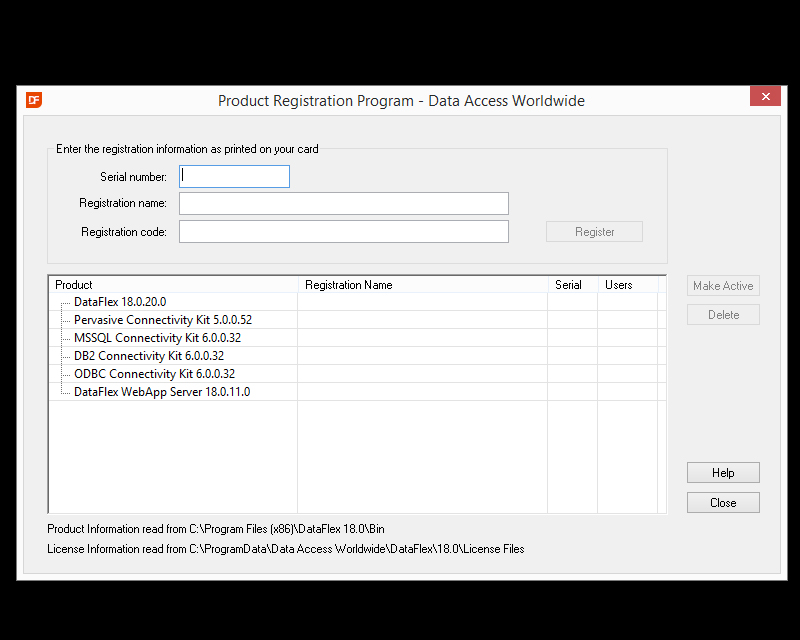
If the file exists, open the Product Registration Program to verify your registration information.
To start the Product Registration Program:
- Click the Start/Windows button.
- Type "Register DataFlex," and then left-click Web Application Administrator.
- If the User Account Control dialog box appears, confirm that the action it displays is what you want, and then click Yes to continue.
As shown below, the registration information is missing. To register, enter the registration information you obtained from our sales department.
The DataFlex Web Application Server has insufficient rights to access the license information
To find out why the DataFlex Web Application Server is stopped, open the DataFlex Web Application Server Administrator.
To start DataFlex Web Application Server Administrator:
- Click Start, click All Programs, and then click DataFlex 2014 - 18.1 (Note: DF version may vary).
- Find the Web Application Administrator, and then left-click to run the Web Application Administrator.
- If the User Account Control dialog box appears, confirm that the action it displays is what you want, and then click Continue.
After starting the Web Application Administrator, click File and then click Start Service.
If you see a "The service did not start due to a logon failure." or "Access is denied." error message, there might be a problem with the used service user account.
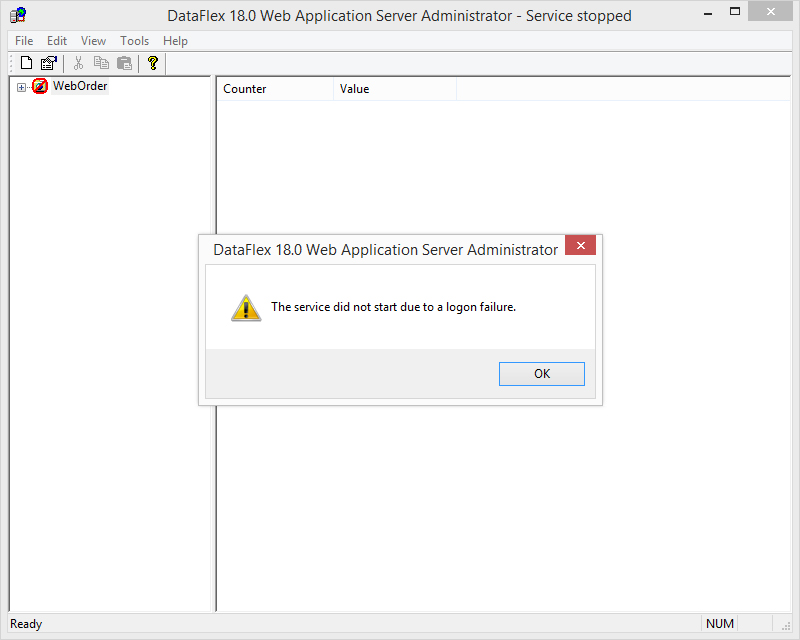
Access denied error? Please verify the used service user account.
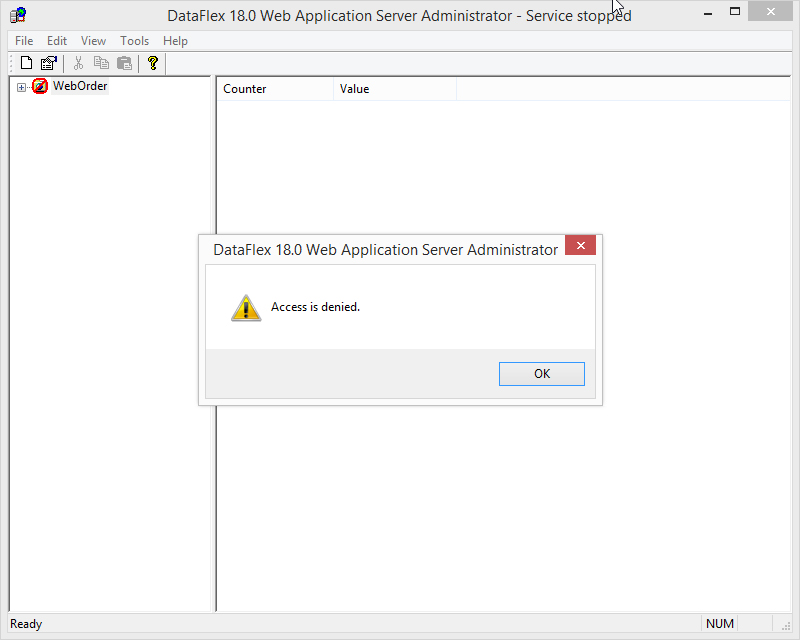
It is possible to run the DataFlex Web Application Server under a different service user account. This is commonly used to grant the Web Application Server access to a network resource.
Please verify that the user account you use has valid credentials and sufficient access rights to the DataFlex installation folder and registry keys.
The Installation might be damaged or incomplete
It could happen that there was an error during the installation of DataFlex. If the DataFlex 18.x Web Application Server still refuses to start after performing the steps above, it is recommended to reinstall DataFlex.
Note: On some systems, uninstalling DataFlex may create problems in the new installation. This happens because there could be DataFlex files that were locked during the uninstallation process.
It is common for Windows to remove those locked files after the first reboot. If DataFlex was installed before rebooting the machine, the newly installed files might be deleted, damaging the new installation.
It is recommended to reboot your machine after uninstalling DataFlex.
Copyright © 2017 by Data Access Europe. All Rights Reserved.