.wso Handler Mapping
Troubleshooting .wso Script Handler Mapping Settings
By default, DataFlex Web services use the .wso handler mapping to interface with the DataFlex Web Application server. To troubleshoot .wso related issues, you can use the Internet Information Services (IIS) Manager to verify the .wso related settings.
Verify That the Handler Mapping Exists
To verify the .wso handler mapping, start the IIS Manager and select your website or web application.
To Start the Internet Information Services Manager
- Click the Start/Windows button.
- Type
InetMgr.exe, and then press ENTER. - If the User Account Control dialog box appears, confirm that the action it displays is what you want, and click Yes to continue.
After the IIS Manager has started, select your website or web application and double-click Handler Mappings.
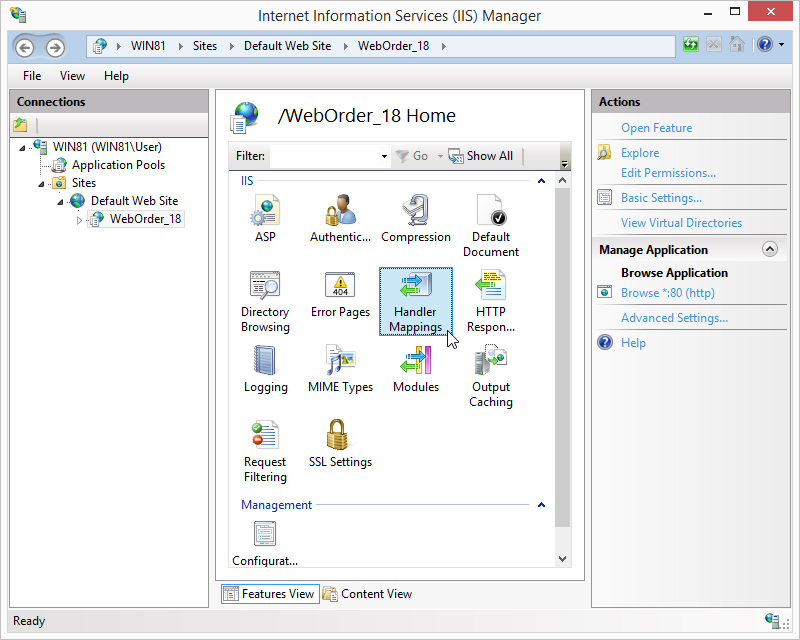
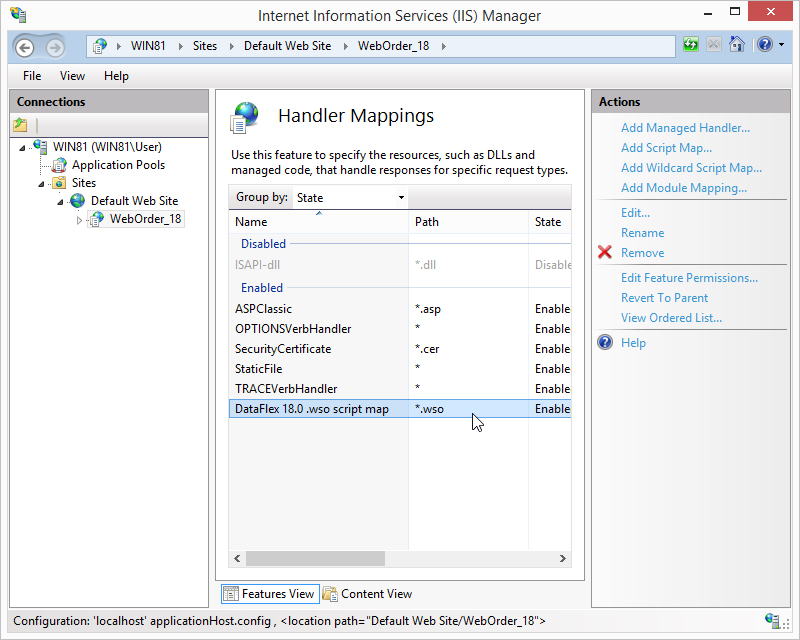
After double-clicking Handler Mappings, find *.wso in the Path list. If the handler mapping is missing, you need to recreate the script mapping.
If the handler mapping exists but you get a Web Service Error, please verify if the handler mapping version matches your web service version.
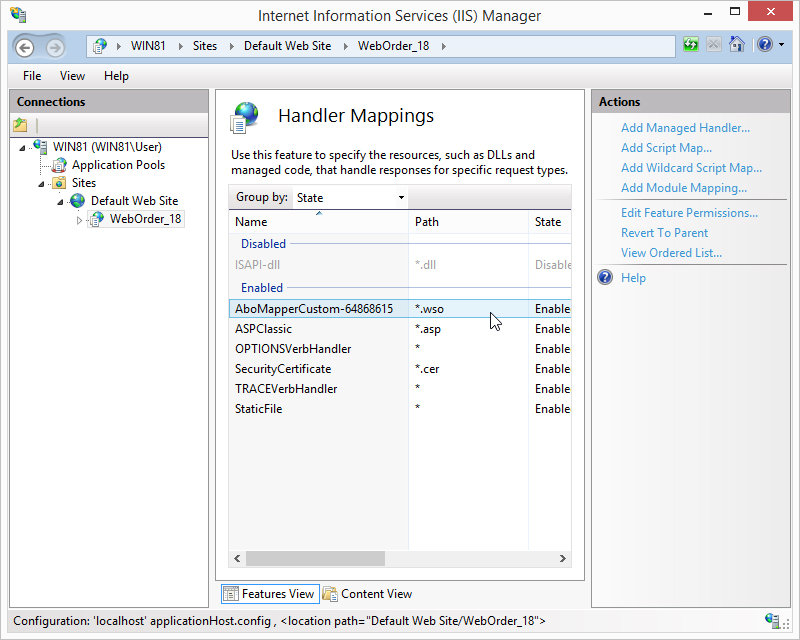
The .wso Script Handler Mapping Is Missing
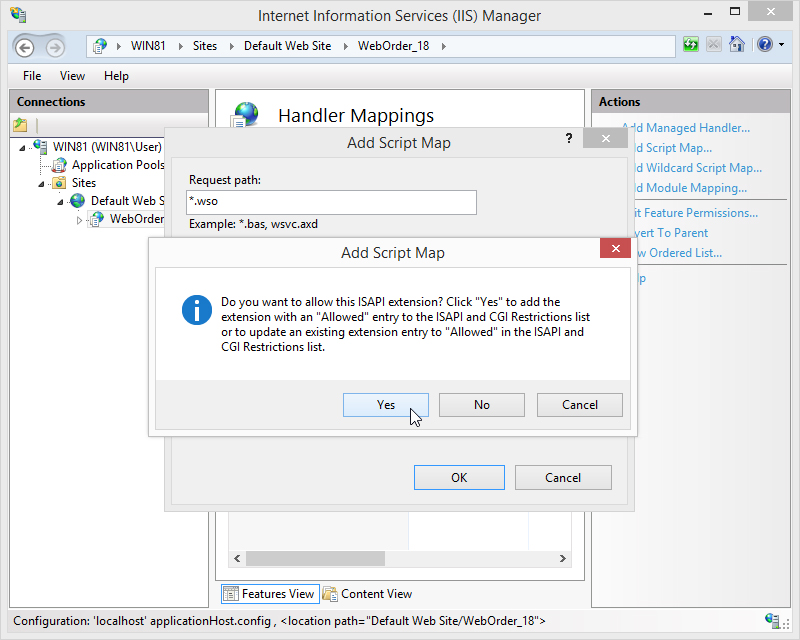
After clicking Handler Mappings, click Add Script Map in the Actions pane.
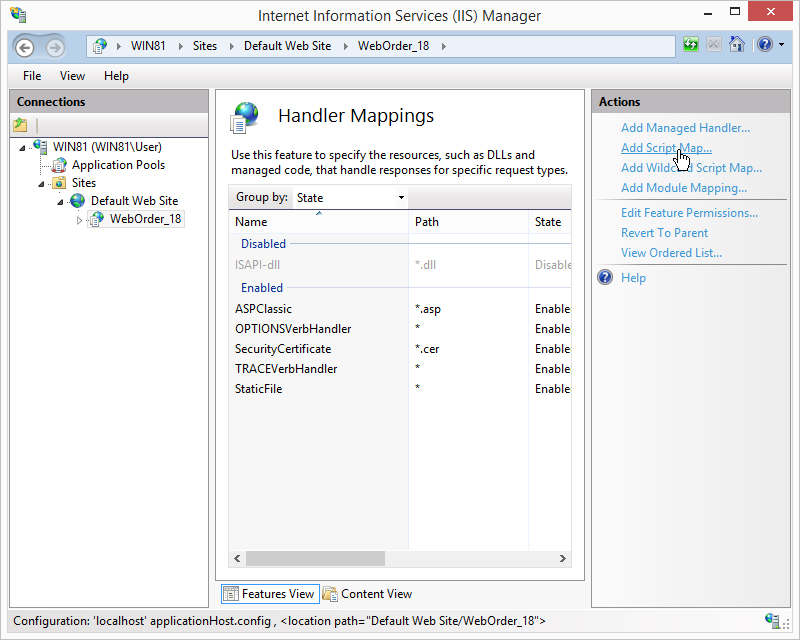
A new window appears, and you need to add the following settings:
- Request path:
*.wso - Executable: Use the
waswsvc.dllfound in the \bin folder where you installed DataFlex. Please use the 8.3 notation (DOS ~). - Tip: Copy this path from an existing working example.
- Name: Please use a description that makes sense.
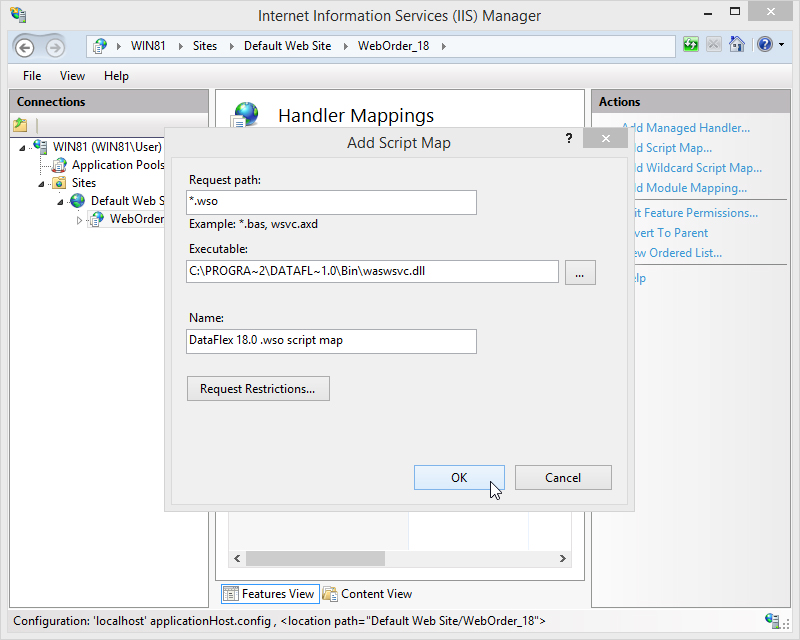
After adding the .wso settings, please select Yes to enable the .wso mapping.
After clicking Yes, you can find the .wso script map with an enabled state in the handler mappings features view page.
Copyright © 2017 by Data Access Europe. All Rights Reserved.