Modifying the Login Behavior Web Service
Modifying the Login Behavior
This topic will show you how to modify the login behavior for your web application, as well as some of the main areas and concepts of the Studio.
While you are developing and testing your web application, you will probably recompile and run your application quite frequently. You likely don't want to have to deal with the login dialog for each test run (unless you are specifically testing the login functionality). Here, you will learn how to disable the login dialog.
Steps to Disable the Login Dialog
- Ensure that
WebApp.srcis open in the Studio. If it is not the currently active tab, click on it to make it the open tab.
If it is not open at all, you can open it from Workspace Explorer. If Workspace Explorer is not visible, click on the Workspace Explorer icon on the Studio's toolbar.
Workspace Explorer
The Workspace Explorer is a docking window that lists the current project and components included in the project by type. Read more about this in the Workspace Explorer topic in the Studio book. By default, it is located on the right side of the Studio.
Current Project
The Current Project is a key concept in the DataFlex Studio that affects almost everything you do. The current project is the one that is compiled, run, and debugged in the Studio, even if you are working on components that are not part of that project. When creating new components, they are added to the current project by default. Read more about this in the Workspace Explorer topic in the Studio book.
-
In Workspace Explorer, double-click on
WebApp.srcto open it in the code editor. -
If Code Explorer is not open, or if it is not the top tab in an open Studio docking pane, click on the
 Code Explorer toolbar button.
 -
In Code Explorer (this window is located on the left by default), you will see an outline of the current source file in a tree structure. There are nodes that represent other source files that are used in this file, as well as objects and methods.

-
Click on the
 Properties toolbar button to open the Properties window.
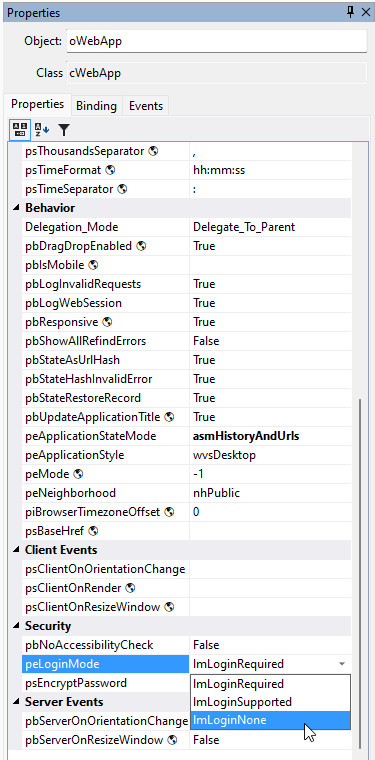
As you click on different objects in the Code Explorer window, notice that the properties of the currently selected object are displayed in the Properties window (this window is located on the right by default).
As you select different objects in Code Explorer (e.g.,WebApp.srccurrently has two objects:oApplicationandoWebApp), the same object becomes selected in the Visual Designer (provided that it is an object that can be visually modeled), and vice versa. If you click on a file, the Properties window will show "Nothing to Model". -
Select the
oWebAppobject in Code Explorer and, in the Properties window, change thepeLoginModeproperty tolmLoginNone.
-
Click the
 Run toolbar button. The application will compile and run.
When the application runs, your browser should display the application as before, but without popping up the login dialog.