RibbonBar Collection
See Also
- RibbonBar Members
- AddRibbonBar Method
- FindControl Method
- Execute Event
- Update Event
- EnableDocking Method
- RecalcLayout Method
- RedrawBar Method
- SetIconSize Method
- TabCount Property
- InsertTab Method
- RibbonGroup Object
- XTPControlFlags Enumeration

Description
Represents an Office 2007 style Ribbon Bar.
For a list of all members defined in this module, see RibbonBar members.
Object Model



Remarks
No longer will your users need to fumble through confusing and boring menus. The Office 2007 style Ribbon control introduces a completely new way to design your user interface. Tabbed toolbars almost completely eliminate the need for a menu bar. All your old menu items can be elegantly displayed in a toolbar. Numerous toolbars cluttered all around is a thing of the past; all that is needed now is to click on an informative tab. Your users can navigate the tabs exactly like the old style menu system, so they will never miss a beat.
In addition to the tabbed toolbars, the ribbon provides smart layout features that allow you to do new things not possible with normal toolbars. Grouped items now contain a caption bar, making it easy for your users to see what the items will do. Smart layout allows each item to have multiple image sizes. The smart layout will display the largest images when enough room is available and automatically display the smaller icons when space is tight. Not only are images swapped when the application is resized, but the items will be rearranged so that they are always visible in the toolbar. When toolbar space is abundant, large images with item captions are displayed; if space is limited, then only small icons with no captions are displayed.
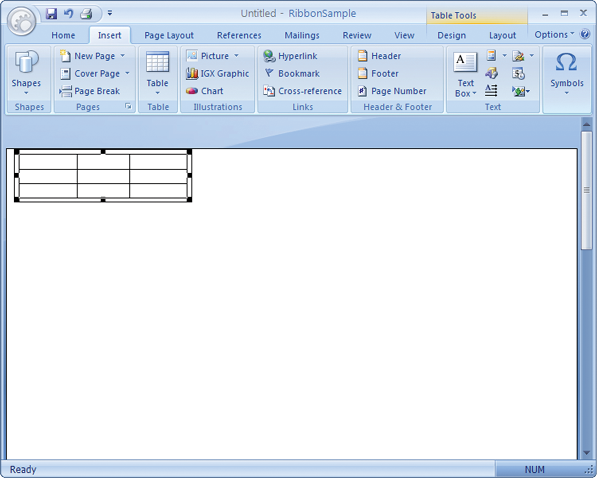
The AddRibbonBar method adds a Ribbon Bar to the command bars. The Ribbon Bar is just a different type of command bar and functions similarly with some added functionality. Buttons, Popups, and tabs can all be added to the same "bar". Finding a control in the Ribbon Bar is done using the FindControl method. The controls in the Ribbon Bar respond exactly the same way they would in a normal toolbar. The Execute event is used when an item is clicked or executed, and the status of items is updated using the Update event.
After adding a RibbonBar, the EnableDocking method should be used to disable docking by using the xtpFlagStretched flag, or by using a zero (0). If docking is desired, the Ribbon Bar can only be docked to the top or bottom of the application.
Call the RecalcLayout method to correctly size the Ribbon Bar when the layout has changed. Layout refers to anything that changes the size of the Ribbon Bar. For example, a layout change that requires the RecalcLayout method to be called would be adding a group, adding an item to a group, changing the caption of a tab, or adding/removing tab icons because the new caption could be smaller or wider.
For visible changes to the Ribbon Bar, such as changing the tab color of a visible tab button, the RedrawBar method is used.
The SetIconSize method sets the size of the "normal" icons displayed in the Ribbon Bar. Icons will not be displayed smaller than the size specified with SetIconSize. If a larger icon has not been added with the specified size, then the closest match will be scaled to the specified size.
The TabCount property returns the total number of tabs that have been added to the tabs collection.
The InsertTab method adds a new RibbonTab to the tabs collection of the Ribbon Bar.
Tabs in the Ribbon Bar contain one or more RibbonGroup objects. Buttons, Popups, etc. can then be added to the groups.
The TabCount property can be used to determine the total number of tabs that have been added.
Each RibbonTab can contain one or more RibbonGroup objects that are used to hold CommandBarControl objects. The Caption of a RibbonGroup is a title bar that visually "groups" the CommandBarControl objects that have been added to the RibbonGroup Items Collection.
Groups are added to the RibbonTab Groups Collection using the AddGroup and InsertGroup methods. Items are added to a group using the Add method.
Methods and Properties unique to the Ribbon Bar are:
- InsertTab and TabPaintManager methods.
- TabCount and Tab properties.
Example
Ribbon Bar Sample (Visual Basic)
This sample illustrates how to add a Ribbon Bar, how to add tabs to the Ribbon Bar, how to add groups to the tabs, and how to add items to the groups.
Dim TabWrite As RibbonTab, GroupFont As RibbonGroup, Control As CommandBarControl
Dim GroupClipborad As RibbonGroup, ControlPopup As CommandBarPopup

'Declare a Ribbon Bar object
Dim RibbonBar As RibbonBar

'Add a Ribbon Bar to the command bars
Set RibbonBar = CommandBars.AddRibbonBar("Ribbon Bar")

'Specify the Ribbon Bar is to use the stretched docking style. The Ribbon Bar
'can only be docked to the top or bottom of an application
RibbonBar.EnableDocking xtpFlagStretched

Dim ControlFile As CommandBarPopup

'Add a normal popup to the Ribbon Bar.
Set ControlFile = RibbonBar.Controls.Add(xtpControlPopup, -1, "&File", 1)
'Add commands to the popup
With ControlFile.CommandBar.Controls
    .Add xtpControlButton, ID_FILE_NEW, "&New"
    .Add xtpControlButton, ID_FILE_OPEN, "&Open..."
    Set Control = .Add(xtpControlButton, ID_APP_EXIT, "E&xit")
    Control.BeginGroup = True
End With

'Add a tab titled "Write" to the Ribbon Bar
Set TabWrite = RibbonBar.InsertTab(0, "Writ&e")

'Add a group titled "Clipboard" to the "Write" tab.
Set GroupClipborad = TabWrite.Groups.AddGroup("&Clipboard")

    'Add buttons to the "Clipboard" group
    Set ControlPaste = GroupClipborad.Add(xtpControlSplitButtonPopup, ID_EDIT_PASTE, "&Paste")
        ControlPaste.CommandBar.Controls.Add xtpControlButton, ID_EDIT_PASTE, "&Paste"
        ControlPaste.CommandBar.Controls.Add xtpControlButton, ID_EDIT_PASTE_SPECIAL, "&Paste Special"
    GroupClipborad.Add xtpControlButton, ID_EDIT_CUT, "&Cut"
    GroupClipborad.Add xtpControlButton, ID_EDIT_COPY, "&Copy"
    Set Control = GroupClipborad.Add(xtpControlButton, ID_FORMAT_PAINTER, "Format Painter")
    Control.Enabled = False

'Add a group titled "Font" to the "Write" tab.
Set GroupFont = TabWrite.Groups.AddGroup("&Font")

    'Add buttons to the "Font" group
    GroupFont.Add xtpControlButton, ID_TEXT_COLOR, "Color"
    Set Control = GroupFont.Add(xtpControlButton, ID_CHAR_BOLD, "&Bold")
    Control.BeginGroup = True
    GroupFont.Add xtpControlButton, ID_CHAR_ITALIC, "&Italic"
    GroupFont.Add xtpControlButton, ID_CHAR_UNDERLINE, "&Underline"
    Set Control = GroupFont.Add(xtpControlButton, ID_CHAR_STRIKETHROUGH, "Strikethrough")
    Control.Enabled = False
    Set Control = GroupFont.Add(xtpControlButton, ID_TEXT_SUBSCRIPT, "Subscript")
    Control.Enabled = False
    Set Control = GroupFont.Add(xtpControlButton, ID_TEXT_SUPERSCRIPT, "Superscript")
    Control.Enabled = False

'Add a tab titled "Insert" to the Ribbon Bar
Set TabInsert = RibbonBar.InsertTab(1, "&Insert")

    'Add a group titled "Pages" to the "Insert" tab.
    Set GroupPages = TabInsert.Groups.AddGroup("&Pages")

        'Add buttons to the "Pages" group
        Set ControlNew = GroupPages.Add(xtpControlSplitButtonPopup, ID_PAGES_NEW, "&New Page")
            ControlNew.CommandBar.Controls.Add xtpControlButton, ID_NEWPAGE_BLANKPAGE, "&Blank Page"
            ControlNew.CommandBar.Controls.Add xtpControlButton, ID_NEWPAGE_SELECTION, "&Save Selection as New Page"
        Set ControlCover = GroupPages.Add(xtpControlSplitButtonPopup, ID_PAGES_COVER, "Cover Page")
            ControlCover.DescriptionText = "Insert a fully-formatted cover page. You fill in the title, author, date, and other information."
            ControlCover.CommandBar.Controls.Add xtpControlButton, ID_COVERPAGE_REMOVECURRENTCOVERPAGE, "&Remove Current Cover Page"
            ControlCover.CommandBar.Controls.Add xtpControlButton, ID_COVERPAGE_SAVESELECTIONASNEWCOVERPAGE, "&Save Selection as New Cover Page"
        GroupPages.Add xtpControlButton, ID_PAGES_BREAK, "Page Break"

    'Add a group titled "Table" to the "Insert" tab.
    Set GroupTable = TabInsert.Groups.AddGroup("&Table")

        'Add buttons to the "Table" group
        Set ControlTable = GroupTable.Add(xtpControlButtonPopup, ID_TABLE_NEW, "&Table")
            ControlTable.CommandBar.Controls.Add xtpControlButton, ID_TABLE_INSERTTABLE, "&Insert Table.."
            ControlTable.CommandBar.Controls.Add xtpControlButton, ID_TABLE_DRAWTABLE, "Dra&w Table"
            ControlTable.CommandBar.Controls.Add xtpControlButton, ID_TABLE_CONVERTTEXTTOTABLE, "Con&vert Text to Table..."

'Select the "Insert" tab on startup.
TabInsert.Selected = True
See Also
- RibbonBar Members
- AddRibbonBar Method
- FindControl Method
- Execute Event
- Update Event
- EnableDocking Method
- RecalcLayout Method
- RedrawBar Method
- SetIconSize Method
- TabCount Property
- InsertTab Method
- RibbonGroup Object
- XTPControlFlags Enumeration
Copyright (c) 1998-2024 Codejock Technologies. All rights reserved.