RecentFileList Collection
See Also
- RecentFileList Members
- RecentFileList Property
- CreateCommandBarControl Method
- RecentFileList Property

Description
Recent File List (MRU) object.
For a list of all members defined in this module, see RecentFileList members.
Object Model



Remarks
See RecentFileList for more details.
RecentFileListItem represents an item entry that is displayed in a RecentFileList and contains the caption, icon, file path name, and pinned status for the item.
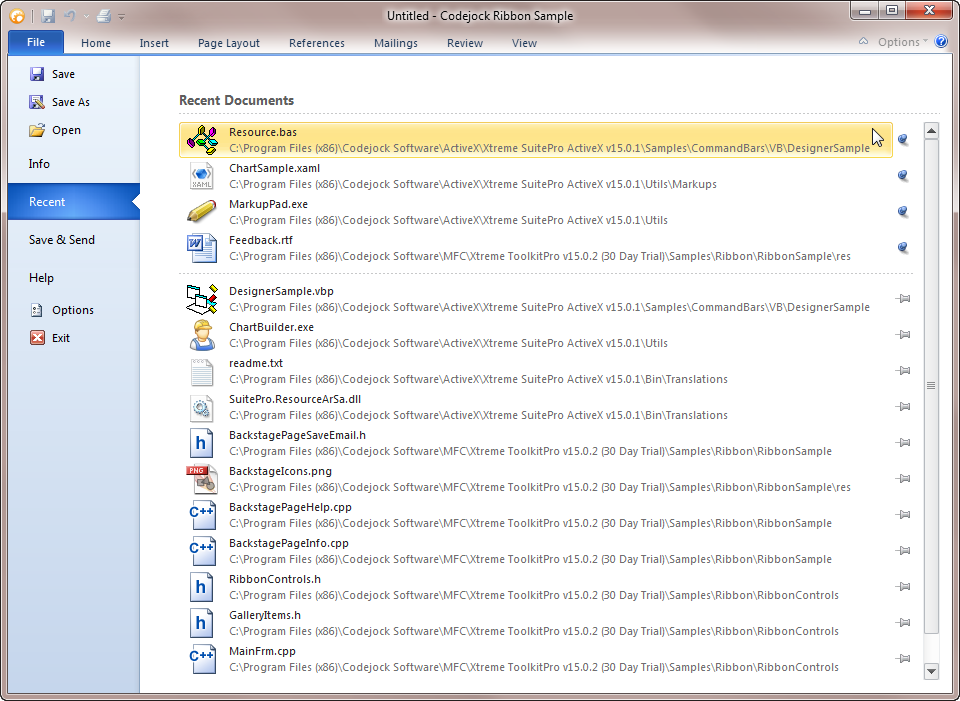
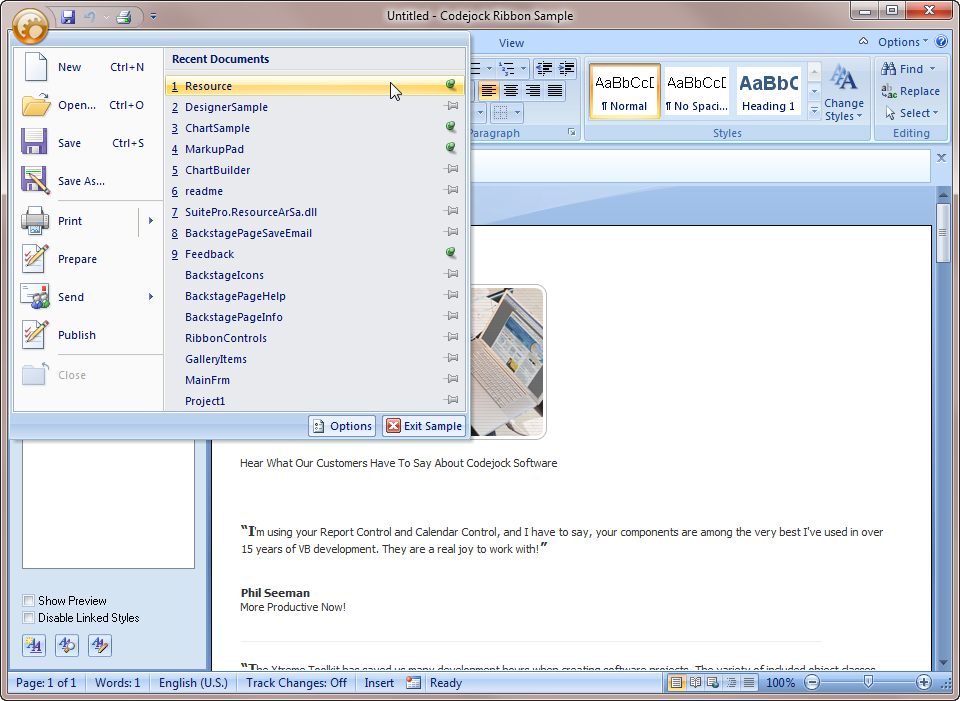
When the RecentFileListItem (XtremeCommandBars~RecentFileListItem.md) is added to a standard Recent File List, the caption is what is displayed for the item in the list. This is also true for the Office 2007 style list. When using the Office 2010 style list, the caption is not displayed in the list.
The icon Id (XtremeCommandBars~RecentFileListItem~IconId.md) is only used to display an icon in Office 2007 and older recent file lists. Using the Office 2010 style list, this Id is not used, and instead, the icon used by the system for that file type will be used.
The path name (XtremeCommandBars~RecentFileListItem~PathName.md) is used to store the entire path including filename. For Office 2007 and older styles, the recent file list path name is displayed as a tooltip for the RecentFileListItem (XtremeCommandBars~RecentFileListItem.md). The caption (XtremeCommandBars~RecentFileListItem~Caption.md) is only displayed for this item. For the Office 2010 style list, the path name is fully displayed in the item as two lines: the first line contains the file name, and the second contains the entire path to the file name.
The pinned (XtremeCommandBars~RecentFileListItem~Pinned.md) state of the item will display a pin icon to the right of the item if Pinable (XtremeCommandBars~RecentFileList~Pinable.md) is True for the RecentFileList (XtremeCommandBars~RecentFileList.md). When the item is "pinned," it will be displayed at the top of the list, regardless of the order it was added. By default, items are listed in the order in which they were added. When "pinned," the pin icon will also change, showing that the item is indeed pinned.
Office 2010 Style List
Using the Office 2010 style BackstageListBox to display the RecentFileList:
Dim RecentFileList As RecentFileList

RecentFileListBox.ToolTipContext.Style = xtpToolTipResource

CommandBars.RecentFileList.Add "C:\Program Files\Test1.xml"
CommandBars.RecentFileList.Add "C:\Program Files\Test2.xml"
RecentFileListBox.CreateRecentFileListItems RecentFileList
Office 2007 Style List
Dim RibbonBar As RibbonBar
Set RibbonBar = CommandBars.ActiveMenuBar

Set ControlFile = RibbonBar.AddSystemButton

Dim PopupBar As CommandBar
Set PopupBar = CommandBars.CreateCommandBar("CXTPRibbonSystemPopupBar")

Set ControlFile.CommandBar = PopupBar

CommandBars.RecentFileList.Add "C:\Program Files\Test1.xml"
CommandBars.RecentFileList.Add "C:\Program Files\Test2.xml"

With PopupBar.Controls
    Set Control = CommandBars.CreateCommandBarControl("CXTPRibbonControlSystemRecentFileList")
    Control.Caption = "Recent Documents"
    Control.BeginGroup = True
    Control.Id = XTP_ID_FILE_MRU
    .AddControl Control
End With
Office 2010 Style:
Office 2007 Style:
See Also
- RecentFileList Members
- RecentFileList Property
- CreateCommandBarControl Method
- RecentFileList Property
Example
Refer to the RecentFileList Property.
Copyright (c) 1998-2024 Codejock Technologies. All rights reserved.