RecentFileList Property
See Also
CommandBars Control | CreateCommandBarControl Method | RecentFileList Object | XTPCommandBarsSpecialCommands Enumeration

Description
Recent File List
Property Type
Read-only property
Syntax (Visual Basic)
Public Property RecentFileList() As [RecentFileList](XtremeCommandBars~RecentFileList.md)
Return Type
Reference to the RecentFileList displayed for the command bars.
Remarks
A Recent File List or MRU is used to display a recent list of opened files in the menu.
Basic Steps to Create an MRU (Office 2007 and Older Styles):
-
To manage the recent file list, you need to use the CommandBars.RecentFileList methods.
-
To add a control to your menu that will show the MRU recent file list, you must create a CXTPControlRecentFileList control with the CreateCommandBarControl method and set its ID to XTP_ID_FILE_MRU.
-
To create a pinnable Recent File list for the Ribbon, create CXTPRibbonControlSystemRecentFileList using the CreateCommandBarControl method and set its ID to XTP_ID_FILE_MRU.
-
The Recent File List will be saved/loaded when you call LoadCommandBars/SaveCommandBars.
-
To catch an event when the user selects a Recent File list in the menu, you need to add an event handler in the Execute event for the XTP_ID_FILE_MRU ID (or any ID that the user assigned for this control) and use the path name property to get the path to the file.
-
When adding items to the MRU, you must specify the complete path to the file; however, only the filename will be displayed. A tooltip will display the full path to the file. You can get the full path from the path name property when in the Execute event.
The following lists information about the RecentFileListItem object that is used to represent items in the RecentFileList and also lists sample code to create both Office 2007 and Office 2010 style lists.
RecentFileListItem represents an item entry that is displayed in a RecentFileList and contains the caption, icon, file path name, and pinned status for the item.
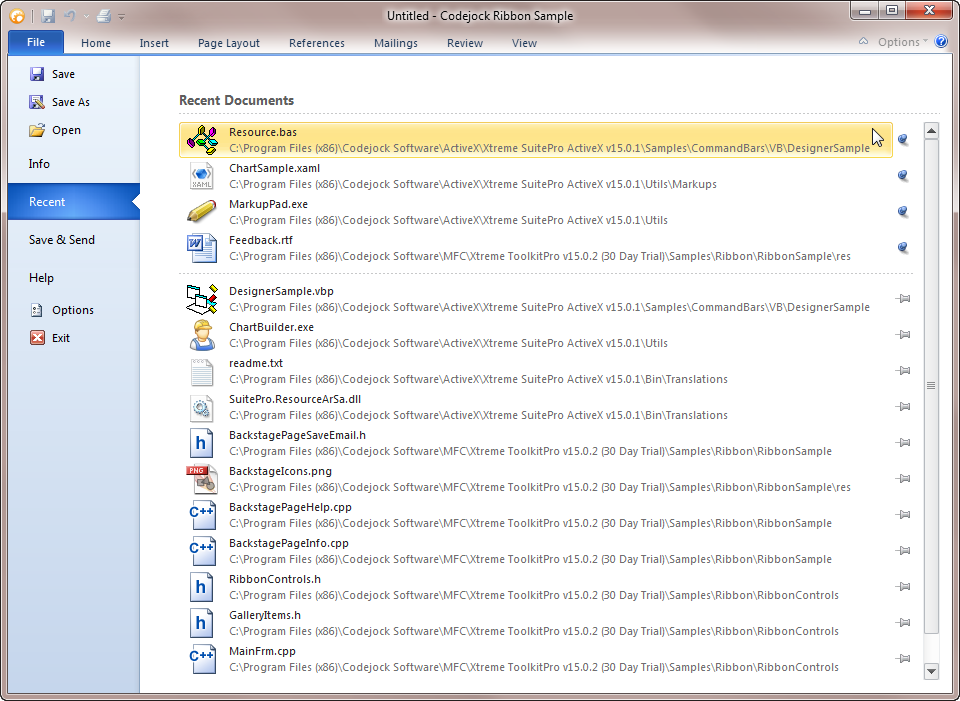
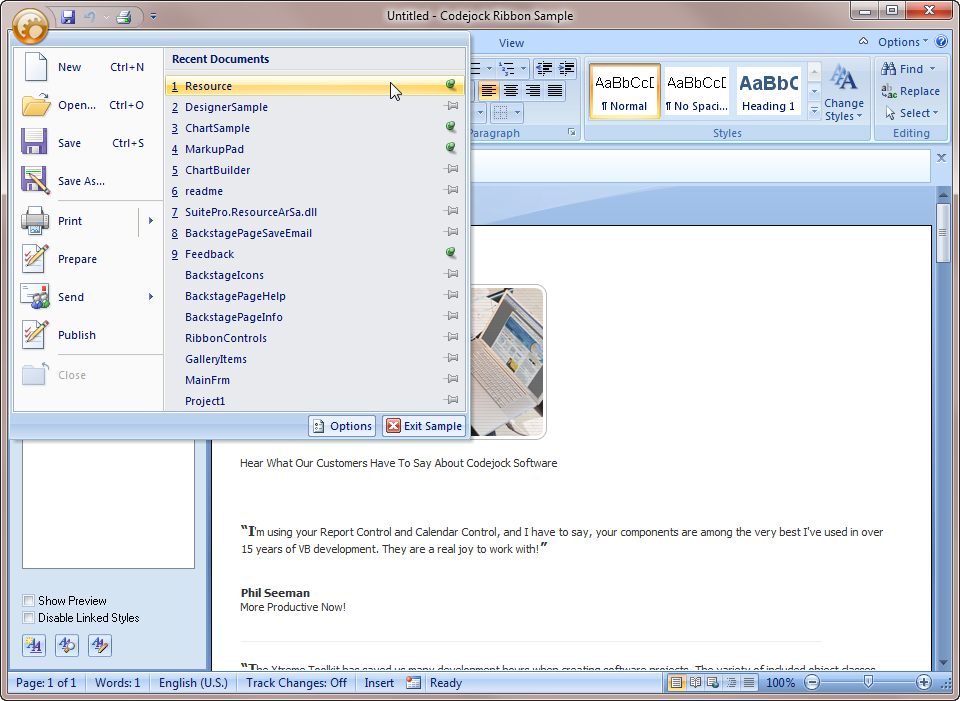
When the RecentFileListItem is added to a standard Recent File List, the caption is what is displayed for the item in the list. This is also true for the Office 2007 style list. When using the Office 2010 style list, the caption is not displayed in the list.
The icon Id is only used to display an icon in Office 2007 and older recent file lists. Using the Office 2010 style list, this ID is not used, and instead, the icon used by the system for that file type will be used.
The path name is used to store the entire path including the filename. For Office 2007 and older styles, the recent file list path name is displayed as a tooltip for the RecentFileListItem; the caption is only displayed for this item. For the Office 2010 style list, the path name is fully displayed in the item as two lines: the first line contains the file name, and the second contains the entire path to the file name.
The pinned state of the item will display a pin icon to the right of the item if Pinable is True for the RecentFileList. When the item is "pinned," it will be displayed at the top of the list, regardless of the order it was added for Office 2010 style lists. By default, items are listed in the order in which they were added. When "pinned," the pin icon will also change, showing the item is in fact pinned. For Office 2007 style and older lists, "pinned" items will remain in the order they were added.
Office 2010 Style List Using the Office 2010 Style BackstageListBox to Display the RecentFileList:
Dim RecentFileList As RecentFileList

RecentFileListBox.ToolTipContext.Style = xtpToolTipResource

CommandBars.RecentFileList.Add "C:\Program Files\Test1.xml"
CommandBars.RecentFileList.Add "C:\Program Files\Test2.xml"
RecentFileListBox.CreateRecentFileListItems RecentFileList
Office 2007 Style List:
Dim RibbonBar As RibbonBar
Set RibbonBar = CommandBars.ActiveMenuBar

Set ControlFile = RibbonBar.AddSystemButton

Dim PopupBar As CommandBar
Set PopupBar = CommandBars.CreateCommandBar("CXTPRibbonSystemPopupBar")

Set ControlFile.CommandBar = PopupBar

CommandBars.RecentFileList.Add "C:\Program Files\Test1.xml"
CommandBars.RecentFileList.Add "C:\Program Files\Test2.xml"

With PopupBar.Controls
    Set Control = CommandBars.CreateCommandBarControl("CXTPRibbonControlSystemRecentFileList")
    Control.Caption = "Recent Documents"
    Control.BeginGroup = True
    Control.Id = XTP_ID_FILE_MRU
    .AddControl Control
End With
Office 2010 Style:
Office 2007 Style:
Example
Dim ControlFile As CommandBarPopup
Dim Control As CommandBarControl
Dim PopupBar As CommandBar

Set ControlFile = RibbonBar.AddSystemButton()
ControlFile.IconId = ID_SYSTEM_ICON
ControlFile.Caption = "&File"

With ControlFile.CommandBar.Controls
    Set Control = CommandBars.CreateCommandBarControl("CXTPRibbonControlSystemRecentFileList")
    Control.Caption = "Recent Documents"
    Control.BeginGroup = True
    Control.Id = XTP_ID_FILE_MRU
    .AddControl Control

    CommandBars.RecentFileList.Add "C:\Untitled.txt"
    CommandBars.RecentFileList.Add "C:\Program Files\Untitled2.txt"
    CommandBars.RecentFileList.Add "Untitled3.txt"

    ControlFile.CommandBar.SetIconSize 32, 32
End With
Private Sub CommandBars_Execute(ByVal Control As XtremeCommandBars.ICommandBarControl)
    On Error Resume Next

    Select Case Control.Id
        Case XTPCommandBarsSpecialCommands.XTP_ID_FILE_MRU:
            Debug.Print Control.Caption & " clicked."
    End Select
End Sub
See Also
CommandBars Control | CreateCommandBarControl Method | RecentFileList Object | XTPCommandBarsSpecialCommands Enumeration
Copyright (c) 1998-2024 Codejock Technologies. All rights reserved.