CreateGalleryItems Method
Description
Creates a CommandBarGalleryItems collection for use in a CommandBarGallery control.
Syntax
Public Function CreateGalleryItems( _
    ByVal [Id](#) As Integer _
) As [CommandBarGalleryItems](XtremeCommandBars~CommandBarGalleryItems.md)
Parameters
- Id: Identifier of the gallery.
Return Type
Reference to the CommandBarGalleryItems collection object that was just created.
Remarks
Before adding items to a gallery, CreateGalleryItems must be used to create a CommandBarGalleryItems collection. Note that the Id of the CommandBarGalleryItems collection must use the same Id as the gallery control.
The Items collection allows you to access, add, modify, and delete the items in a gallery. The AddItem and AddLabel methods are used to add items to a gallery.
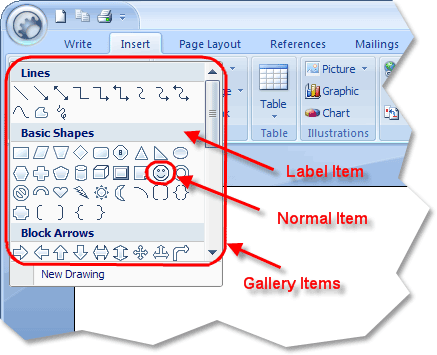
The illustration below shows a gallery control which contains both label and normal gallery items.
Example
CreateGalleryItems Sample (Visual Basic)
This sample illustrates how to create a gallery and add items to a gallery.
Dim ComboPopup As CommandBar, GalleryFont As CommandBarGallery, ItemsFont As CommandBarGalleryItems
Dim GallerySize As CommandBarGallery, ItemsSize As CommandBarGalleryItems

Set ComboPopup = CommandBars.Add("Combo Popup", xtpBarComboBoxGalleryPopup)
Set GalleryFont = ComboPopup.Controls.Add(xtpControlGallery, ID_FONT_FACE, "")
GalleryFont.Width = 290
GalleryFont.Height = 508

' First create a CommandBarGalleryItems collection using the
' same Id as the gallery does
Set ItemsFont = CommandBars.CreateGalleryItems(ID_FONT_FACE)
ItemsFont.ItemWidth = 0
ItemsFont.ItemHeight = 26

ItemsFont.AddLabel "Recently Used Fonts"
ItemsFont.AddItem 1, "Arial"
ItemsFont.AddItem 2, "Tahoma"

ItemsFont.AddLabel "All Fonts"
For i = 1 To Screen.FontCount
    ItemsFont.AddItem i, Screen.Fonts(i)
Next i

' Now set the Gallery.Items collection to the ItemsFont collections
' that contains the gallery items
Set GalleryFont.Items = ItemsFont
Set Combo.CommandBar = ComboPopup
See Also
Copyright (c) 1998-2024 Codejock Technologies. All rights reserved.