Indicating the Grid Focus
A grid's "focused row" is the row that is receiving input from the keyboard, or the row in which one of the cells is currently being edited (the focused cell).
A grid can also have a "selected" row. This is a row that has been "tagged" in some way by the user. Often, the focused row and the selected row are synchronized, but this is not always the case. A typical example of when this is not true is a grid that supports selecting multiple rows.
The grid supports many options to indicate which is the focused row, focused column, and which row(s) are selected.
Note: The Grid's datasource also has the concept of a SelectedRow. Do not confuse this with the grid's Selected Row(s). The datasource's SelectedRow is akin to the grid's focused row, i.e., the row that the user is currently interacting with.
Indicating the Focused Row
The DataFlex class library contains a specialized grid column class, cCJGridColumnRowIndicator, which is specifically designed to indicate the currently focused row.
In the image below, the leftmost column is the row indicator. As you click on a different row or use the arrow keys to move to a different row, the row indicator's pointer changes position to point to the new row.
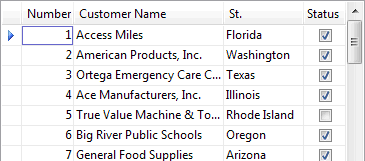
In the Studio, you would create a row indicator column by dragging a cCJGridColumnRowIndicator from the Class Palette and dropping it onto your grid object in the Visual Designer.
Row indicators can be used in both simple grids (cCJGrid) and data-aware grids (cDbCJGrid).
The focused row can also be indicated by drawing a dotted rectangle around the perimeter of the entire row. To indicate the focused row in this way, set pbShowRowFocus to true.
Indicating the Focused Cell
The grid's focused cell can be indicated by drawing a rectangle around the perimeter of the cell (as shown in the image above) and/or by painting the text and background of the focused cell in a different color.
To indicate the focused cell with a rectangle, set pbUseFocusCellRectangle to true. Set piFocusCellRectangleColor to change the color of the focus rectangle.
To paint the focused cell's background in a different color, set piFocusCellBackColor to a color value other than clNone. To paint the focused cell's text in a different color, set piFocusCellForeColor to a color value other than clNone.
Indicating the Selected Row
The grid's selected row(s) are indicated by painting the entire row using the selected row colors.
To enable row selection, set pbSelectionEnable to true. To enable selecting multiple rows, you must also set pbMultipleSelection to true.
The selected row background and text colors can be changed by setting piHighlightBackColor and piHighlightForeColor.