Converting Applications to the New Menu System
One of the goals for the new menu system was to make converting existing applications as easy as possible while preserving the objectives of better integration, simple use, and full support for all of the low-level features of the Codejock Xtreme CommandBars.
Recommended Practices for Using the New Menu System
In prior revisions of DataFlex, it was common practice for the menu, toolbar, and status bar code to be spread across multiple package and include files. It is still possible to use similar techniques with the new menu system; however, the recommended program structure is that the main project source file will contain all the code for those components. This type of structure allows the Studio to fully model the menus, toolbars, and status bar.
The various templates and the code generated by the Studio when using the Visual Designer reinforce the recommended code structure.
The Basics of Conversion
Perhaps the most important basic aspect of converting to the new menu system is that you don't have to do it at all. All of your existing applications and techniques will continue to work as they always have.
Conversion to the new menu system is accomplished in four basic steps:
- Open your project file and comment out the existing menu code.
- Use the Visual Designer to add the standard menu and toolbar system to your application.
- Populate the new menu system with Views and Reports and make adjustments as desired.
- Add context menus and make other adjustments.
The exact steps necessary to convert your application will depend on the type of menu system you use. We will focus on the conversion of applications that use the standard (old style) menu system and classes, using the Order Entry example from DataFlex 12.0 as the basis for comparison.
Converting the Order Entry Example
After migrating the DataFlex 12.0 Order Entry workspace, you'll see the first major change when you open the Order.src project in the Studio - the main panel is now modeled in the Visual Designer, like this:
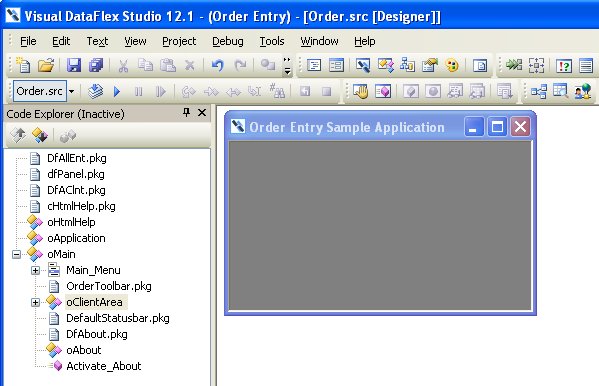
However, the existing old-style menu system is not modeled. At this point, the project will compile and run just as it did in DataFlex 12.0. The next step is to comment out the code that deals with all of the components of the old-style interface. See Figure 1 to see exactly what we commented out of the Order.src project.
The application can still compile and run, but there will be no menu, toolbar, or status bar.
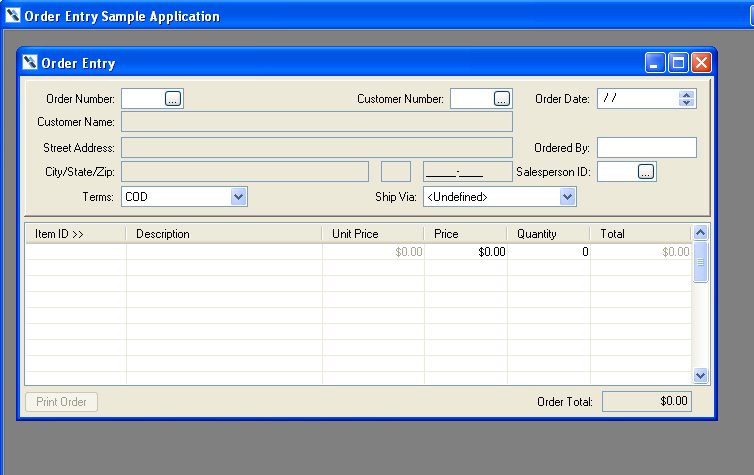
Now we simply use the Visual Designer context menu to add the standard Menu and Toolbar system to the application, like so:
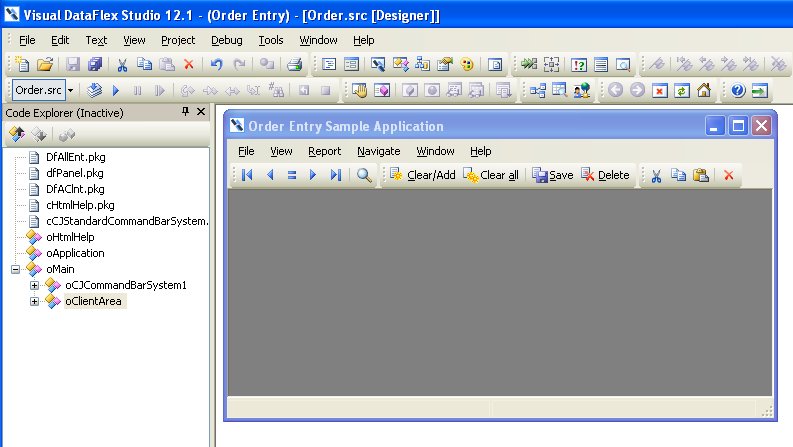
The Studio generates all the code for the default menu, toolbars, and status bar. Figure 2 shows all the code that the Studio added to the Order.src project. If we compile and run the application, the entire system is in place, but the View and Report menus are not yet populated. You can use the Visual Designer to examine all of the default menu and toolbar items.
You'll notice that the structure of the new menu system is a bit different and is completely contained in the Order.src project instead of in various included files. See Using Menus, Toolbars, and Statusbars for complete information about the new classes and object structures.
All of the view and report components are already part of the Order.src project, so we can use the Visual Designer to create the appropriate menu items. We can simply select the View menu and use Add Activate View / Report... to bring in all the views and then repeat the process for the reports.
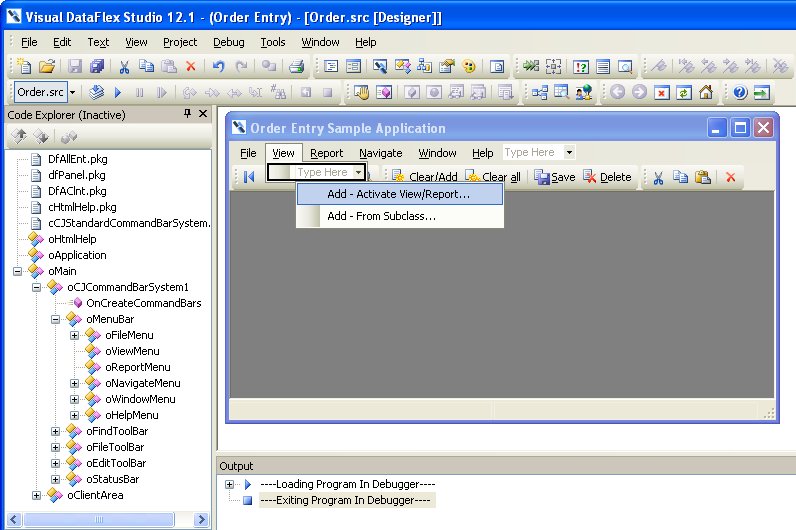
All of the application components are now fully accessible in the generated code, and the completed menu system is fully modeled in the Studio's Visual Designer, Code Explorer, and Object Properties tools. Figure 3 shows the code for the complete menus in the Order.src project.
You can now use the Visual Designer to move various menu and toolbar items to fine-tune the look and feel of your application.
For the fully converted Order Entry application, we added some finishing touches (context menus, shortcuts and descriptions, and the default about dialog) and cleaned up some unnecessary code. Figure 4 shows the completed Order.src project.
Converting Custom Menu Items
Your existing menu system may include items that perform actions that are not part of the default set and not directly activating views or reports. You can use the Visual Designer to create the menu item in the appropriate position, type in the description, and then set the OnExecute action event for that item based on your existing execution logic. Once you have the execution logic in place, you can use the other menu item properties to fine-tune the interface.
Converting Non-Standard Menus
As seen in the Order Entry example, MDI applications are one of the primary uses for the Commandbar System. The new classes can also be used in any container when an MDI style interface is not present.
Many developers use some form of dynamic menu system, where menu items or even entire menu systems are defined at runtime. See Creating Dynamic Menu Items for a discussion on how the new menu system supports these types of menus.