AddControl Method
Description
Adds a control to be handled by the resizer. Controls handled by the resizer can get resized automatically when the resizer is resized.
Syntax
Public Sub AddControl( _
    ByVal Name As String, _
    ByVal x As Long, _
    ByVal y As Long, _
    ByVal Width As Long, _
    ByVal Height As Long _
)
Parameters
-
Name
Name of the control to add. -
x
The X and Y inputs are percentages. Some common percentages you might use would be: -
Position X = 50; Y = 100, which makes the control stay positioned in the center of the resizer horizontally.
-
y
The X and Y inputs are percentages. Some common percentages you might use would be: -
Position X = 50; Y = 100, which makes the control stay positioned in the center of the resizer horizontally.
-
Width
The Width and Height inputs are percentages. Some common percentages you might use would be: -
Size X = 100; Y = 0, which makes the control's width grow at the same rate as the width of the resizer.
-
Size X = 100; Y = 100, which makes the control's width and height grow at the same rate as the width and height of the resizer.
-
Height
The Width and Height inputs are percentages. Some common percentages you might use would be: -
Size X = 100; Y = 0, which makes the control's width grow at the same rate as the width of the resizer.
- Size X = 100; Y = 100, which makes the control's width and height grow at the same rate as the width and height of the resizer.
Remarks
Controls can also be added at design-time. The following will allow controls to be added at run-time:
The resizer control has a properties window available at design time that allows you to set some of the properties of the control and add controls that can be resized as the resizer is getting resized.
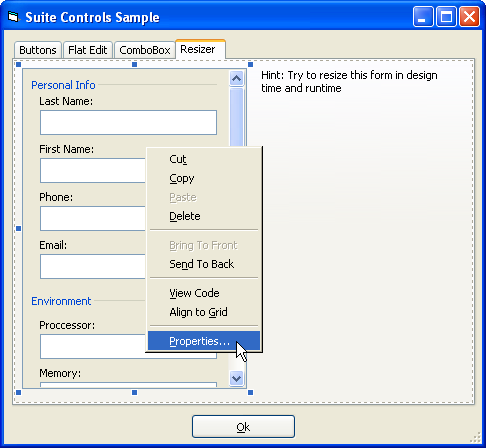
To access the properties window, right-click on the control and select properties.
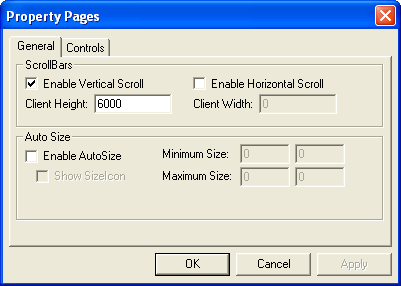
The general tab allows you to enable scrollbars and set the height and width of the area to be scrolled. You can also enable auto size and set the minimum and maximum size the resizer can become. Finally, you can specify whether the gripper icon is displayed in the lower right corner.
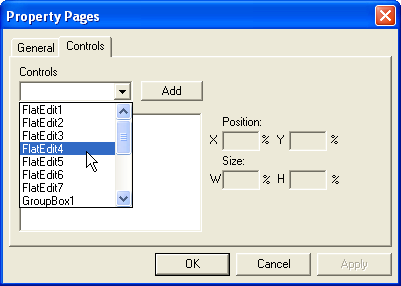
The controls tab allows you to specify which controls will automatically get scaled, resized, or repositioned as the size of the resizer control changes. For each control, you can specify the percentage that a control's size will grow or shrink as the resizer is resized, as well as the position of the controls.
The X and Y inputs are percentages. Some common percentages you might use would be:
- Size X = 100; Y = 0, which makes the control's width grow at the same rate as the width of the resizer.
- Size X = 100; Y = 100, which makes the control's width and height grow at the same rate as the width and height of the resizer.
- Position X = 50; Y = 100, which makes the control stay positioned in the center of the resizer horizontally.
See Also
Copyright (c) 1998-2024 Codejock Technologies. All rights reserved.