PropertyItemType Enumeration
See Also

Description
Specifies the type of a PropertyGridItem.
Members
| Member | Description |
|---|---|
| PropertyItemString | PropertyGridItem of type String. |
| PropertyItemNumber | PropertyGridItem of type Number. |
| PropertyItemBool | PropertyGridItem of type Boolean. |
| PropertyItemColor | PropertyGridItem of type Color. |
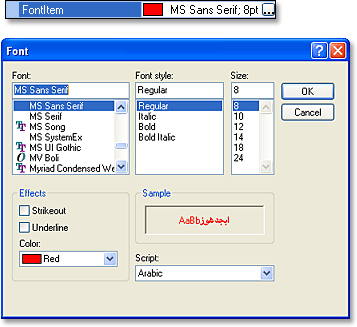
| PropertyItemFont | PropertyGridItem of type PropertyGridItemFont. |
| PropertyItemDouble | PropertyGridItem of type Double. |
| PropertyItemDate | PropertyGridItem of type PropertyGridItemDate. |
| PropertyItemPicture | PropertyGridItem of type Picture. |
| PropertyItemEnum | PropertyGridItem of type Enum. |
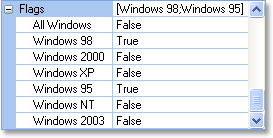
| PropertyItemEnumFlags | PropertyGridItem of type EnumFlags. This will create a Flags value item in the Property Grid control. |
| PropertyItemCategory | PropertyGridItem is a Category. |
| PropertyItemMultilineString | PropertyGridItem that contains a multi-line string. When using this property, a dropdown button will appear next to the item text that, when clicked, will display an edit window with the entire line of text. |
| PropertyItemOption | PropertyGridItem of type PropertyGridItemOption. |
Remarks
PropertyItemEnum
A Enum item is used to display a list of constraints. This is very similar to a normal constraint list. The difference is that an Enum constraint list will return the Data of the constraint when selected, while a normal constraint would return the Caption of the constraint. This means the PropertyGridItem Value property will contain the Data of the constraint, not the Caption of the constraint.
PropertyItemEnumFlags
A flag item is used to combine multiple boolean values into a single item. When using a flag item, you must add constraints to the flag item. Each constraint will have a value of TRUE or FALSE. The flag item will have an expand button that, when clicked, will display all boolean constraints for that item. The value of the flag item will be the sum of all the boolean constraints with a value of TRUE.
NOTE: Constraint values must be in powers of 2 for items of type PropertyItemEnumFlags.
In the PropertyItemEnumFlags example below, the flag item's initial value will be 9, this value is stored in the PropertyGridItem Value property. The string value will be "[Windows 98; Windows 95]" and this value is stored in PropertyGridItem MaskedText property. To set the value of an EnumFlags item, you must set the PropertyGridItem Value property to the sum of one or more constraints. The string value is what is displayed to the user.
PropertyItemCategory
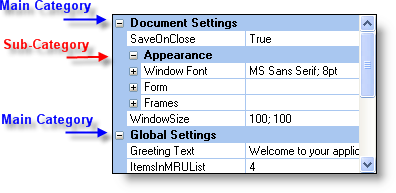
Adding an item of type PropertyItemCategory to a category will create a sub-category. This allows you to create nested categories. You can create as many sub-categories as you want.
PropertyItemColor
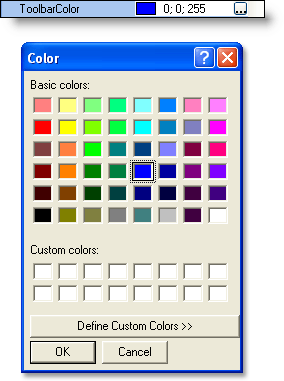
Items of type PropertyItemColor are used to display and retrieve color values. Both the color and RGB numeric equivalent are displayed in the item. A "color picker" dialog will be displayed when the expand button is clicked. The color picker allows the user to choose any of the predefined colors, or they can define a custom color. The picture below displays the PropertyItemColor and the color picker that is displayed when the expand button is pressed.
PropertyItemDate
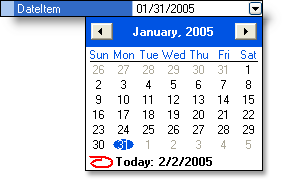
Items of type PropertyItemDate include a built-in "date picker" that allows the user to choose the day, month, and year from an intuitive GUI. The date format can be changed using the Format property.
PropertyItemFont
Items of type PropertyItemFont include a built-in "font picker" that allows the user to select the color, font, style, size, and effects of a font. Both the color and the font information will be displayed in the property grid item after the "font picker" is closed. Note that the color property MUST be manually set before the font dialog can be used to edit the font color. It will be disabled until this property is set.
PropertyItemPicture
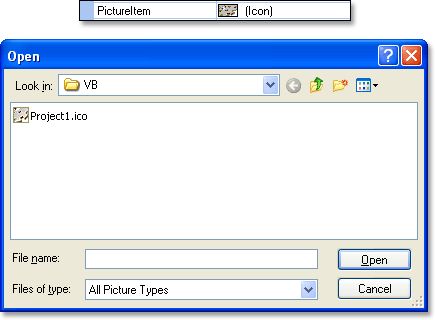
Items of type PropertyItemPicture will allow a picture to be loaded into a property grid item. The Value of the item needs to be set to the pointer of a picture object. Supported picture formats include bitmap (.bmp) files, icon (.ico) files, cursor (.cur) files, metafile (.wmf) files, enhanced metafiles (.emf), GIF (.gif) files, and JPEG (.jpg) files. The property grid item will display a small preview thumbnail of the loaded picture and will display the picture type.
Example
PropertyItemEnumFlags Sample (Visual Basic)
This sample illustrates how to add an item of type PropertyItemEnumFlags to your grid.
'*********************************************************************
'   PropertyItemEnumFlags Example
'*********************************************************************

Dim Category As PropertyGridItem

'Adds a Category with caption "Items" to the Property Grid
Set Category = wndPropertyGrid.AddCategory("Items")

Dim ItemFlags As PropertyGridItem

'Adds an item of type EnumFlags with a default value of 1 + 8 = 9 = [Windows 98; Windows 95]
Set ItemFlags = Category.AddChildItem(PropertyItemEnumFlags, "Flags", 1 + 8)

'Adds a constraint that will set all items TRUE or FALSE, note the value of the constraint is the sum
'of all the other constraints. This item will also be updated when the values of the other constraints
'have changed.
ItemFlags.Constraints.Add "All Windows", 1 + 2 + 4 + 8 + 16 + 32

'Adds some constraints that can have a value of TRUE or FALSE
ItemFlags.Constraints.Add "Windows 98", 1
ItemFlags.Constraints.Add "Windows 2000", 2
ItemFlags.Constraints.Add "Windows XP", 4
ItemFlags.Constraints.Add "Windows 95", 8
ItemFlags.Constraints.Add "Windows NT", 16
ItemFlags.Constraints.Add "Windows 2003", 32

'This changes the value of the flag item to 21 and the string
'caption to [Windows 98; Windows XP; Windows NT]
ItemFlags.Value = 21

'Returns the sum of all true constraints
Debug.Print "Flags Item Value = " & ItemFlags.Value

'Returns a string containing the text of all true constraints
Debug.Print "Flags Item String = " & ItemFlags.MaskedText
PropertyItemEnum Sample (Visual Basic)
This sample illustrates how to add an item of type PropertyItemEnum to your grid.
'*********************************************************************
'   PropertyItemEnum Example
'*********************************************************************

Dim Category As PropertyGridItem

'Adds a Category with caption "Items" to the Property Grid
Set Category = wndPropertyGrid.AddCategory("Items")

Dim ItemEnum As PropertyGridItem

'Adds a PropertyItemEnum item with a caption of "Enum" and an initial value of 2
'This will cause the constraint with a value of 2 to be selected
Set ItemEnum = Category.AddChildItem(PropertyItemEnum, "Enum", 2)

'Adds some constraints along with a Data value
ItemEnum.Constraints.Add "Windows 98", 1
ItemEnum.Constraints.Add "Windows 2000", 2
ItemEnum.Constraints.Add "Windows XP", 3

'Returns the Data value of the constraint selected
Debug.Print "Enum Item Value =" & ItemEnum.Value

'Returns the String of the constraint selected
Debug.Print "Enum Item String =" & ItemEnum.MaskedText
PropertyItemCategory Sample (Visual Basic)
This sample illustrates how to add an item of type PropertyItemCategory to your grid.
'*********************************************************************
'   PropertyItemCategory Example
'*********************************************************************

Dim Category As PropertyGridItem, ItemAppearance As PropertyGridItem
Dim FontAppearance As PropertyGridItem

'Adds a Category with caption "Document Settings" to the Property Grid
Set Category = wndPropertyGrid.AddCategory("Document Settings")

'Adds a sub-category called "Appearance" to the "Document Settings" category.
Set ItemAppearance = Category.AddChildItem(PropertyItemCategory, "Appearance", "")

'Adds a child item to the "Appearance" Category.
Set FontAppearance = ItemAppearance.AddChildItem(PropertyItemFont, "Window Font", Me.Font)

'Adds child items to the "Window Font" item.
FontAppearance.AddChildItem PropertyItemBool, "Bold", Me.Font.Bold
FontAppearance.AddChildItem PropertyItemBool, "Italic", Me.Font.Italic
FontAppearance.AddChildItem PropertyItemBool, "Underline", Me.Font.Underline
FontAppearance.AddChildItem PropertyItemBool, "Strikethrough", Me.Font.Strikethrough
FontAppearance.AddChildItem PropertyItemString, "Name", Me.Font.Name
FontAppearance.AddChildItem PropertyItemNumber, "Weight", Me.Font.Weight
PropertyItemColor Sample (Visual Basic)
This sample illustrates how to add an item of type PropertyItemColor to your grid.
'*********************************************************************
'   PropertyItemColor Example
'*********************************************************************

Dim Category As PropertyGridItem

'Adds a Category with caption "Document Settings" to the Property Grid
Set Category = wndPropertyGrid.AddCategory("Document Settings")

'Adds a color item to the "Document Settings" category.
Category.AddChildItem PropertyItemColor, "ColorItem", RGB(20, 20, 30)
PropertyItemFont Sample (Visual Basic)
This sample illustrates how to add an item of type PropertyItemFont to your grid.
'*********************************************************************
'   PropertyItemFont Example
'*********************************************************************

Dim Category As PropertyGridItem

'Adds a Category with caption "Items" to the Property Grid
Set Category = wndPropertyGrid.AddCategory("Items")

'Adds a PropertyGridItem that will display the currently selected font, a
'button is added to the item that will display a Font Chooser dialog when clicked.
Set Item = Category.AddChildItem(PropertyItemFont, "FontItem", Me.Font)

'The color property must manually be set to enable the color property to be selected in the
'Font Chooser dialog, this must be done even if you are setting the color to black
Item.Color = vbRed
PropertyItemDate Sample (Visual Basic)
This sample illustrates how to add an item of type PropertyItemDate to your grid.
'*********************************************************************
'   PropertyItemDate Example
'*********************************************************************

Dim DateItem As PropertyGridItemDate

'Adds a date item with an initial date of 01/31/2005
Set DateItem = Category.AddChildItem(PropertyItemDate, "DateItem", "01/31/2005")

'Sets date format to MM/DD/YYYY
DateItem.Format = "%m%d%Y"

'Returns the currently set date formatted with the mask MM/DD/YYYY
Debug.Print "Currently set date (MM/DD/YYYY): " & DateItem.Value

'Returns the currently set date without a format mask
Debug.Print "Unformatted date (MMDDYYYY): " & DateItem.MaskedText

'Returns the date using the Month, Day, and Year properties
Debug.Print "Current Date: " & DateItem.Month & "/" & DateItem.Day & "/" & DateItem.Year
PropertyItemPicture Sample (Visual Basic)
This sample illustrates how to add an item of type PropertyItemPicture to your grid.
'*********************************************************************
'   PropertyItemPicture Example
'*********************************************************************

Dim Category As PropertyGridItem
Dim PictureItem As PropertyGridItem

'Adds a Category with caption "Items" to the Property Grid
Set Category = wndPropertyGrid.AddCategory("Items")

'Adds an item of type PropertyItemPicture to the grid.
Set PictureItem = Category.AddChildItem(PropertyItemPicture, "PictureItem", "")

Dim AppIcon As Picture

'Loads an icon
Set AppIcon = LoadPicture(App.Path + "\Project1.ico")

'Sets the value of PictureItem to the icon loaded into AppIcon
'This will be the picture displayed in the property grid item.
PictureItem.Value = AppIcon
See Also
Copyright (c) 1998-2024 Codejock Technologies. All rights reserved.