TabToolBar Collection
See Also
- TabToolBar Members
- TabControlItem Object
- Category Property
- InsertCategory Method
- RedrawBar Method
- UpdateTabs Method
- AllowReorder Property
- CategoryCount Property
- XTPTabLayoutStyle Enumeration
- TabPaintManager Property
- RecalcLayout Method
- MinimumWidth Property
- RemoveCategory Method
- AddTabToolBar Method

Description
Represents a Tabbed ToolBar.
For a list of all members defined in this module, see TabToolBar members.
Object Model



Remarks
A Tabbed ToolBar contains all the functionality of Standard ToolBars (CommandBar); however, Tabbed toolbars eliminate the need for numerous toolbars to be crowded at the top of your application. Many toolbars, called categories, can be "tabbed" together. Switching between toolbar categories is similar to a TabControl; you can now access all of your toolbar categories simply by clicking on its tab. Tabbed toolbars also increase the usable viewing area by organizing the toolbars into a single tab group. You can still use normal toolbars outside of the TabbedToolbar if needed. The TabbedToolbar will dock just like a normal toolbar.
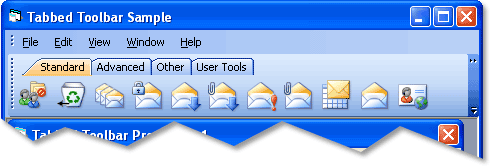
Tabbed toolbars are added using the AddTabToolBar method.
The Tabbed Toolbar consists of one or more categories, each category has its own tab. Tabs are used to display the corresponding category. Categories can be thought of as separate toolbars. Buttons and other controls can then be added to each category. The InsertCategory method is used to insert a category into a tabbed toolbar. The InsertCategory method returns a TabControlItem, which is the tab used to access the category. In the picture above, "Advanced", "Standard", "Other", and "User Tools" are all categories that were added to a Tabbed ToolBar.
The UpdateTabs method must be called after adding buttons/controls to a category in the tabbed toolbar so the new control can be added to the appropriate Category. When adding buttons/controls, the Category property for the new button/control must be set to the name of a category in the tabbed toolbar. After UpdateTabs is called, the buttons will be displayed in the appropriate category.
The appearance, color, and theme of the tabs used in the Tabbed Toolbar can be customized using the TabPaintManager property. Depending on which visual changes are made, the RedrawBar and RecalcLayout methods might be needed to update the tabbed toolbar.
The AllowReorder property is used to specify that the tabs in the tabbed toolbar can be reordered.
The MinimumWidth property specifies the minimum width the Tabbed Toolbar can be, regardless of how few items might be in a category.
Methods and Properties unique to the Tabbed Toolbar are:
Example
Tabbed ToolBar Sample (Visual Basic)
This sample illustrates how to add a Tabbed Toolbar and how to add categories with buttons to the Tabbed ToolBar.
Dim Control As CommandBarControl

' Removes the menu bar and all toolbars
CommandBars.DeleteAll

' Re-Add the Menu Bar
CommandBars.AddMenuBar "Menu"

' Add a Tabbed ToolBar
Set TabToolBar = CommandBars.AddTabToolBar("Standard Tabbed Toolbar")

Dim toolbarTab As TabControlItem

'************************************
' Add Categories to the Tabbed ToolBar
'************************************

' Add the "Standard" Category
Set toolbarTab = TabToolBar.InsertCategory(ID_TAB_STANDARD, "Standard")

' Add the "Advanced" Category
Set toolbarTab = TabToolBar.InsertCategory(ID_TAB_ADVANCED, "Advanced")

' Specify the minimum width of the toolbar in pixels
TabToolBar.MinimumWidth = 400

' Start adding buttons/controls to the Categories in the Tabbed ToolBar
With TabToolBar
    ' Add buttons to the "Standard" category
    Set Control = .Controls.Add(xtpControlButton, ID_FILE_NEW, "&New Project")
    Control.Category = "Standard"
    Set Control = .Controls.Add(xtpControlButton, ID_FILE_WIZARD, "&New Project Wizard...")
    Control.Category = "Standard"
    Set Control = .Controls.Add(xtpControlButton, ID_FILE_OPEN, "&Open Project")
    Control.Category = "Standard"
    Set Control = .Controls.Add(xtpControlButton, ID_FILE_SAVE, "&Save Project")
    Control.Category = "Standard"
    Set Control = .Controls.Add(xtpControlButton, ID_FILE_SAVE_AS, "Save Project &As...")
    Control.Category = "Standard"

    ' Add buttons to the "Advanced" category
    Set Control = .Controls.Add(xtpControlButton, ID_FILE_SAVE_ALL, "Save All")
    Control.Category = "Advanced"
    Set Control = .Controls.Add(xtpControlButton, 0, "Export Files")
    Control.Category = "Advanced"
    Set Control = .Controls.Add(xtpControlButton, ID_PROJECT_UPDATE, "Update All")
    Control.Category = "Advanced"
    Set Control = .Controls.Add(xtpControlButton, ID_PROJECT_BUILD, "&Build")
    Control.Category = "Advanced"
    Set Control = .Controls.Add(xtpControlButton, 0, "B&uild All")
    Control.Category = "Advanced"
    Set Control = .Controls.Add(xtpControlButton, ID_PROJECT_CHECK, "&Check")
    Control.Category = "Advanced"
    Set Control = .Controls.Add(xtpControlButton, ID_PROJECT_STOP, "&Stop")
    Control.Category = "Advanced"
End With

' Change the appearance of the tab buttons
TabToolBar.TabPaintManager.Appearance = xtpTabAppearanceFlat

' Adds all the controls to the appropriate Categories inside the Tabbed Toolbar
TabToolBar.UpdateTabs
See Also
- TabToolBar Members
- TabControlItem Object
- Category Property
- InsertCategory Method
- RedrawBar Method
- UpdateTabs Method
- AllowReorder Property
- CategoryCount Property
- XTPTabLayoutStyle Enumeration
- TabPaintManager Property
- RecalcLayout Method
- MinimumWidth Property
- RemoveCategory Method
- AddTabToolBar Method
Copyright (c) 1998-2024 Codejock Technologies. All rights reserved.