AddSystemButton Method
Description
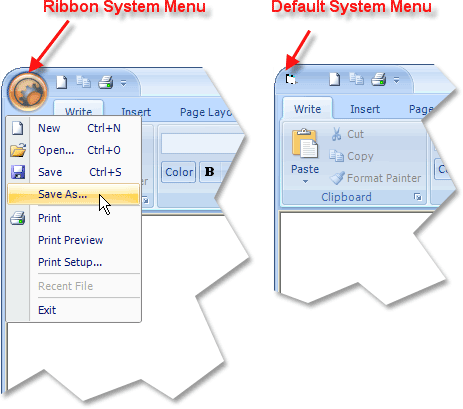
Adds the Office 2007 style ribbon system popup menu.
Syntax
Public Function AddSystemButton() As [CommandBarPopup](XtremeCommandBars~CommandBarPopup.md)
Return Type
Returns a CommandBarPopup object that CommandBarControl items can be added to.
Remarks
AddSystemButton adds the Office 2007 style ribbon system popup menu. For best results, you should use a 32x32 sized icon to display in the system menu button.
The ribbon system menu is a CommandBarPopup object that CommandBarControl items can be added to.
Example
AddSystemButton Sample (Visual Basic)
This sample illustrates how to add the ribbon system menu and how to add items to the menu.
CommandBars.Icons.LoadBitmap App.Path & "\res\shiny-gear.bmp", ID_SYSTEM_ICON, xtpImageNormal

Dim RibbonBar As RibbonBar
Set RibbonBar = CommandBars.AddRibbonBar("The Ribbon")
RibbonBar.EnableDocking xtpFlagStretched

Dim ControlFile As CommandBarPopup
Dim Control As CommandBarControl

Set ControlFile = RibbonBar.AddSystemButton()
ControlFile.IconId = ID_SYSTEM_ICON

With ControlFile.CommandBar.Controls
    .Add xtpControlButton, ID_FILE_NEW, "&New"
    .Add xtpControlButton, ID_FILE_OPEN, "&Open..."
    .Add xtpControlButton, ID_FILE_SAVE, "&Save"
    .Add xtpControlButton, ID_FILE_SAVE_AS, "Save &As..."

    Set Control = .Add(xtpControlButton, ID_FILE_PRINT, "&Print")
    Control.BeginGroup = True

    .Add xtpControlButton, ID_FILE_PRINT_PREVIEW, "Print Pre&view"
    .Add xtpControlButton, ID_FILE_PRINT_SETUP, "Pr&int Setup..."

    Set Control = .Add(xtpControlButton, ID_FILE_MRU_FILE1, "Recent File")
    Control.BeginGroup = True
    Control.Enabled = False

    Set Control = .Add(xtpControlButton, ID_APP_EXIT, "E&xit")
    Control.BeginGroup = True
End With
See Also
Copyright (c) 1998-2024 Codejock Technologies. All rights reserved.