MiniToolBar Object
See Also
MiniToolBar Members | AddMiniToolBar Method | AddPopup Method | PopupContextMenu Method | PopupMiniToolBar Method

Description
Represents a MiniToolbar object.
For a list of all members defined in this module, see MiniToolBar Members.
Object Model








Remarks
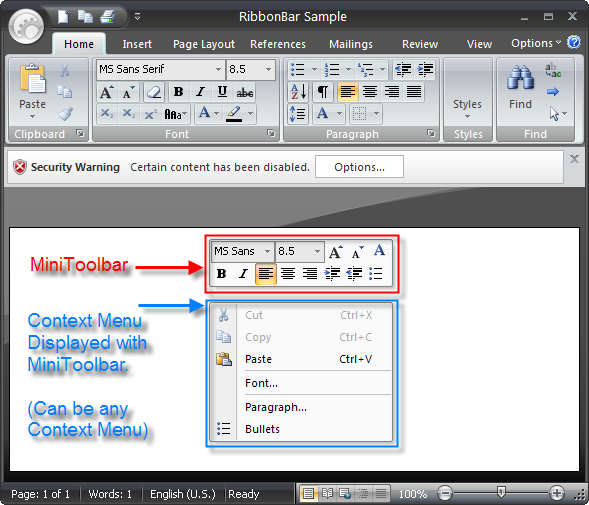
MiniToolBar is an Office 2007 style context toolbar. It has many uses; for example, you might want to display a MiniToolbar presenting some of the more commonly used commands that a user would probably want to use in a given situation like selecting text. This can save the user a lot of time by making font-related tasks available without fumbling through tabs or menus. To effectively use a MiniToolbar, you would place all commands the user would most likely want to use when performing a given action.
A MiniToolbar can be displayed by itself using PopupMiniToolBar or it can be displayed with a context menu underneath it using PopupContextMenu.
Use AddMiniToolBar to create a new MiniToolBar object. After creation, the MiniToolbar needs to be added to the commandbars collection of context menus using AddPopup.
Example
Private Sub Form_Load()

    Dim MiniToolBar As MiniToolBar

    ' Create a MiniToolbar object
    Set MiniToolBar = CommandBars.AddMiniToolBar("MiniBar")

    ' Add the MiniToolbar to the commandbars collection of context menus
    CommandBars.ContextMenus.AddPopup MiniToolBar

    ' Add controls to the Mini Toolbar
    With MiniToolBar.Controls
        Dim Combo As CommandBarComboBox, ComboPopup As CommandBar

        Set Combo = .Add(xtpControlComboBox, ID_FONT_FACE, "Font Face")
        Combo.DropDownListStyle = True
        Combo.Width = 64
        Combo.Text = "Tahoma"
        Combo.AutoComplete = True

        Set ComboPopup = CommandBars.Add("Combo Popup", xtpBarComboBoxGalleryPopup)

        Dim GalleryFont As CommandBarGallery, GallerySize As CommandBarGallery
        Set GalleryFont = ComboPopup.Controls.Add(xtpControlGallery, ID_FONT_FACE, "")
        GalleryFont.Width = 290
        GalleryFont.Height = 508
        GalleryFont.Resizable = xtpAllowResizeWidth Or xtpAllowResizeHeight

        Set Combo.CommandBar = ComboPopup

        Set Combo = .Add(xtpControlComboBox, ID_FONT_SIZE, "Font Size")
        Combo.DropDownListStyle = True
        Combo.Width = 50
        Combo.Text = "10"

        Set ComboPopup = CommandBars.Add("Combo Popup", xtpBarComboBoxGalleryPopup)
        Set GallerySize = ComboPopup.Controls.Add(xtpControlGallery, ID_FONT_SIZE, "")
        GallerySize.Width = 42
        GallerySize.Height = 16 * 17
        GallerySize.Resizable = xtpAllowResizeHeight

        Set Combo.CommandBar = ComboPopup

        .Add xtpControlButton, ID_FONT_GROW, ""
        .Add xtpControlButton, ID_FONT_SHRINK, ""
        .Add xtpControlButton, ID_TEXT_COLOR, ""
        .Add xtpControlButton, ID_CHAR_BOLD, ""
        .Add xtpControlButton, ID_CHAR_ITALIC, ""
        .Add xtpControlButton, ID_PARA_LEFT, ""
        .Add xtpControlButton, ID_PARA_CENTER, ""
        .Add xtpControlButton, ID_PARA_RIGHT, ""
        .Add xtpControlButton, ID_PARA_INCREASEINDENT, ""
        .Add xtpControlButton, ID_PARA_DECREASEINDENT, ""
        .Add xtpControlButton, ID_INSERT_BULLET, ""

        MiniToolBar.Width = 22 * 8 + 4
    End With
End Sub

Private Sub txtClient_MouseUp(Button As Integer, Shift As Integer, x As Single, y As Single)
    Dim MiniToolBar As MiniToolBar

    If (Button = 2) Then
        ZOrder
        Dim Popup As CommandBar
        Set Popup = CommandBars.ContextMenus(1)
        Set MiniToolBar = CommandBars.ContextMenus(2)
        ' Popup.ShowPopup
        MiniToolBar.PopupContextMenu Popup
    End If

    If (Button = 1 And txtClient.SelLength > 0) Then
        Set MiniToolBar = CommandBars.ContextMenus(2)
        ' Popup.ShowPopup
        MiniToolBar.PopupMiniToolBar
    End If
End Sub
See Also
MiniToolBar Members | AddMiniToolBar Method | AddPopup Method | PopupContextMenu Method | PopupMiniToolBar Method
Copyright (c) 1998-2024 Codejock Technologies. All rights reserved.