DrawItem Event
See also
Description
Occurs when a CommandBarGalleryItem is about to be drawn. This allows you to override the drawing of items in a gallery.
Syntax
Public Event DrawItem( _
    ByVal hDC As Integer, _
    ByVal Gallery As CommandBarGallery, _
    ByVal Item As CommandBarGalleryItem, _
    ByVal x As Integer, _
    ByVal y As Integer, _
    ByVal cx As Integer, _
    ByVal cy As Integer, _
    ByVal Enabled As Boolean, _
    ByVal Selected As Boolean, _
    ByVal Pressed As Boolean, _
    ByVal Checked As Boolean, _
    ByRef Handled As Variant _
)
Parameters
-
hDC
Reference to the device context on which you will draw. -
Gallery
Reference to the parent CommandBarGallery of the item. -
Item
Reference to the CommandBarGalleryItem to be drawn. -
x
Left coordinate of the item to be drawn. Combine with y to get the top-left corner of the item. -
y
Top coordinate of the item to be drawn. Combine with x to get the top-left corner of the item. -
cx
Right coordinate of the item to be drawn. Combine with cy to get the bottom-right corner of the item. -
cy
Bottom coordinate of the item to be drawn. Combine with cx to get the bottom-right corner of the item. -
Enabled
Will be True if the item about to be drawn is currently enabled. -
Selected
Will be True if the item about to be drawn is currently selected. -
Pressed
Will be True if the item about to be drawn is currently pressed. -
Checked
Will be True if the item about to be drawn is currently checked. -
Handled
Set to True to tell the commandbars that you manually "handled" (drew) the item.
Set to False to allow the commandbars to draw the item.
Remarks
The DrawItem event is called before each CommandBarGalleryItem in a CommandBarGallery is drawn.
The DrawItem event is used to override the standard drawing functionality of the CommandBarGalleryItem(s) in a CommandBarGallery. This can be very useful to draw custom gallery items.
The DrawRectangle method allows you to manually draw a button. Typically you would first use DrawRectangle to draw the item so that you have the correct background color, then draw your custom content over it.
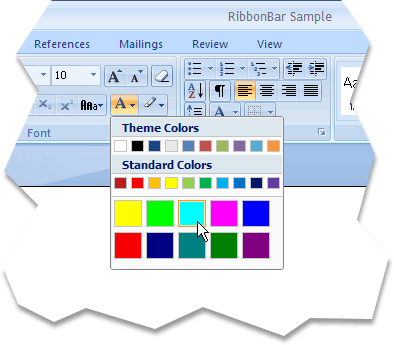
The illustration below shows a gallery control used as a color selector. The color squares in the gallery are all custom drawn in the DrawItem event. Also note the custom highlighting around the items; this is also custom drawn because the default highlighting will cover the entire item. See the sample below to see how to recreate this color selector gallery. The complete code to add the color selector gallery is included. Simply create a blank project, add a CommandBars control to the SDI form, then cut and paste the code below.
Example
Drawing Custom Gallery Items (Visual Basic)
This sample illustrates how to override the default drawing of gallery items and how to manually draw custom gallery items. This code can be cut and pasted into a new project and is ready to run.
'***************************************************
' Place this code in the general section
'***************************************************
Private Type RECT
    Left As Long
    Top As Long
    Right As Long
    Bottom As Long
End Type

Private Declare Function FillRect Lib "user32" (ByVal hdc As Long, lpRect As RECT, ByVal hBrush As Long) As Long
Private Declare Function DeleteObject Lib "gdi32" (ByVal hObject As Long) As Long
Private Declare Function SetRect Lib "user32" (lpRect As RECT, ByVal X1 As Long, ByVal Y1 As Long, ByVal X2 As Long, ByVal Y2 As Long) As Long
Private Declare Function CreateSolidBrush Lib "gdi32" (ByVal crColor As Long) As Long

Dim hBrush As Long
Dim R As RECT

' Add some gallery items collections with events
' to allow the DrawItem event to be called when the items
' in the gallery are to be drawn
Dim WithEvents GalleryColorItems As CommandBarGalleryItems
Dim WithEvents GalleryLargeColorItems As CommandBarGalleryItems

Const ID_GALLERY_COLORS = 2010
Const ID_GALLERY_COLORS_POPUP = 2011
Const ID_GALLERY_LARGE_COLORS_POPUP = 2011

Const ID_GROUP_FONT = 2015
Const ID_TEXT_COLOR = 2016

'***************************************************
' Place this code where you create your commandbars / ribbon bar
' This code is using a ribbon bar
'***************************************************
Private Sub Form_Load()
    Dim RibbonBar As RibbonBar
    Set RibbonBar = CommandBars.AddRibbonBar("The Ribbon")
    RibbonBar.EnableDocking xtpFlagStretched

    Dim ControlFont As CommandBarPopup, Control As CommandBarControl
    Dim TabWrite As RibbonTab

    Set TabWrite = RibbonBar.InsertTab(0, "Writ&e")

    Set GroupFont = TabWrite.Groups.AddGroup("&Font", ID_GROUP_FONT)
    GroupFont.ControlsGrouping = True

    Set Control = GroupFont.Add(xtpControlPopup, ID_TEXT_COLOR, "Color")
    Control.BeginGroup = True
    Control.Style = xtpButtonIcon

    Dim GalleryColorsPopupBar As CommandBar
    Set GalleryColorsPopupBar = CommandBars.Add("Colors", xtpBarPopup)
    Set GalleryColorItems = CreateColorsGallery

    Control.CommandBar = GalleryColorsPopupBar

    Dim GalleryColors As CommandBarGallery
    Set GalleryColors = GalleryColorsPopupBar.Controls.Add(xtpControlGallery, ID_GALLERY_COLORS_POPUP, "Colors")
    GalleryColors.Width = 170
    GalleryColors.Height = 80
    GalleryColors.ShowScrollBar = False
    Set GalleryColors.Items = GalleryColorItems
    GalleryColors.Items.ItemHeight = 17
    GalleryColors.Items.ItemWidth = 17

    Set GalleryLargeColorItems = CreateLargeColorsGallery
    Dim GalleryLargeColors As CommandBarGallery
    Set GalleryLargeColors = GalleryColorsPopupBar.Controls.Add(xtpControlGallery, ID_GALLERY_LARGE_COLORS_POPUP, "Large Colors")
    GalleryLargeColors.Width = 170
    GalleryLargeColors.Height = 70
    GalleryLargeColors.ShowScrollBar = False
    Set GalleryLargeColors.Items = GalleryLargeColorItems
    GalleryLargeColors.Items.ItemHeight = 32
    GalleryLargeColors.Items.ItemWidth = 32

    GalleryColorsPopupBar.EnableAnimation = True
End Sub

'***************************************************
' Helper functions to create some "blank" gallery items
' these items are used as placeholders so we know where
' to draw the items in the DrawItem event.
'***************************************************
Private Function CreateColorsGallery() As CommandBarGalleryItems
    Dim Gallery As CommandBarGalleryItems
    Set Gallery = CommandBars.CreateGalleryItems(ID_GALLERY_COLORS)

    Dim GalleryItem As CommandBarGalleryItem
    Set GalleryItem = Gallery.AddLabel("Theme Colors")

    Set GalleryItem = Gallery.AddItem(6200, "")
    GalleryItem.Tag = vbWhite
    Set GalleryItem = Gallery.AddItem(6201, "")
    GalleryItem.Tag = vbBlack
    Set GalleryItem = Gallery.AddItem(6202, "")
    GalleryItem.Tag = RGB(31, 73, 125)
    Set GalleryItem = Gallery.AddItem(6203, "")
    GalleryItem.Tag = RGB(238, 236, 225)
    Set GalleryItem = Gallery.AddItem(6204, "")
    GalleryItem.Tag = RGB(79, 129, 189)
    Set GalleryItem = Gallery.AddItem(6205, "")
    GalleryItem.Tag = RGB(192, 80, 77)
    Set GalleryItem = Gallery.AddItem(6206, "")
    GalleryItem.Tag = RGB(155, 187, 89)
    Set GalleryItem = Gallery.AddItem(6207, "")
    GalleryItem.Tag = RGB(128, 100, 162)
    Set GalleryItem = Gallery.AddItem(6208, "")
    GalleryItem.Tag = RGB(75, 172, 198)
    Set GalleryItem = Gallery.AddItem(6209, "")
    GalleryItem.Tag = RGB(247, 150, 70)

    Set GalleryItem = Gallery.AddLabel("Standard Colors")

    Set GalleryItem = Gallery.AddItem(6400, "")
    GalleryItem.Tag = RGB(192, 0, 0)
    Set GalleryItem = Gallery.AddItem(6401, "")
    GalleryItem.Tag = vbRed
    Set GalleryItem = Gallery.AddItem(6402, "")
    GalleryItem.Tag = RGB(255, 192, 0)
    Set GalleryItem = Gallery.AddItem(6403, "")
    GalleryItem.Tag = vbYellow
    Set GalleryItem = Gallery.AddItem(6404, "")
    GalleryItem.Tag = RGB(146, 208, 80)
    Set GalleryItem = Gallery.AddItem(6405, "")
    GalleryItem.Tag = RGB(0, 176, 80)
    Set GalleryItem = Gallery.AddItem(6406, "")
    GalleryItem.Tag = RGB(0, 176, 240)
    Set GalleryItem = Gallery.AddItem(6407, "")
    GalleryItem.Tag = RGB(0, 112, 192)
    Set GalleryItem = Gallery.AddItem(6408, "")
    GalleryItem.Tag = RGB(0, 32, 96)
    Set GalleryItem = Gallery.AddItem(6409, "")
    GalleryItem.Tag = RGB(112, 48, 160)

    Set CreateColorsGallery = Gallery
End Function

Private Function CreateLargeColorsGallery() As CommandBarGalleryItems
    Dim Gallery As CommandBarGalleryItems
    Dim GalleryItem As CommandBarGalleryItem
    Set Gallery = CommandBars.CreateGalleryItems(ID_GALLERY_LARGE_COLORS_POPUP)

    Set GalleryItem = Gallery.AddItem(6423, "")
    GalleryItem.Tag = vbYellow
    Set GalleryItem = Gallery.AddItem(6420, "")
    GalleryItem.Tag = vbGreen
    Set GalleryItem = Gallery.AddItem(6421, "")
    GalleryItem.Tag = vbCyan
    Set GalleryItem = Gallery.AddItem(6422, "")
    GalleryItem.Tag = vbMagenta
    Set GalleryItem = Gallery.AddItem(6424, "")
    GalleryItem.Tag = vbBlue
    Set GalleryItem = Gallery.AddItem(6425, "")
    GalleryItem.Tag = vbRed
    Set GalleryItem = Gallery.AddItem(6426, "")
    GalleryItem.Tag = RGB(0, 0, 128)
    Set GalleryItem = Gallery.AddItem(6427, "")
    GalleryItem.Tag = RGB(0, 128, 128)
    Set GalleryItem = Gallery.AddItem(6428, "")
    GalleryItem.Tag = RGB(0, 128, 0)
    Set GalleryItem = Gallery.AddItem(6429, "")
    GalleryItem.Tag = RGB(128, 0, 128)

    Set CreateLargeColorsGallery = Gallery
End Function

'***************************************************
' Event handlers for the color galleries
'***************************************************
Private Sub GalleryColorItems_DrawItem(ByVal hdc As stdole.OLE_HANDLE, ByVal Gallery As XtremeCommandBars.ICommandBarGallery, ByVal Item As XtremeCommandBars.ICommandBarGalleryItem, ByVal x As Long, ByVal y As Long, ByVal cx As Long, ByVal cy As Long, ByVal Enabled As Boolean, ByVal Selected As Boolean, ByVal Pressed As Boolean, ByVal Checked As Boolean, Handled As Variant)
    ' Do not custom draw label items; allow the commandbars to handle the drawing of labels
    If Item.Label Then Exit Sub

    ' Helper function used to perform custom drawing of the color items
    DrawColorItems hdc, Item, x, y, cx, cy, Enabled, Selected, Pressed, Checked

    ' Set Handled to True to tell the commandbars the item has been manually drawn
    ' Set to False to allow the commandbars to draw the item
    Handled = True
End Sub

Private Sub GalleryLargeColorItems_DrawItem(ByVal hdc As stdole.OLE_HANDLE, ByVal Gallery As XtremeCommandBars.ICommandBarGallery, ByVal Item As XtremeCommandBars.ICommandBarGalleryItem, ByVal x As Long, ByVal y As Long, ByVal cx As Long, ByVal cy As Long, ByVal Enabled As Boolean, ByVal Selected As Boolean, ByVal Pressed As Boolean, ByVal Checked As Boolean, Handled As Variant)
    ' Do not custom draw label items; allow the commandbars to handle the drawing of labels
    If Item.Label Then Exit Sub

    ' Helper function used to perform custom drawing of the color items
    DrawColorItems hdc, Item, x, y, cx, cy, Enabled, Selected, Pressed, Checked

    ' Set Handled to True to tell the commandbars the item has been manually drawn
    ' Set to False to allow the commandbars to draw the item
    Handled = True
End Sub

'***************************************************
' Helper function to draw the color items
'***************************************************
Private Sub DrawColorItems(ByVal hdc As stdole.OLE_HANDLE, ByVal Item As XtremeCommandBars.ICommandBarGalleryItem, ByVal x As Long, ByVal y As Long, ByVal cx As Long, ByVal cy As Long, ByVal Enabled As Boolean, ByVal Selected As Boolean, ByVal Pressed As Boolean, ByVal Checked As Boolean)
    ' Draw a rectangle; this will fill in the background with the correct background color for the buttons
    CommandBars.PaintManager.DrawRectangle hdc, x, y, cx, cy, False, Pressed, Enabled, Checked, False, xtpBarTypeNormal, xtpBarComboBoxGalleryPopup

    ' If the item is selected, then draw the focus rectangle around the item
    If Selected Then
        hBrush = CreateSolidBrush(RGB(242, 148, 54))
        SetRect R, x + 2, y + 2, x + cx - 2, y + cy - 3
        FillRect hdc, R, hBrush
        DeleteObject hBrush

        hBrush = CreateSolidBrush(RGB(255, 226, 148))
        SetRect R, x + 3, y + 3, x + cx - 3, y + cy - 4
        FillRect hdc, R, hBrush
        DeleteObject hBrush
    Else
        hBrush = CreateSolidBrush(RGB(197, 197, 197))
        SetRect R, x + 2, y + 2, x + cx - 2, y + cy - 3
        FillRect hdc, R, hBrush
        DeleteObject hBrush
    End If

    ' Draws the actual color of the color items
    hBrush = CreateSolidBrush(Item.Tag)
    If Selected Then
        SetRect R, x + 4, y + 4, x + cx - 4, y + cy - 5
    Else
        SetRect R, x + 3, y + 3, x + cx - 3, y + cy - 4
    End If
    FillRect hdc, R, hBrush
    DeleteObject hBrush
End Sub
Copyright (c) 1998-2024 Codejock Technologies. All rights reserved.