Migrating to Secured Databases
If you have an existing application using Pervasive.SQL and you want to start using secured databases, follow the procedure outlined below.
Database Setup
Determine how to set up your database(s) and where the various files should be located.
Traditional Access
When using traditional (non-database mode) access, the various file types the driver needs to access (BTR, DDF, INT, and CCH) must all be accessible through the data path (DFPATH).
Database Mode
When using database mode, the BTR and DDF files no longer have to be in the data path. It is recommended to move the BTR and DDF files to a different folder outside the data path. This will make it easier to change access rights and hide the Pervasive.SQL tables from users at the Operating System level.
The INT and CCH files must still be in the data path. They can be located anywhere accessible to the driver and do not have to be on the same server as the BTR and DDF files.
If you have a setup with more than one folder with BTR and/or DDF files, you should define multiple Pervasive.SQL databases.
Steps to Migrate
-
In Pervasive Control Center, create a database and point it to the folder where your data files (BTR files) and dictionary files (DDF files) are located.
-
Turn on security for the database. You also need to set up the security model you want to use (Classic, Mixed, or Database).
-
Define users, user groups, and access rights for the database. Depending on the chosen security model, the security setup (users and user rights) will vary. Refer to the Pervasive.SQL documentation for further information.
-
Set
DATABASE_MODEto1(on) in the Driver Configuration fileDFBTRDRV.INT. -
Migrate the tables to use URIs. There is a special option available in Database Builder (version 10.1 or later) that can migrate the tables for you:
-
Choose “Migrate Pervasive.SQL tables to use URIs” from the Database menu in Database Builder.
- Select the tables you want to migrate.
-
Enter the information to compose the URIs:
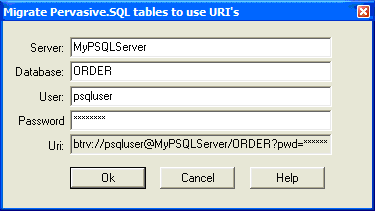
-
The migration process will open all selected tables with an “Open As URI,” composed from the entered URI. A restructure will be performed that will cause the INT file to be rewritten with a URI that can access the table. The restructure will also cause the structure information to be rewritten to the DDF files.