Case Study: Building an MS Word Container Application
This section describes how you can build a simple OLE container application for MS Word 8 documents. The purpose of this case study is to demonstrate basic techniques for embedding document objects in DataFlex applications and controlling and interacting with these documents.
This example assumes that you are already familiar with DataFlex and using the Studio. It also assumes that you have MS Word 8 installed. Different versions of MS Word may operate in different ways and may use a different interface.
Getting Started
-
Start the DataFlex Studio and create a new Workspace named FlexCom Embedded Word Documents.
-
Import the Microsoft Word Document embedded object control into your new workspace. Import the component onto the ActiveX page of the Class Palette (this is the default). See Importing Embedded Objects.
-
Create a new Windows Project and a New Data Entry View. Name the View object oWord_vw. Save each of these components, and make sure the oWord_vw view is added to the application.
Creating the Embedded Document Wrapper Object
-
Open the class palette and drop a cComEmbeddedWordDocument object onto your view. This control was added to the palette when you imported the Word Document component into your workspace.
-
Name the object oWordDocument. Align the object and set the peAnchors property to anAll.
Creating the COM Document Object
Here we will add functionality to either create a new blank Word document or to create a Word document by copying an existing Word file.
-
Add two buttons to the top of your View. Name them oNew_btn and oOpen_btn.
-
Add an Open Dialog control. Name it oOpen_dlg.
-
Set the Filter_String property of oOpen_dlg to
"Document Files|*.doc|All Files|*.*". -
Add the following code to oNew_btn's OnClick event handler:
Procedure OnClick
    Send CreateComObject of oWordDocument
End_Procedure
- Add the following code to oOpen_btn's OnClick event handler:
Procedure OnClick
    String sFileName
    // Use the open file dialog to get the filename we wish to open.
    If (Show_Dialog(oOpen_dlg)) Begin
        Get File_Name of oOpen_dlg To sFileName
        Send CreateComObjectFromFile of oWordDocument sFileName
    End
End_Procedure
Adding More Functionality
Now we will add the ability to save and close the document.
-
Add two more buttons to the top of the oWord_vw view. Name the buttons oClose_btn and oSave_btn.
-
Add a Save As Dialog control. Name it oSave_dlg.
-
Set the Filter_String property of oSave_dlg to
"Document Files|*.doc". -
Add the following code to oClose_btn:
Procedure OnClick
    Boolean bIsCreated
    // Only close a document if we are attached to one.
    Get IsComObjectCreated of oWordDocument To bIsCreated
    If (bIsCreated) Begin
        // Close the document without saving changes.
        Send ReleaseComObject of oWordDocument
    End
End_Procedure // OnClick
- Add the following code to oSave_btn:
Procedure OnClick
    String sFileName
    // Use the open file dialog to get the filename we wish to save.
    If (Show_Dialog(oSave_dlg)) Begin
        Get File_Name of oSave_dlg To sFileName
        Send ComSaveAs of oWordDocument (sFileName) ;
            Nothing Nothing Nothing Nothing Nothing ;
            Nothing Nothing Nothing Nothing Nothing
    End
End_Procedure // OnClick
Note that we are sending Word's Automation interface method ComSaveAs to save the document to file. The only parameter we are passing to this method is the file name. The remaining 10 parameters are optional, so we are passing the Nothing keyword as a placeholder for each of them.
Conclusion
Compile and run your application. You now have an OLE Container application for embedded MS Word documents. Your application can create new documents, copy a document, edit, close, and save.
The screenshot below shows the running application editing an embedded Word document:
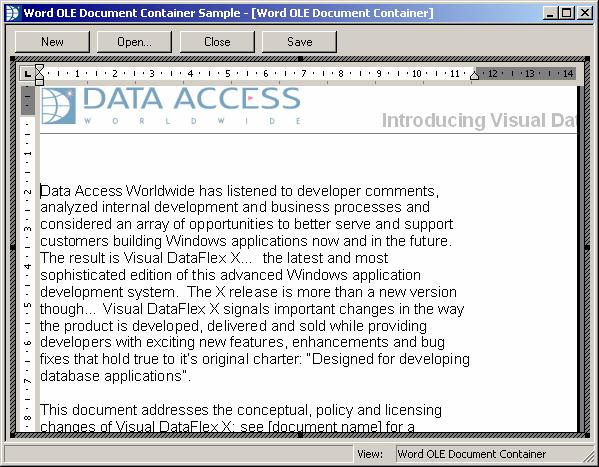
There are a few things to note about using this application:
-
The embedded Word document will not fully draw itself until you click on the object to give it focus. When the document loses focus, the view of the document reverts to being not fully drawn.
-
Clicking New, Open, or Close will destroy any embedded document that the application is currently editing. Remember that an embedded document is entirely contained in the memory space of the container application. Even if you used CreateComObjectFromFile, the COM object will not delete any disk file when destroying an embedded object.
-
You could use the embedded object's Automation Interface to add more functionality, like save prompting and protection against losing edited changes.