About Prompt Lists
Prompt Lists are data aware grids that are primarily meant to be used as a lookup for selecting records. For example, when entering the Customer code of an order header, a prompt list can be invoked to browse the list of customers to select the customer for that order.
Prompt List objects use the cDbCJGridPromptList class. cDbCJGridPromptList extends the cDbCJGrid class. It uses the cDbCJGridColumn class for its column objects and uses an internally created cDbCJGridDataSource class for its datasource object, which is created automatically.
Data Dictionary Associations
Prompt lists are invoked where the Data Entry Object (DEO) that invokes is bound to a table.column that is associated with the prompt list. This is done by setting the Field_Prompt_Object property in the data dictionary for that table.column.
The Studio's Data Dictionary Modeler supports modeling the connection between a data dictionary's column rules and available Prompt List objects. This modeling maintains the various Field_Prompt_Object settings in each data dictionary class.

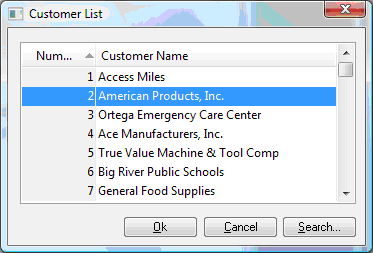
The image above shows a Customer Number DEO. The inlaid prompt button appears automatically because the Customer_Number column is associated with a Prompt List in its data dictionary. Clicking the prompt button would invoke the Prompt List allowing the user to select a Customer record (as shown below).
Modes of Operation
In its default state, the prompt list is invoked by a data entry object (DEO) that uses the same table as the prompt list. A record is selected and the invoking object's DataDictionary is updated. This is a relational update.
The prompt list can be used in other non-relational modes. It can be used to update just the value of the invoking object (a value update). It may be used in a custom fashion where the invoking object determines what is updated (a custom update). It can also be used without any invoking object at all (a non-invoking update).
This is controlled by the peUpdateMode property. Four different modes are supported:
umPromptRelationalumPromptValueumPromptCustomumPromptNonInvoking
These are discussed further below.
Seeding
In the default relational mode (peUpdateMode = umPromptRelational), the prompt list is seeded based on the record value in the invoking object's data dictionary. This means the Prompt List's initially selected row will try to match the current contents of the invoking DEO. For example, if you type "Am" into a Customer Name DEO and invoke that object's Prompt List, the list would pop up with the closest matching customer name to "Am" already selected (as shown in the above image).
This automatic seeding can be switched on or off by setting the Prompt List's pbAutoSeed property.
The prompt list seeding process is very flexible and other modes of seeding are also supported. For a full explanation of prompt list seeding see SeedData.
Updating
In the default relational mode (peUpdateMode = umPromptRelational), selecting a record in the prompt list will result in the selected record being returned to the invoking DEO's Data Dictionary, which will refresh the entire view.
This is controlled by the peUpdateMode property. Four different modes are supported:
umPromptRelational
The prompt list is being used as a relational prompt list. This is the default.
umPromptValue
The prompt list is used to update only the Value property of the invoking object. This means the invoking object's data dictionary (if it has one) will not be affected.
This mode works well when the invoking object is not a data aware control that is served by a data dictionary object structure. For example, a Form object that is used as a record selection for starting a process such as a report.
umPromptCustom
The prompt list has an invoking object but there is no automatic update of selected data. In this case, the process for updating the invoking object can be manually coded. This provides maximum flexibility.
umPromptNonInvoking
The prompt list has no invoking object and no automatic update.
For more information see peUpdateMode.
Searching
Prompt Lists support a Search Dialog. By default, the search dialog is automatically invoked when the user types text while a Prompt List has the focus.
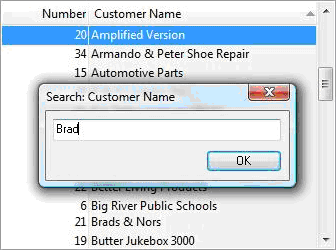
The entered value is used to search the currently sorted column and the closest matching value in this column becomes the selected row.
The ability to automatically invoke the Search Dialog is controlled by setting the pbAutoSearch property.
You can programmatically invoke the Search Dialog by sending the Search message.
Sorting
When a prompt list is active, navigating into a column (with the mouse or by using the Tab / Shift+Tab keys) will cause the prompt list to be sorted around that column's order.
How column navigation sorts the list depends on whether or not the prompt list data is dynamically or statically loaded. If the grid is dynamic, the ordering is determined by ColumnOrdering and the prompt list is refreshed around this index ordering. If the grid is static and fully loaded, the prompt list is sorted around the column cell values.
Dynamic or static data loading is controlled by the prompt list's pbStaticData property.
To control whether or not prompt lists reorder when you navigate into a new column, set pbAutoColumn.
To control whether the prompt list should automatically disable columns that cannot be ordered, set pbAutoEnableColumns.
For more information refer to Sorting cDbCJGrid Data.
Multi-Selection
Static prompt lists support multi-selection. This means that more than one row can be selected and the entire set of selected rows can be accessed by the invoking object.
To support multi-selection, you must set the Prompt List's pbStaticData property to True. You must also set peUpdateMode to an appropriate mode for multi-selection (umPromptCustom or umPromptNonInvoking) and you must set pbMultipleSelection to true.
After you have made your selections, you can then use the SelectedColumnValues or SelectedRowIds methods to return an array of selected data.