Troubleshooting Port 80
Other Programs Running on Port 80
It's possible that other programs or services have been installed and are using port 80. Programs known to take over port 80 include:
- Skype
- SQL Reporting Services
- Proxy servers or web accelerators
- HTTP debugging tools that create a port 80
- Other web servers (e.g., Apache / WAMP tools)
To find out if another program has taken port 80, perform the following steps:
Start a Command Prompt as an Administrator
- Click the Start/Windows button.
- Type
cmd, then right-click and select Run as administrator. - If the User Account Control dialog box appears, confirm that the action it displays is what you want, then click Yes to continue.
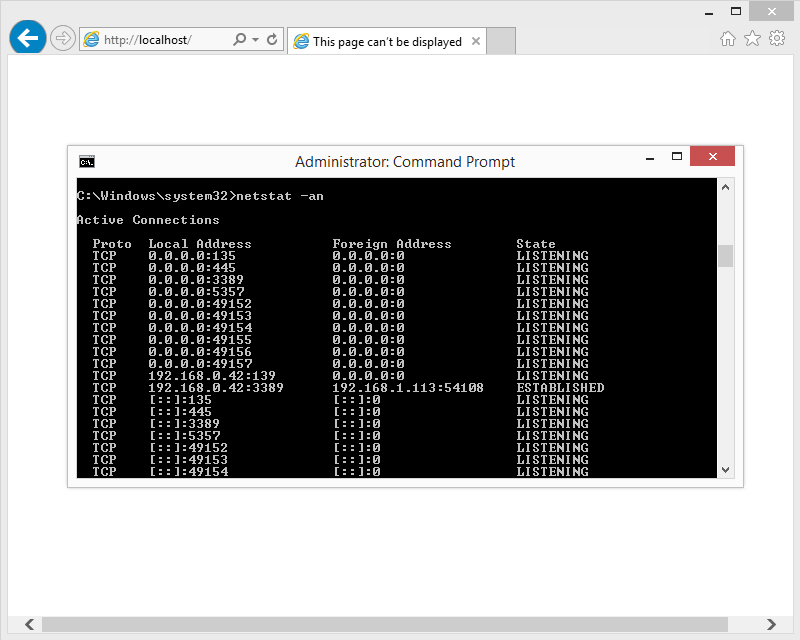
Port 80 is Missing
After starting the administrative command prompt, type the following command:
netstat -an
Press ENTER. A list of active TCP connections will be shown. Find 0.0.0.0:80 under Local Address.
If port 80 is missing, this may indicate a problem with the IIS services. Please follow the steps as described in the Default Website.
Port 80 is Listening
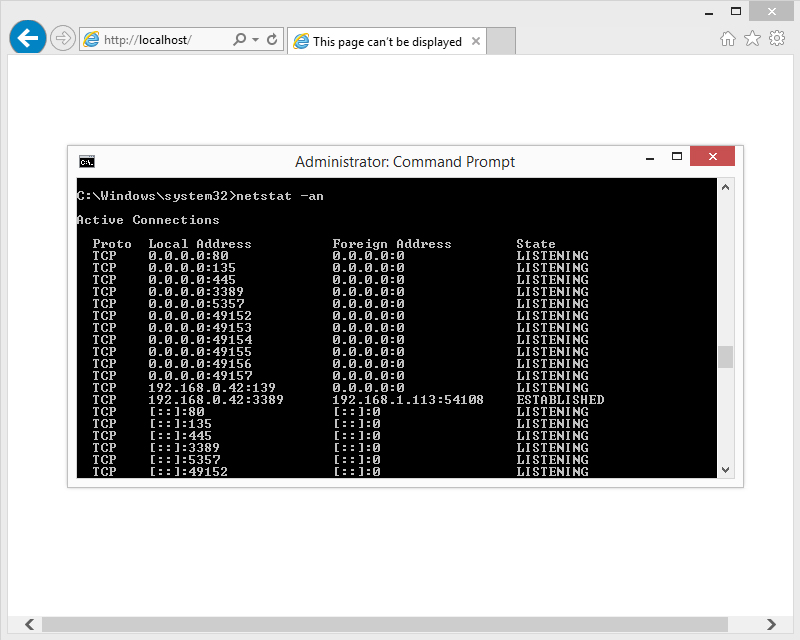
After starting the administrative command prompt, type the following command:
netstat -an
Press ENTER. A list of active TCP connections will be shown. Find 0.0.0.0:80 under Local Address.
If port 80 is listening, this indicates that a program or service is using port 80.
Next, start the IIS Manager.
To Start the Internet Information Services Manager
- Click the Start/Windows button.
- Type
InetMgr.exe, then press ENTER. - If the User Account Control dialog box appears, confirm that the action it displays is what you want, then click Yes to continue.
Click Sites, then click Default Web Site, and in the Actions pane, click Start.
You might encounter the following error: Error 0x80070020 when you try to start the Default Web Site.
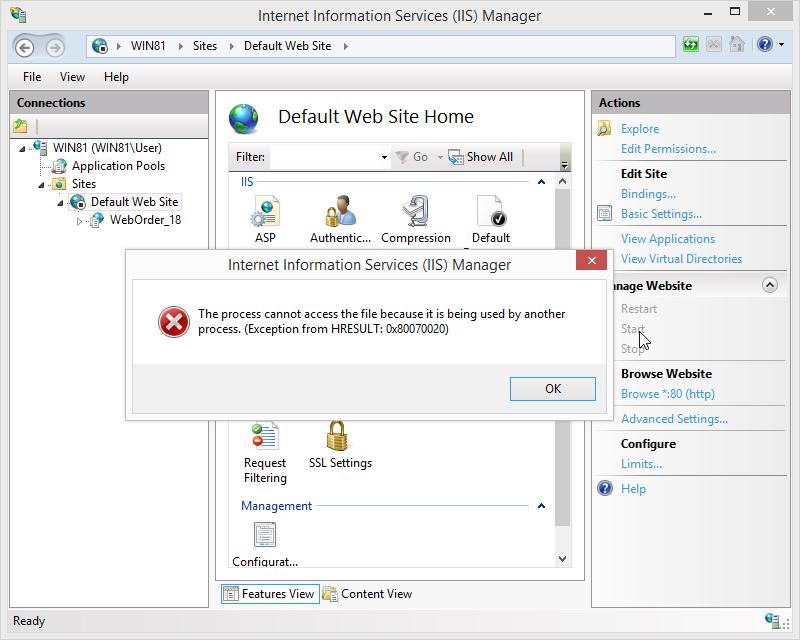
The error code 0x80070020 translates to ERROR_SHARING_VIOLATION (The process cannot access the file because it is being used by another process).
This issue may occur if TCP port 80 and/or 443 is taken by a different service.
Find Out What Program or Service is Using Port 80
After starting the administrative command prompt, type the following command:
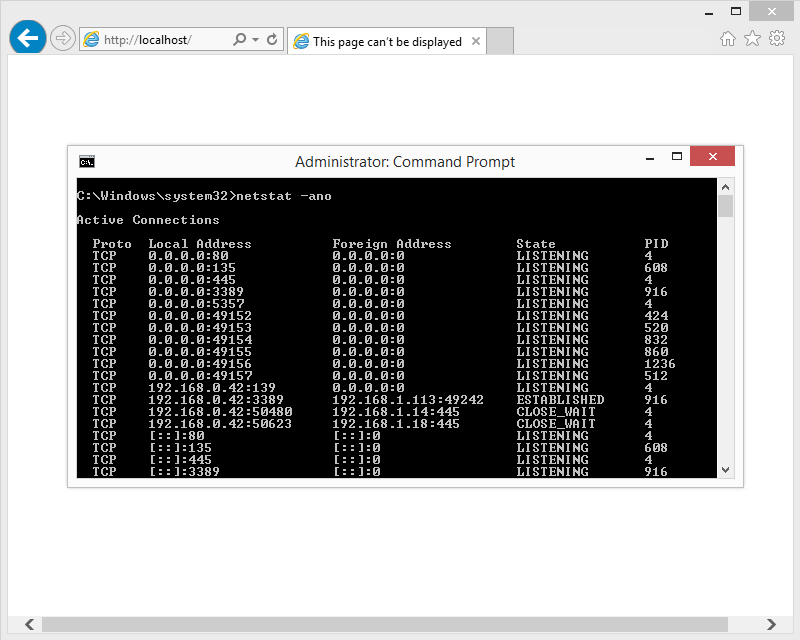
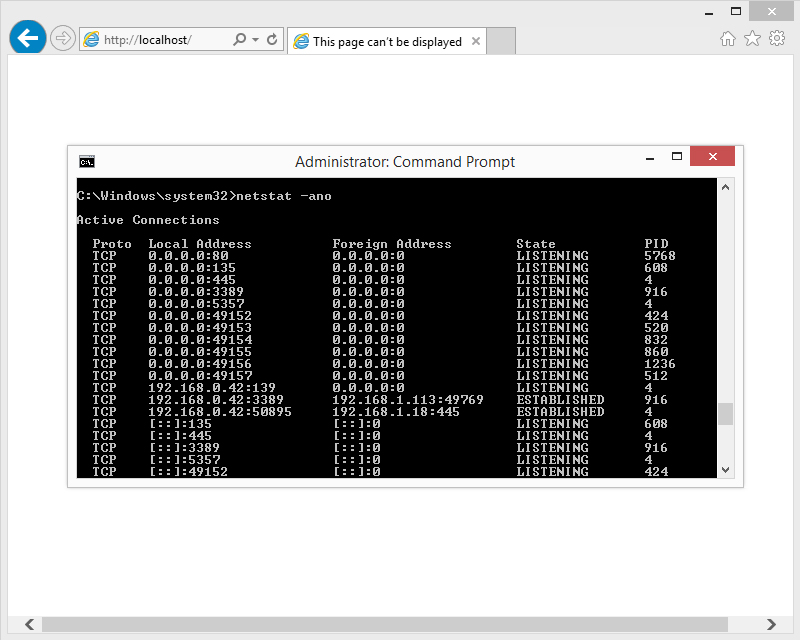
netstat -ano
Press ENTER. A list of active TCP connections will be shown. Find 0.0.0.0:80 under Local Address.
If port 80 is listening and has a PID of 4, and you have temporarily disabled your firewall/antivirus solution, there is a chance that another Microsoft-related service or program is active on port 80.
The following Microsoft services/programs are known to interfere with IIS:
- Microsoft SQL Server Reporting Services (Read for more information)
- Web Deployment Agent Service (Read for more information)
- Skype (Read for more information)
There could be more, but the three listed above are the most common.
If the PID is Other Than 4
For example:
TCP 0.0.0.0:1 0.0.0.0:0 LISTENING 5768
Note: The actual PID will vary from case to case.
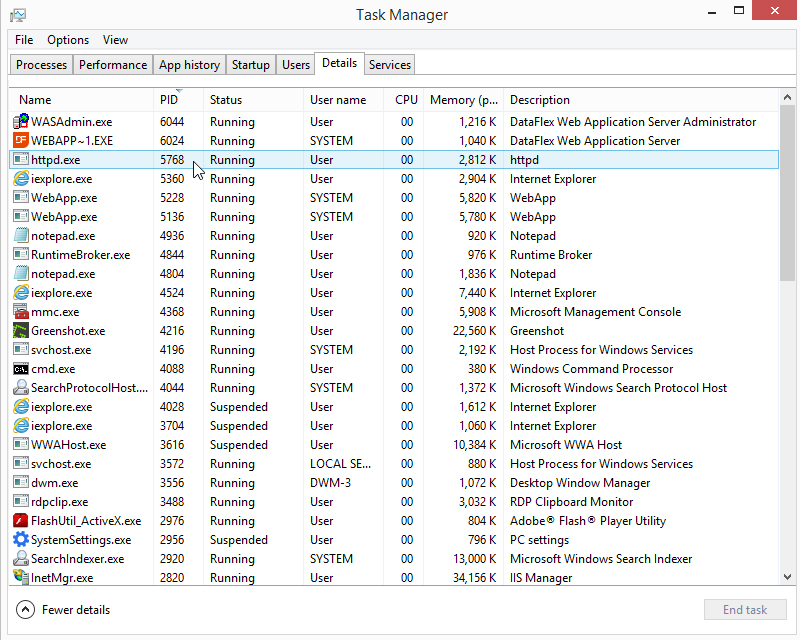
You need to start the Task Manager to find out which process the PID 5768 belongs to and take appropriate action.
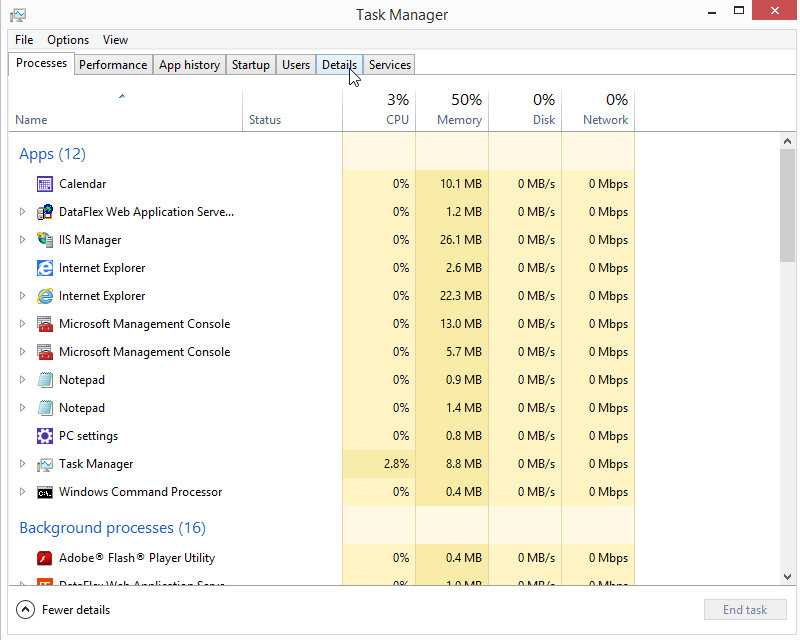
To Start the Task Manager
Right-click the Taskbar, and then click Task Manager.
Tip: You can also open Task Manager by pressing Ctrl+Shift+Esc.
After starting the Task Manager, select Details and sort by PID to find the process belonging to PID 5768.
Stop the process or modify its configuration to make it work with a TCP port other than port 80.
Copyright © 2017 by Data Access Europe. All Rights Reserved.