Check if All IIS Services Are Running
Check if all Internet Information Services are running.
Start a Command Prompt as an Administrator
To start a command prompt as an administrator:
- Click the Start/Windows button.
- Type "cmd", then right-click and select Run as administrator.
- If the User Account Control dialog box appears, confirm that the action it displays is what you want, and click Yes to continue.
After starting the administrative command prompt, type the following command:
iisreset /status
and press ENTER.
A list of services and their status will be shown; all services need to be running for IIS to function properly.
List of Services
- IIS Admin Service (IISADMIN)
- Windows Process Activation Service (WAS)
- World Wide Web Publishing Service (W3SVC)
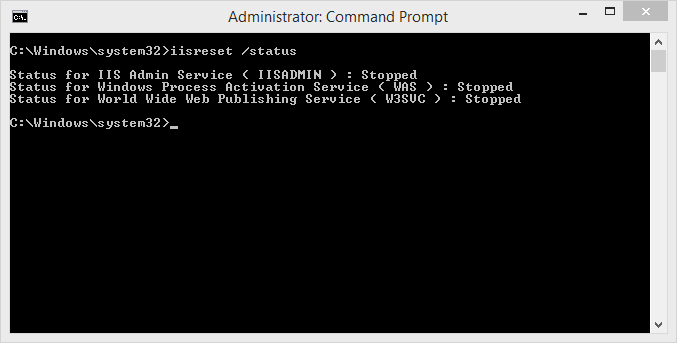
As shown in the command prompt above, all three IIS services are stopped.
To enable the IIS Services, you can start the services by entering the following command:
iisreset /start
and press ENTER.
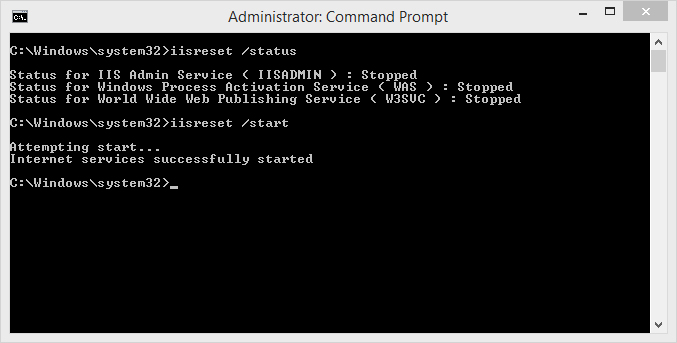
If there aren't any underlying problems with the IIS services, you should see the Internet services successfully started notification.
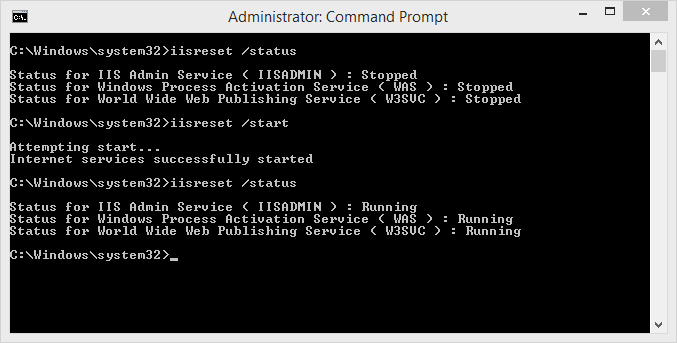
Optionally, you can verify if the services are running by typing:
iisreset /status
and press ENTER. Now the output should show three services as Running.
If you receive a "Start attempt failed." message, please reboot the computer and verify if the IIS services are running by repeating the procedure above or by checking the Default Website in your browser.
If, after rebooting your computer, the services are still stopped or even missing, please continue reading to find out if the IIS services are disabled.
Copyright © 2017 by Data Access Europe. All Rights Reserved.