Skinning Your Windows Applications
This topic will show you how to apply "skins" to your DataFlex Windows projects.
Skinning
Skinning uses the cCJSkinFramework class to transform your applications by applying visual styles to them. Read more about skinning in Skinning Windows Applications.
Important!
This section requires that the "My First Windows Application" Windows project and the "Hello World" view were created in the QuickStart workspace.
If this is not the case, switch to the Creating Your First Windows Application step now and return here when you have completed it.
Skinning a Windows Application
-
If not already open, open the DataFlex Studio and open the QuickStart workspace.
-
Make sure that
MyFirstWindowsApplication.srcis the Current Project selected in Workspace Explorer. -
Open the
MyFirstWindowsApplication.srcfile. You can do so by double-clicking on the file in Workspace Explorer or right-clicking on it and selecting Open. -
Drag a
cCJSkinFrameworkcontrol from the Others group in the Class Palette onto the visual designer. You can drop it anywhere in the visual designer, and the Studio will place it properly.
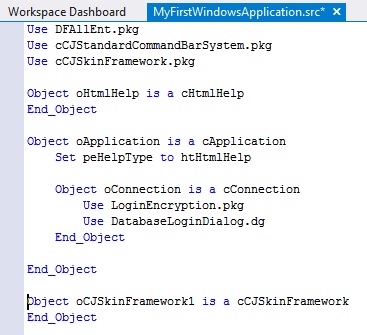
Since the cCJSkinFramework class is not a visually modeled class, the Studio will switch to the code editor view of your project. You will see that the cCJSkinFramework object is located just below the cApplication object.
-
Make sure the
cCJSkinFrameworkobject is the selected object in Code Explorer, then view its properties in the Properties window. -
Click on the Browse button in the Properties window for either
psSkinFileorpsSkinIni.
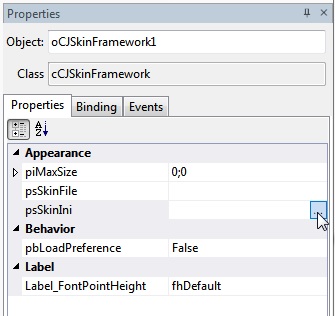
- This will pop up the Skin Selector dialog. If you have custom skins, you could add them to your application by clicking the 'Add Skins' button and browsing for the custom skin file. For now, click the Add System Skins button to import all of the skins that are installed with DataFlex. This will import all of the skins you see here:
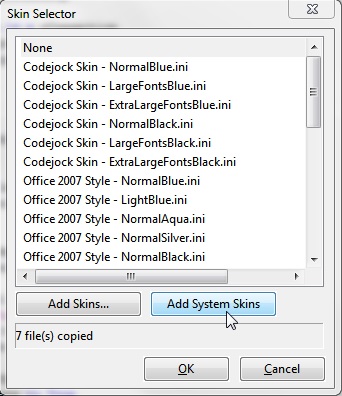
Read more about the Skin Selector dialog here.
-
Select
Codejock Skin - LargeFontsBlack.iniand click Ok. You will see that both thepsSkinFileand thepsSkinIniproperties have been populated by your selection. -
Click on the Run button on the Studio's toolbar. The Studio will compile and run your project.
-
Once the project is running, you will see that the visual style of the application has changed. If you select
HelloWorldfrom the View menu to open the "Hello, World" view, you will see that the style has been applied to the view as well.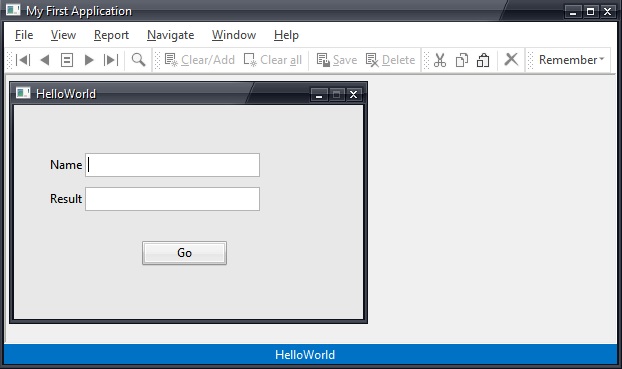
You can now see how simple it is to apply skinning to a DataFlex Windows application.