SyntaxEdit Control
Description
The Syntax Editor control is a Visual Studio .NET style Syntax Editor Control that is a highly sophisticated text editor. It supports advanced features such as:
- Text block grouping
- Syntax colorization
- Line numbers
- Font type
- Pre-defined color schemes
- Bookmarks
- Breakpoints
- And many more advanced features
For a list of all members defined in this module, see SyntaxEdit Members.
Object Model










Remarks
The SyntaxEdit control is capable of enhancing text coloring for a number of specific input file types, such as C/C++ source files, HTML files, etc. Users can create and customize their own text file schemes, which are independent of source files.
The control contains a main configuration file, which can reference any specific configuration files. By default, this file is placed in the same folder as the application executable and is called SyntaxEditor.ini. The main configuration file contains two blocks with references to input file lexicographic schemes in a specific format (see below) and color themes for the editor, which can be applied to the control when editing any file type.
The format of the main configuration file is as follows:
[Schemes]
CPP=Schemas/_cpp.schclass ; Visual C++
HTML=Schemas/_HTML_ASP.schclass ; HTML and ASP
schclass=Schemas/_schclass.schclass ; Codejock Schema
NSI=Schemas/_nsi.schclass ; Nullsoft Installer
Pascal=Schemas/_pascal.schclass ; Pascal
INI=Schemas/_ini.schclass ; INI Files
SQL=Schemas/_sql.schclass ; SQL Query

[Themes]
Default=Themes/colorSchema0.ini
Alternative=Themes/colorSchema1.ini
Intellisense
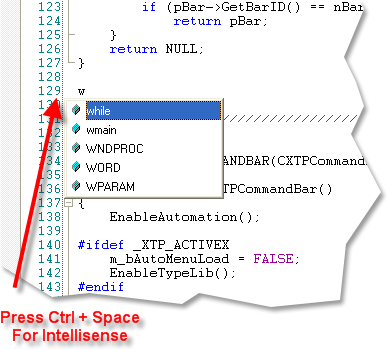
Using the configuration files described above, you can add Intellisense to the syntax editor. To activate Intellisense, press Ctrl + Space anytime during editing.
Syntax Colorization
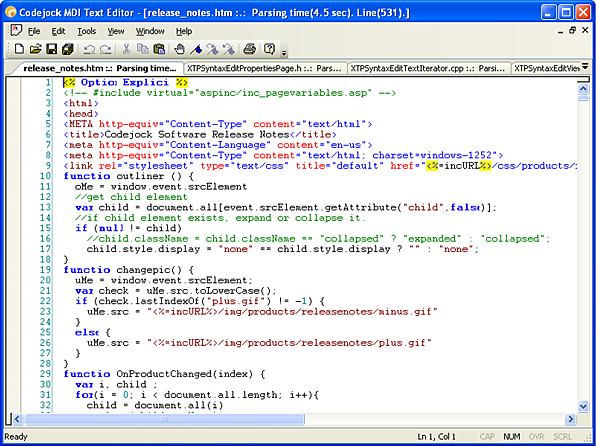
INI file-based syntax colorization allows you to specify specific colorization rules for your text documents. For example, you can specify a different set of colors to be used for .cpp, .h, .html, .asp, etc. files. Color rules can be applied to specific words or groups of words and phrases.
Text Block Grouping
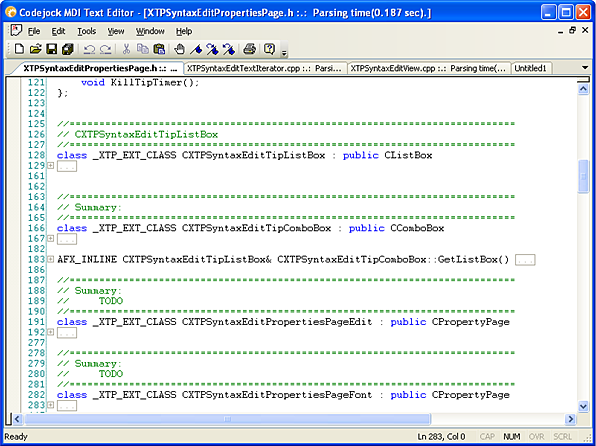
Visual Studio .NET style text block grouping allows you to organize a document of text into blocks that can be hidden with the click of a button. Hidden blocks can display a message stating what has been hidden. This feature minimizes the clutter of very large text documents.
Bookmarks
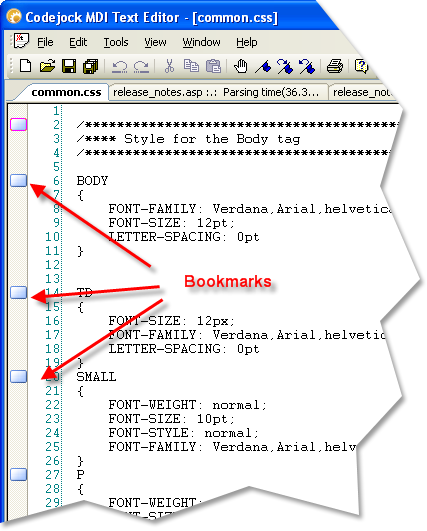
Bookmarks allow you to place a "bookmark" at any position in your text document. You can later cycle through all of your bookmarks to easily return to positions of interest in your document.
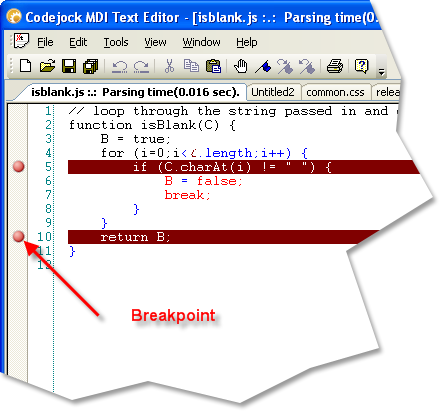
Breakpoints
Visual Studio style breakpoints allow you to place a "breakpoint" at any position in your text document. This can be used for various reasons, such as indicating where code execution will "break" and wait for user interaction in a code compiler.
Splitter Windows
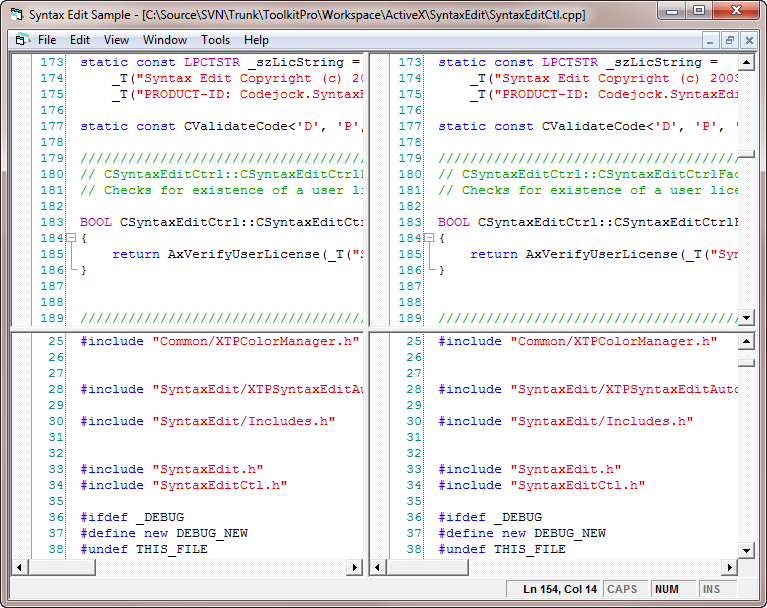
Visual Studio style splitter windows can be used when using the SyntaxEditFrame version of the editor. Splitter windows allow multiple versions of the same file to be displayed in up to four views at the same time.
See Also
Copyright (c) 1998-2024 Codejock Technologies. All rights reserved.