TrackControl Control
See also: TrackControl Members
Grid Control ActiveX Control v24.0
Description
Track Control
For a list of all members defined in this module, see TrackControl members.
Object Model











































Remarks
The Track Control is an extension to the Grid Control. It can do basically everything the Grid Control can do with the addition of track-specific features.
What can it be used for? - Think of it as an editor for video: each block is a small clip, video effect, or music track. By moving the blocks you arrange their order. - For game development, it can hold the screen scenes or sequences of a game. - It can be used for any purpose where time-based arrangement of items is needed.
What components make up the track control? - The various components are shown in the image below.
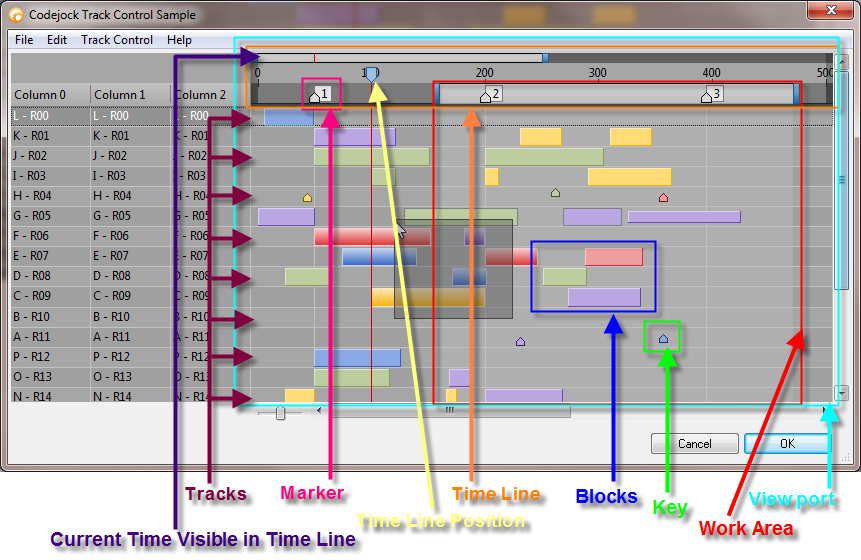
What objects, methods and properties are used to create tracks in the track control?
The following code examples show how to work with the components in the track control. All help will be in reference to units of time, but you can think of time units as whatever you wish.
Note: All code snippets are taken from the complete sample at the bottom of this topic so that you can see how to initialize variables, etc.
Setting the Time Line Bounds (the total length of the timeline):
TrackControl.TimeLineMax = 200
TrackControl.TimeLineMin = 0
Specifying the portion (zoom/scale) of the timeline that will be in view (the View Port):
TrackControl.ViewPortMax = 100
TrackControl.ViewPortMin = 0
This sets the View Port to show 100 units of time out of the 200 units set above.
Specifying the current work area within the timeline. This area has its own scroll bar at the top of the tracks that allows it to be moved. The work area is displayed in the shaded area under the work area scroll bar.
TrackControl.WorkAreaMax = 75
TrackControl.WorkAreaMin = 25
This specifies a work area of 50 units of time (from 25 to 75). The user can move this using the scroll bar and adjust its size.
The current position in the timeline is indicated with the Time Line Position:
TrackControl.TimeLinePosition = 50
The Track Control uses a special item type called a TrackControlItem. This item holds blocks and keys. CreateTrackItem will create a new TrackControlItem that can be added to a GridRecord using the AddItemEx method. Once the TrackControlItem is added to the GridRecord it will be displayed in the Track Control.
Example: adding a track to the Track Control
Dim TrackItem As TrackControlItem
Dim Record As GridRecord
Dim Block As TrackBlock

Set Record = TrackControl.Records.Add

Record.AddItem 1
Record.AddItem 1
Record.AddItem 1

Set TrackItem = TrackControl.CreateTrackItem
Record.AddItemEx TrackItem
Set Block = TrackItem.AddBlock(False, 15, 25)
This code adds three normal columns and then a track item. You must first create a track item using CreateTrackItem. Once created, add it to the record using AddItemEx, then you can add blocks and keys.
Markers are used for block alignment; blocks can be "snapped" to the left or right of these markers.
Dim Marker As TrackMarker
Set Marker = TrackControl.Markers.Add(20, "0")
Marker.Caption = "1"
TrackControl.Markers.Add 70, "2"
TrackControl.Markers.Add 90, "3"
This adds markers at time units 20, 70 and 90.
Keys are used as notes or reference points in the track. They can be added anywhere to mark an event at a given time:
TrackItem.AddBlock True, 70, 0
The first parameter True tells AddBlock to add a key (not a block). The size parameter is ignored for keys.
Blocks represent units of time and can have minimum and maximum lengths:
Dim TrackItem As TrackControlItem
Dim Block As TrackBlock

Set TrackItem = TrackControl.CreateTrackItem
Record.AddItemEx TrackItem

Set Block = TrackItem.AddBlock(False, 15, 25)
Block.MinLength = 15
Block.MaxLength = 30
Block.Color = RGB(255, 219, 117)
This adds a block representing 25 time units, starting at time 15. The first parameter False indicates a block (not a key).
Properties that affect block behavior:
- AllowBlockScale: when False, blocks cannot be resized by the user and MinLength / MaxLength are ignored.
- AllowBlockRemove: when True, blocks can be dragged from one track to a different track; when False, blocks can only be moved within the same track.
- AllowBlockMove: specifies whether the user can move blocks and keys. When False, keys and blocks can't be moved, but they can be resized (if AllowBlockScale allows resizing).
- FlexibleDrag: when True, the track control repositions blocks to allow room for a dragged block. When False, a block can only be dragged to a location if there is enough room without moving other blocks.
Blocks can have different heights and vertical alignments as visual aids:
Block.HeightPercent = 0.5
Block.VerticalAlignment = xtpTrackBlockCenter
A block or key uses the Selected property to indicate selection.
Example
Track Control Sample (Visual Basic) — This sample shows how to create a simple track control.
Private Sub Form_Load()

    Dim Column As GridColumn

    Set Column = TrackControl.Columns.Add(0, "Column 0", 100, True)
    Set Column = TrackControl.Columns.Add(1, "Column 1", 100, True)
    Set Column = TrackControl.Columns.Add(2, "Column 2", 100, True)
    Set Column = TrackControl.Columns.Add(3, "", 500, True)
    Column.AllowDrag = False

    Dim TrackItem As TrackControlItem
    Dim Record As GridRecord
    Dim Block As TrackBlock
    Dim Key As TrackBlock
    Dim i As Integer

    Dim ColorTable
    ColorTable = Array(RGB(138, 168, 228), _
        RGB(255, 219, 117), _
        RGB(189, 205, 159), _
        RGB(240, 158, 159), _
        RGB(186, 166, 225), _
        RGB(154, 191, 180), _
        RGB(247, 182, 131), _
        RGB(216, 171, 192))

    For i = 1 To 20
        Set Record = TrackControl.Records.Add

        Record.AddItem i
        Record.AddItem i
        Record.AddItem i

        Set TrackItem = TrackControl.CreateTrackItem
        Record.AddItemEx TrackItem

        Set Block = TrackItem.AddBlock(False, 70 * Rnd(), 10 + Rnd() * 30)
        Block.Color = ColorTable(Rnd() * 7)

        If (i Mod 3) = 0 Then
            Dim iK As Integer
            For iK = 0 To 3
                Set Key = TrackItem.AddBlock(True, 70 * Rnd(), 0)
                Key.Color = ColorTable(Rnd() * 7)
                Key.Tooltip = "Key # " & iK

                If iK = 0 Then
                    Key.VerticalAlignment = 0
                ElseIf iK = 1 Then
                    Key.VerticalAlignment = 4
                Else
                    Key.VerticalAlignment = 8
                End If
            Next iK
        End If
    Next i

    Dim Marker As TrackMarker
    Set Marker = TrackControl.Markers.Add(20, "0")
    Marker.Caption = "Caption 1"
    TrackControl.Markers.Add 70, "2"
    TrackControl.Markers.Add 90, "3"

    TrackControl.TimeLineMax = 200
    TrackControl.TimeLinePosition = 30
    TrackControl.ViewPortMax = 100
    TrackControl.FlexibleDrag = True

    TrackControl.PaintManager.VerticalGridStyle = xtpGridSolid
    TrackControl.SnapToBlocks = True
    TrackControl.FreeHeightMode = True
    TrackControl.AutoColumnSizing = True

    TrackControl.MaxColumnWidth = 300

    TrackControl.Populate

    wndSlider.Value = (100 - (TrackControl.ViewPortMax - TrackControl.ViewPortMin) * 100 / (TrackControl.TimeLineMax - TrackControl.TimeLineMin))
End Sub
See also: TrackControl Members
Copyright (c) 1998-2024 Codejock Technologies. All rights reserved.