ShellAutoComplete Property
Description
Enables or disables the system's shell auto completion functionality.
Property Type
Read-write property
Syntax (Visual Basic)
Public Property ShellAutoComplete() As [XTPShellAutoCompleteFlags](XtremeCommandBars~Enumerations~XTPShellAutoCompleteFlags_EN.md)
Remarks
Using ShellAutoComplete is similar to what is seen in Windows Explorer or Internet Explorer. As text is typed into the edit control, the shell will drop down a list of suggestions. For example, using the xtpShellAutoCompleteUrlHistory flag will cause the combo box to make suggestions from the Internet Explorer recent history.
Please see the XTPShellAutoCompleteFlags enumeration for a detailed description of the flags that control the operation of ShellAutoComplete.
Both the Combo Box and Edit Control can use the ShellAutoComplete feature.
To use ShellAutoComplete, Auto Complete must be enabled on the system. You can change the Auto Complete settings manually by launching the Internet Options property sheet from the Control Panel and clicking the Content tab, then click on the "AutoComplete" button. Make sure "Use AutoComplete for Web Addresses" is checked.
ShellAutoComplete requires Internet Explorer 5.0 or greater to be installed.
The picture below shows an edit control using the xtpShellAutoCompleteUrlHistory flag. The code in the example below was used to create this sample.
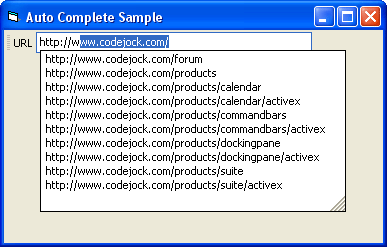
Example
Edit Control ShellAutoComplete Sample (Visual Basic)
This sample illustrates how to use the Shell Auto Complete functionality of the Edit Control.
Private Sub Form_Load()
    Dim Control As CommandBarEdit
    Set Control = CommandBars.ActiveMenuBar.Controls.Add(xtpControlEdit, 100, "URL")
    Control.Width = 200
    Control.ShellAutoComplete = xtpShellAutoCompleteUrlHistory
    Control.EditHint = "Type URL Here"
End Sub
See Also
Copyright (c) 1998-2024 Codejock Technologies. All rights reserved.